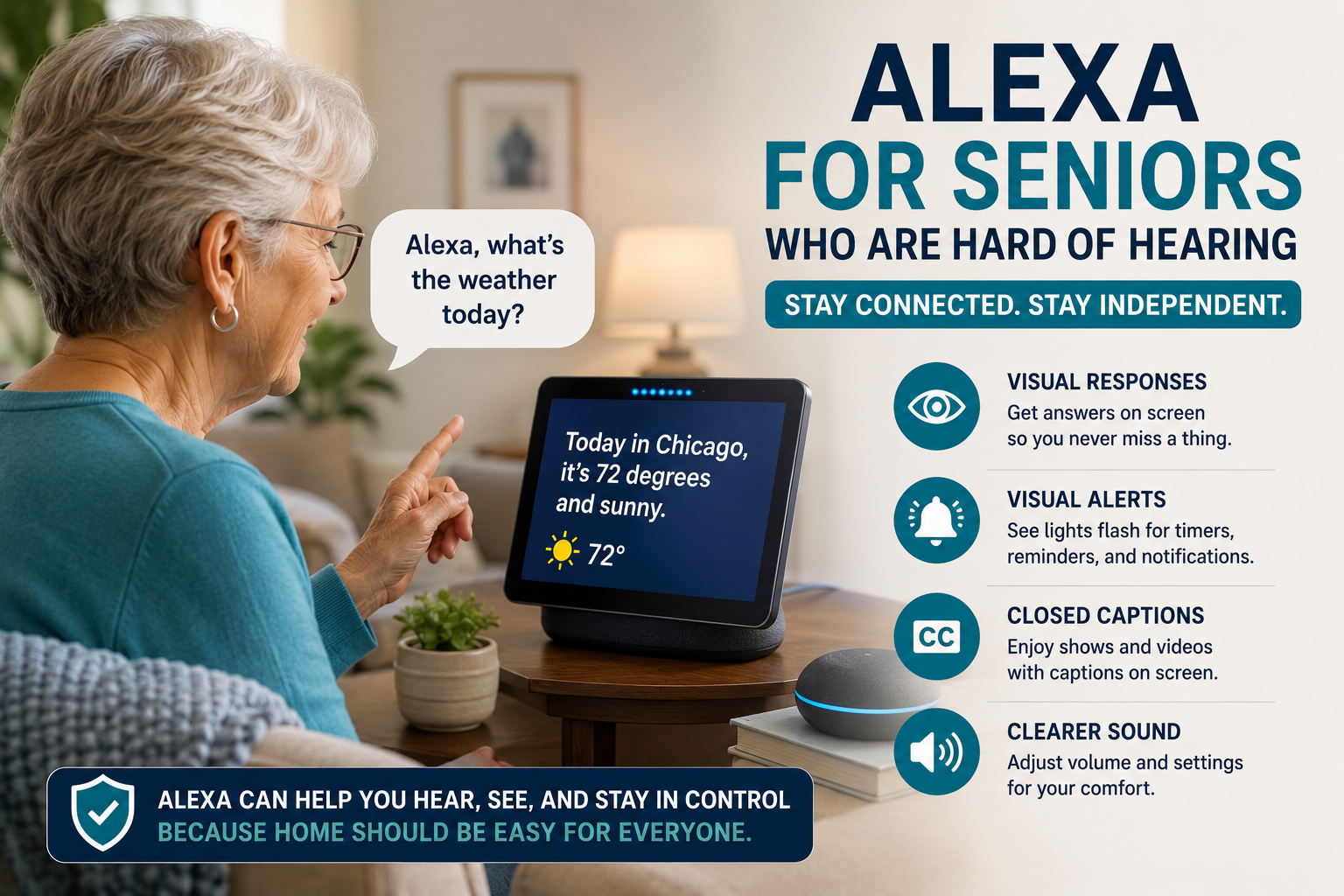
Alexa for Seniors Who Are Hard of Hearing: Setup Tips That Help
Quick Answer
Alexa can help some seniors who are hard of hearing when the device is placed well, volume is adjusted, responses are simple, and visual cues are used where appropriate. Families should test placement, background noise, captions or display options, and whether voice calling is actually comfortable.
For a senior who is hard of hearing, a voice assistant can be helpful or frustrating depending on setup. If Alexa is too quiet, too far away, or competing with a television, the device may feel unreliable even when the idea is good.
This guide focuses on hearing-related setup. For broader Alexa basics, see our Alexa for seniors beginner guide.
Table of Contents
- What Alexa can and cannot do
- Setup checklist
- What to test
- Best first features
- Decision path
- FAQ
What Alexa Can and Cannot Do
Alexa can speak reminders, answer questions, play audio, control lights, and support calls. It cannot guarantee that a hard-of-hearing person will hear every alert, understand every response, or respond in an urgent situation.
Use Alexa as support, not as a substitute for hearing care, caregivers, emergency services, or professional advice.
Setup Checklist
- Place the device in the room where it is needed most.
- Keep it away from loud appliances and television speakers.
- Test volume during real daily conditions.
- Use short routines and predictable phrases.
- Consider a display if visual cues help.
- Keep calls simple and contacts easy to say.
- Test reminders from another room before relying on them.
- Review whether alarms need additional visual support.
What to Test
| Setting | Why It Matters | What Families Should Try |
|---|---|---|
| Volume | Responses must be audible | Test in morning, evening, and with TV on |
| Placement | Distance affects hearing and microphone pickup | Move device closer to common seating |
| Visual display | Some seniors benefit from seeing information | Try large clock, reminders, captions where available |
| Routine wording | Complex phrasing can confuse | Use short, familiar phrases |
| Calling | Audio clarity matters | Test with real family calls |
Best First Features
Family calls
Voice calls can reduce phone friction, but only if your parent can hear and understand the call clearly.
Visual reminders
If using a display, reminders can be both spoken and visible. That may help when audio alone is not enough.
Smart lights
Lights can provide visible feedback when a routine starts or when a room needs to be easier to navigate.
Simple commands
Use our Alexa commands for seniors guide, but begin with only a few phrases.
Use Visual Responses, Not Just More Volume
Turning the speaker up is not always the best answer. On supported Echo devices with a screen, Amazon documents several hearing-accessibility options, including Alexa Captions for Alexa responses, Closed Captioning for supported video, Call Captioning for supported calls, and Real Time Text for some calls or Drop In sessions. Feature availability can vary by device, language, country, and software version, so confirm the current options on the exact Echo Show. See Amazon’s Echo hearing accessibility guide.
Start by enabling one visual feature, then ask the senior to complete a real task: read an Alexa response, answer a family call, or notice a reminder. Test from the normal chair and in ordinary background noise. If the person cannot reliably see or understand the response, do not treat that feature as part of an urgent safety plan.
Know When Alexa Is Not the Right Tool
Alexa does not evaluate or treat hearing loss and does not replace hearing aids, a hearing assessment, or dedicated alerting equipment. The National Institute on Deafness and Other Communication Disorders explains that hearing difficulty can affect understanding instructions, warnings, phones, doorbells, and alarms. If those sounds are being missed, families should seek appropriate hearing-health advice and use alerting methods the person can perceive consistently.
Decision Path
- If volume is the issue: adjust volume and move the device closer.
- If understanding is the issue: simplify routines and use visual cues.
- If background noise is the issue: change placement away from TV or appliances.
- If reminders are missed: add visual support or use another reminder method too.
- If hearing changes are significant: consult a hearing professional.
Privacy and Respect
Accessibility setup should be collaborative. Ask your parent what is easier to hear, what feels annoying, and what they want Alexa to do. Do not turn on features they do not understand or want.
Frequently Asked Questions
Is Alexa good for seniors who are hard of hearing?
It can help if volume, placement, and visual support are configured well. It may not be enough for important alerts.
Is Echo Show better than an Echo speaker?
Sometimes, because the screen can show clocks, reminders, and visual cues. But it can also feel more complicated. Our buying guide can help you choose an Echo around hearing and visual needs.
Can Alexa make phone calls louder?
Volume can be adjusted, but call clarity depends on hearing needs, room noise, and device placement.
Can Alexa replace hearing aids?
No. Alexa is not a hearing device or medical solution.
What should families set up first?
Start with volume, placement, one family contact, and one simple reminder.
30-Minute Setup Review
- Test volume from normal seating.
- Move the device away from noise.
- Try one call.
- Try one reminder.
- Ask what was hard to hear.
- Adjust before adding more features.