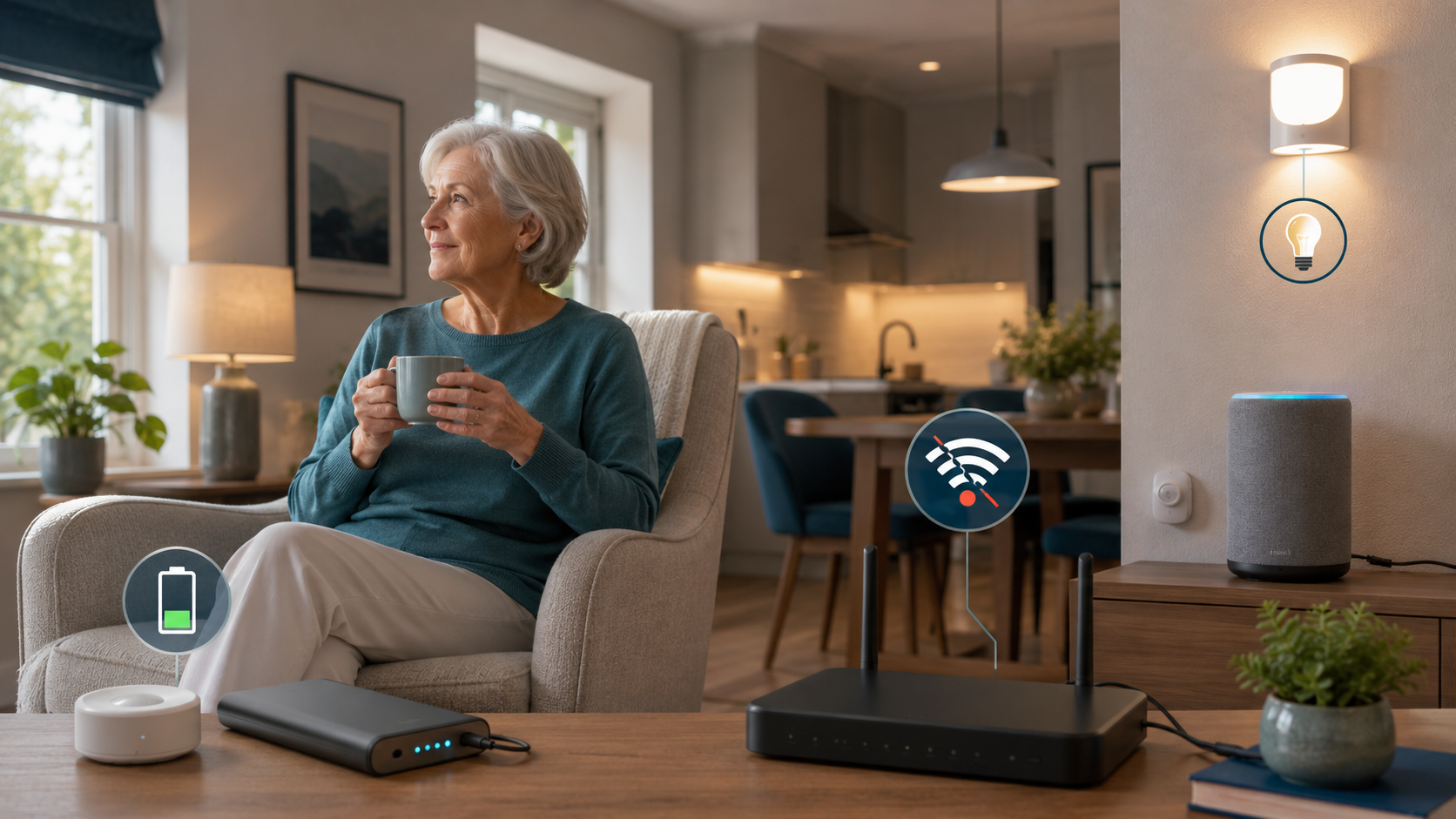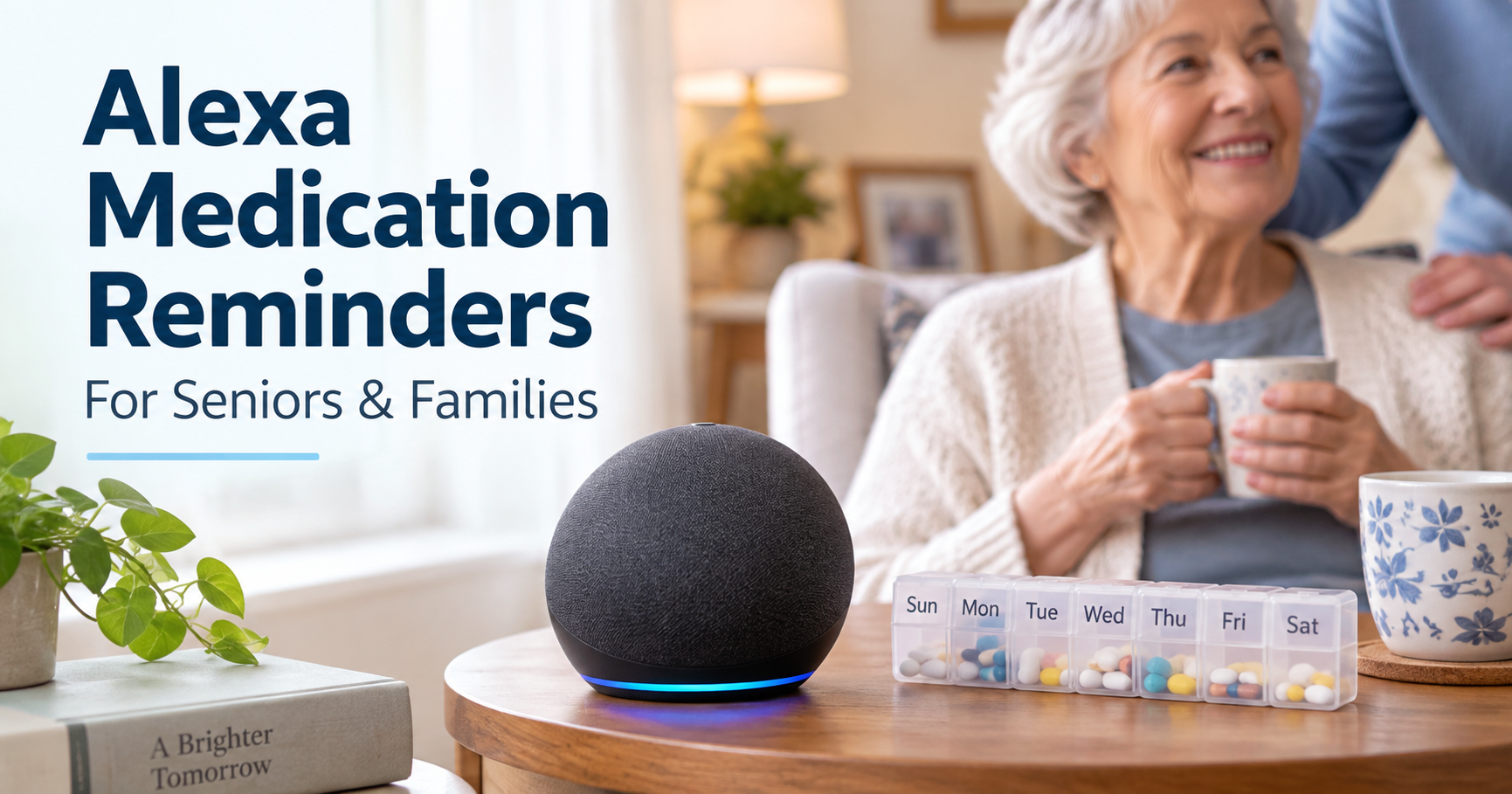
Older woman using a voice assistant to control a table lamp connected to a smart plug.

Smart Plugs for Seniors: Safe Uses, Alexa Setup & What to Avoid

Smart Plugs for Seniors: Safe Uses, Alexa Setup & What to Avoid

Your mom is settled in bed when she realizes the lamp across the room is still on. Or your dad is comfortable in his favorite chair and wants more light without getting up. That is where smart plugs for seniors can help: one familiar lamp becomes easier to switch on or off by voice, or to put on a simple schedule.

The best setup is often just one plug and one lamp. This guide helps you decide whether that would truly help your parent, set it up without fuss, and keep a dependable way to turn the light on when technology fails.

Is a smart plug right for your parent?

  • Probably yes if reaching a lamp switch is difficult and your parent already feels comfortable using Alexa or a phone.
  • Start simpler if all they need is light on the way to the bathroom: a motion-sensing night light needs no app or Wi-Fi.
  • Never use one for heaters, medical equipment, refrigerators, alarms, or anything that must stay powered. A smart plug is a convenience switch, not a safety device.

Smart plugs for seniors: three everyday uses

A bedside lamp

A short phrase such as “Alexa, turn on the bedroom lamp” can spare your parent a reach across the bed. Keep the lamp’s own switch on and its manual control within reach.

Evening lighting

A lamp can come on around dusk or switch off at bedtime. Choose times with your parent; an unexpected blackout while they are reading is not helpful.

A hard-to-reach corner

A small fan, radio, or corner lamp may be easier to control by voice or phone—only when its power draw is safely within the plug’s rating.

If your concern is moving safely through the house at night, use our room-by-room home safety checklist for a wider look. A smart plug cannot replace good lighting, a clear walkway, or a battery light.

What a smart plug actually does

Think of it as a remote-controlled on/off switch between the wall outlet and a lamp. It does not dim an ordinary bulb, detect a fall, check on your parent, or call for help. The lamp’s own switch must remain on for the plug to control it. For voice-assistant limits in an emergency, see what Alexa cannot do for seniors.

Most Wi-Fi plugs need a 2.4 GHz Wi-Fi network—a common home-network setting. “Matter” is simply a compatibility standard that can let a plug work with more than one smart-home platform; it does not make every setup work offline. You can ignore other protocol names unless you already have a particular smart-home system.

Alexa-only or Matter? A quick comparison

Choose the simpler Alexa route

If your parent already uses an Echo, an Alexa-focused plug usually means one app and fewer setup steps. Check the exact listing for Alexa compatibility and the required Wi-Fi band.

Choose Matter for flexibility

A Matter-certified plug may suit a family that could use another voice assistant later. Confirm that the exact plug and your Echo support Matter; some setups need a compatible controller and the maker’s app.

For either route, look for a recognized safety-testing mark such as UL or ETL, check the plug’s amp and watt rating against the appliance, use an indoor plug indoors, and leave its manual button easy to reach. Start with one plug rather than outfitting the whole home.

Set up a smart plug with Alexa in six calm steps

Menu names can change as the Alexa app is updated, so follow the current on-screen prompts when they differ. Set up the Echo first and have the Alexa app ready.

  1. Choose one lamp. Plug it into an outlet with a reliable Wi-Fi signal. Leave the lamp’s own switch on.
  2. Connect the plug. For an Amazon Alexa-focused plug, open Devices → + → Add Device → Plug in the Alexa app. For Tapo or another brand, first follow that maker’s app instructions, then connect it to Alexa or use its Matter pairing steps.
  3. Check the network. Most plugs pair on 2.4 GHz Wi-Fi. If setup stalls, verify the phone and plug are using the home network.
  4. Give it a familiar name. “Bedroom lamp” is clearer than “Plug 1.” Avoid two devices with nearly identical names.
  5. Try it together. Test voice, the app, and the plug’s physical button. Watch the lamp to confirm that each command really worked (Amazon’s smart-home safety guidance).
  6. Leave a simple reminder. A small “Leave this switch ON” label prevents the most common problem. Teach one or two useful phrases, not a long list.

For more natural phrases, see Alexa commands for seniors. Ask your parent before setting schedules or controlling a lamp remotely; a light that changes unexpectedly can feel intrusive.


Safety first: what should never go on a smart plug

Keep high-heat, medical, and always-on devices directly on appropriate power. Do not use a smart plug with space heaters, irons, toasters, hair dryers, oxygen or breathing equipment, refrigerators or medication refrigerators, smoke/CO alarms, medical-alert bases, or the home’s router and modem.

Heaters in particular should be plugged directly into a wall outlet, not a power strip or extension cord (Cornell EHS; Los Angeles County safety bulletin). Avoid daisy-chaining smart plugs or using them with power strips. If an outlet or plug feels loose, warm, or discolored, stop using it and consult an electrician. Follow the appliance and plug manuals.

What happens when Wi-Fi or power goes out?

If the internet fails

Do not rely on Alexa voice control or remote phone control. A plug’s physical button and the lamp’s own switch still work while the house has power. Some makers store schedules on the device—Kasa says its schedules can continue offline—but that is not a promise for every model. Amazon describes possible local control for compatible Matter devices; test your exact plug and Echo rather than assuming it works (Amazon Matter documentation).

Our video on smart-home internet outages explains the wider issue. It is not a hands-on test of the two plugs discussed below.

If the power fails

The plug and the lamp both go dark. A smart plug is never emergency lighting. Keep a flashlight or battery lantern by the bed and a battery night light on the bathroom route. When power returns, plugs may resume in different states; D-Link documents one model’s behavior, but yours may differ. Test yours with the lamp before relying on it.

A few buying checks that matter more than extra features

  • Fit: Confirm Alexa support, 2.4 GHz Wi-Fi, and an accessible manual button.
  • Electrical rating: Keep the item well within the plug’s printed amp and watt limits. Do not assume every model has the same rating.
  • Support: Keep the app and firmware updated. Cloud-based features can disappear if a maker ends support; Belkin’s Wemo notice is one example.
  • Privacy: Energy-monitoring data may reveal household routines. Talk with your parent before enabling it. Most families do not need energy reports for a lamp.
  • Account ownership: Decide who will manage the device and write down the setup details somewhere private.

When a simpler option is better

If your parent dislikes apps, has unreliable Wi-Fi, or only needs a light at night, a motion-sensing night light, touch-control lamp, outlet timer, or handheld-remote outlet may solve the problem with less maintenance. A smart bulb can also work for voice-controlled lighting. Match the tool to the task—not the feature list.

Try this together before you call it done

  • Confirm the lamp can be turned on by voice, app, and the plug’s button.
  • Check that its switch stays on and the button is not hidden behind furniture.
  • Test what happens when the internet is unavailable and when power returns.
  • Keep a battery light nearby and make sure your parent knows the manual option.

If you decide to buy a smart plug

How we chose these options: We reviewed manufacturer instructions, available product listings, and published security advisories on October 21, 2026. We have not tested these plugs hands-on. Prices and availability change, so verify the current listing and seller before buying.

Affiliate disclosure: The Amazon link below is an affiliate link; we may earn a commission at no extra cost to you. As an Amazon Associate I earn from qualifying purchases. See our full affiliate disclosure.

Amazon Smart Plug: A straightforward option for a home already using Echo and Alexa: setup in the Alexa app, no separate hub, and 2.4 GHz Wi-Fi. It is less flexible if you later switch voice assistants. View Amazon Smart Plug on Amazon (affiliate link).

Tapo P125M: A Matter-certified 2.4 GHz option if your family wants broader platform compatibility. Setup may involve the Tapo app and a compatible Matter controller; check the manufacturer’s current specifications and install firmware updates before use. Compare the current retailer listing with the manufacturer’s specifications before buying.

Common questions

Do smart plugs work without Wi-Fi?

The plug’s own button can still switch a lamp while there is power. Alexa voice and remote app control generally need a connection; some schedules or Matter connections may work locally. Test your particular setup.

Can I use one with a space heater?

No—we advise against it. Heaters should be plugged directly into a suitable wall outlet, following their safety instructions.

What if my parent turns the lamp’s switch off?

The smart plug cannot turn the lamp back on. Leave the lamp’s switch on, label it, and show your parent how to use the plug’s physical button.

Technical note for existing Kasa owners

Kasa KP125M is not a current pick. TP-Link has published 2026 Kasa security advisories. We could not confirm the exact hardware/firmware status for this model from the material reviewed, so we would not recommend it here. If you already own Kasa devices, compare each model and hardware version with TP-Link advisory 5342 and advisory 5267, then update its firmware. An older Tapo P125M firmware issue is documented in NVD; that is another reason to update before setup.

Start with one useful change

A single well-placed lamp can make a room more comfortable without adding much to learn. Try it together, keep the manual option, and let your parent decide whether it helps. If Alexa is new in the house, begin with our beginner’s guide to Alexa for seniors.

Sources and further reading

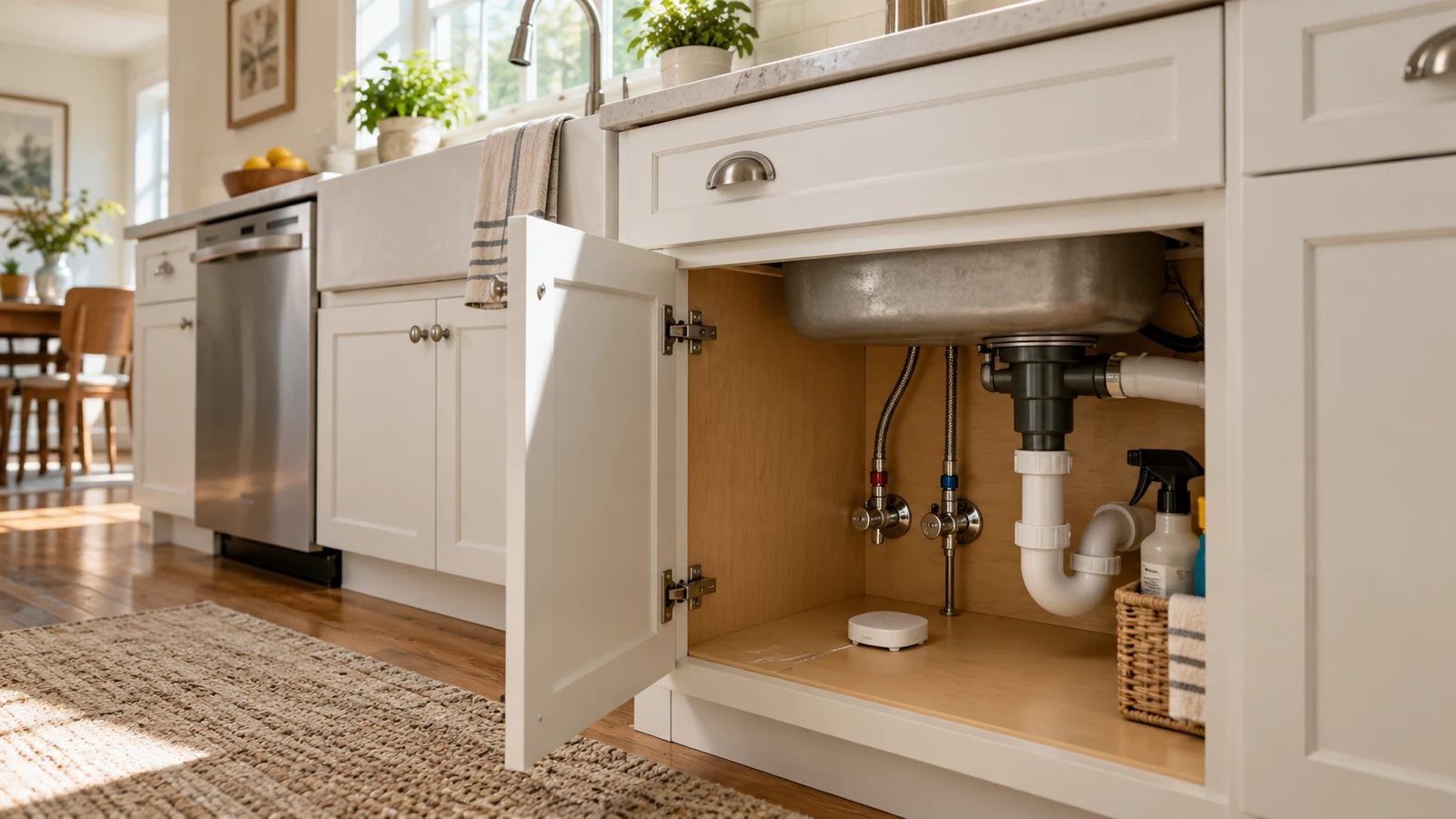
Small water leak sensor on the cabinet floor beneath a kitchen sink

Water Leak Sensors for an Older Parent’s Home: Where to Put Them and What They Can’t Do

Water Leak Sensors for an Older Parent’s Home: Where to Put Them and What They Can’t Do

A water leak sensor can give an older parent and their family an earlier warning when water reaches a particular spot. It is a small addition to a home safety plan, not a promise that every leak will be found or that damage will be prevented. The useful question is not “Which gadget is best?” but “Where could water collect unnoticed, who will receive the alert, and what will they do next?”

Quick answer: Start with the places most likely to hide a leak: under a sink, beside a water heater, or near a washing machine. Put a moisture sensor where water would actually reach its contacts, following that model’s instructions. Choose an audible alarm if someone nearby can hear it; choose remote notifications only after checking the required hub, internet connection, phone settings, and backup plan. Test the entire alert path with the older adult before relying on it.

What a water leak sensor does—and does not do

Most small, floor-level leak sensors detect moisture when water touches their sensing contacts or a connected probe. A basic model may sound an alarm; a connected model may also notify a phone. The EPA WaterSense guide to leak detection distinguishes these point-of-use moisture sensors from systems that monitor water flow at a fixture or the main supply line.

That distinction matters. A sensor under the kitchen sink may notice water pooling there, including a drain leak that a main-line flow monitor might miss. It will not detect a leak behind a wall, at another sink, or upstream of its position. A typical standalone moisture sensor also does not turn off the water; automatic shutoff requires a compatible, separate system. No sensor replaces checking plumbing and appliances or repairing a leak after it is found.

Where to put sensors first

Walk through the home with the older adult, if possible. Look for water connections, hard-to-see floors, past leaks, and places where a puddle could spread before anyone notices. The EPA’s Free of Water Leaks technical sheet identifies fixtures and appliances worth checking, including sinks, toilets, dishwashers, clothes washers, and water heaters. Sensor placement then depends on the room’s layout and the manufacturer’s instructions.

  • Kitchen and bathroom sinks: Put a sensor on the cabinet floor near supply connections or beneath the drain where water would collect. Keep it accessible when household items are moved. Our kitchen safety guide covers the wider room.
  • Toilets: Consider the floor near the tank’s supply connection or behind the toilet, without blocking cleaning or normal use. A floor sensor will not necessarily detect a toilet that silently runs water into the bowl; that is a different problem.
  • Washing machines: A sensor behind or beside the washer can help notice water from a hose or connection, if it is placed where water will reach it and remains retrievable for testing. Do not wedge it into the appliance.
  • Dishwashers: If there is an accessible floor area near the appliance or its supply connection, place a sensor where a leak might emerge. Do not assume a sensor outside the cabinet can detect water trapped beneath the machine.
  • Water heaters: Look at the floor near the unit or its supply connections, following the device’s heat and placement limits. Leave service access clear.
  • Basements and utility areas: Consider low spots or nearby equipment where water might collect. A remote phone alert can be especially useful where a local alarm would not be heard upstairs. For broader room-by-room priorities, use our home safety checklist.

You do not need to cover every possible location on day one. Start with one or two places that are both plausible leak points and easy to inspect. Add coverage only after the first sensors prove easy to maintain.

Placement mistakes that weaken the warning

A sensor has to meet the water. Placing it on a high shelf, far from a likely pooling area, or behind stored boxes can make an alert less likely or harder to investigate. At the same time, a spot regularly splashed during cleaning may cause nuisance alarms. Check the model’s contact or probe orientation, floor-surface requirements, operating temperature, and guidance on humid locations. If a drain or appliance sits inside an enclosed cavity, ask whether the sensor can actually reach the first water that escapes.

Take a photo of each installed location and record its name in the app or family checklist. “Kitchen sink” is more useful than “Sensor 1” when a relative receives an alert from miles away. Keep the sensor out of walking paths and do not make the older adult bend into a difficult space just to silence it.

Local alarm or phone alert: who will really notice?

A local audible alarm is simple: someone in or near the home must hear it and know what it means. Consider hearing loss, closed doors, a basement location, or times when nobody is home. Do not treat a stated alarm volume as proof it will be heard in this particular house; test it from the rooms the resident uses.

A connected sensor can be more useful for a family caregiver who lives elsewhere, but the route from sensor to phone has more links. Depending on the model, it may need a separate hub, Wi-Fi, a powered router, an active internet connection, the manufacturer’s service, and phone notifications that have not been silenced. A battery in the sensor does not by itself keep the hub or router running during a power outage. The EPA recommends considering the alert method, battery requirements, and connection maintenance when choosing a device. Our guides to internet and power outages and backup power explain the wider household plan.

Before purchase, ask: Does this exact model sound locally, send phone alerts, or both? Is a hub included or sold separately? Can more than one trusted person receive notifications? What happens when the internet, hub, or power fails? The answers vary by product; do not infer them from a “smart” label.

A simple selection guide

Household need Feature to verify Important limit
Someone is usually home and can hear alarms Local audible alarm and a test function It may be missed in another room or while away.
Family monitors the home from elsewhere Phone alerts, recipient sharing, and exact hub requirements Remote delivery depends on the full connection path.
The house has frequent outages Battery operation and documented behavior without Wi-Fi or power Sensor battery power does not guarantee phone alerts.
Automatic water shutoff is needed Compatible shutoff system and installation requirements A basic floor sensor cannot shut off a supply line by itself.

For a main-line shutoff device, check pipe compatibility and installation requirements with a qualified plumber. The EPA notes that in-line systems usually require professional installation and that shutoff arrangements must not interfere with home fire-sprinkler protection. This is a different decision from placing a small battery sensor under a sink.

Install and maintain a sensor the family can rely on

The best arrangement is the one someone will actually check. Use this short checklist when setting up a sensor:

  1. Choose a realistic leak location and identify where water would first collect.
  2. Read the exact model’s instructions for contact placement, hub pairing, batteries, and testing.
  3. Place the sensor without blocking access, cleaning, or a walking path; label its location clearly.
  4. Trigger the manufacturer-approved test. Check both the local sound and each intended phone notification, if offered.
  5. Ask the older adult whether the alarm is recognizable and what they would do when it sounds. Assign a family member to respond to remote alerts.
  6. Record a reminder to test it again as the manual directs, check batteries, keep contacts clean, and confirm the sensor has not been moved.
  7. After a Wi-Fi password change, router replacement, or outage, check that connected alerts still work.

The EPA specifically recommends cleaning and correctly positioning moisture sensors, testing according to the user manual, replacing batteries as needed, and checking reconnection after changes to internet service. A periodic family walkthrough is also a chance to inspect visible hoses and connections; an alarm is not a substitute for those checks.

What to do when an alert arrives

Agree on a response plan before the first alert. A remote caregiver can contact the resident, confirm which location triggered, and arrange a trusted local person to look when appropriate. If the water source is clear and it is safe to act, the household may use an accessible shutoff valve or call a plumber. If the source is uncertain, the leak is spreading, or the resident cannot investigate safely, seek qualified local help rather than asking them to move heavy appliances or work around utilities.

Water near electrical equipment is a safety issue, not a routine sensor test. Do not touch wet electrical equipment or stand in water to operate it; seek professional or emergency help as appropriate. Ready.gov’s flood safety guidance reinforces that caution. For a minor nuisance alert with no water found, inspect for splashes, condensation, sensor movement, or dirty contacts, and follow the manufacturer’s troubleshooting steps before trusting it again.

Frequently asked questions

Can a leak sensor prevent water damage?

It can provide an earlier warning at the spot it monitors. The outcome depends on someone receiving the alert and responding in time. A basic sensor does not stop water flow; even an automatic shutoff system has installation and coverage limits.

Will it work if the internet goes out?

That depends on the exact model. A battery-powered sensor may still sound locally, but remote notifications can fail if its hub, router, internet connection, or cloud service is unavailable. Confirm this behavior in the product documentation and test a safe, manufacturer-supported scenario.

How many sensors does an older parent need?

There is no universal number. Prioritize the home’s layout, past leaks, hard-to-see areas, and who can maintain the devices. One well-placed, routinely tested sensor may be more useful than several untested ones.

Can I put one behind the toilet or dishwasher?

Only if the sensor remains within its specified environment, is accessible for maintenance, and sits where escaping water could reach it. A running toilet or water hidden beneath a dishwasher may not wet a nearby floor sensor.

Bottom line

A leak sensor is useful when its location, alert path, and response plan match the household. Start small, test with the older adult, and keep ordinary plumbing checks in the routine. If you are reviewing more than water risks, our room-by-room home safety checklist offers a broader starting point; it does not replace plumbing work or emergency help.

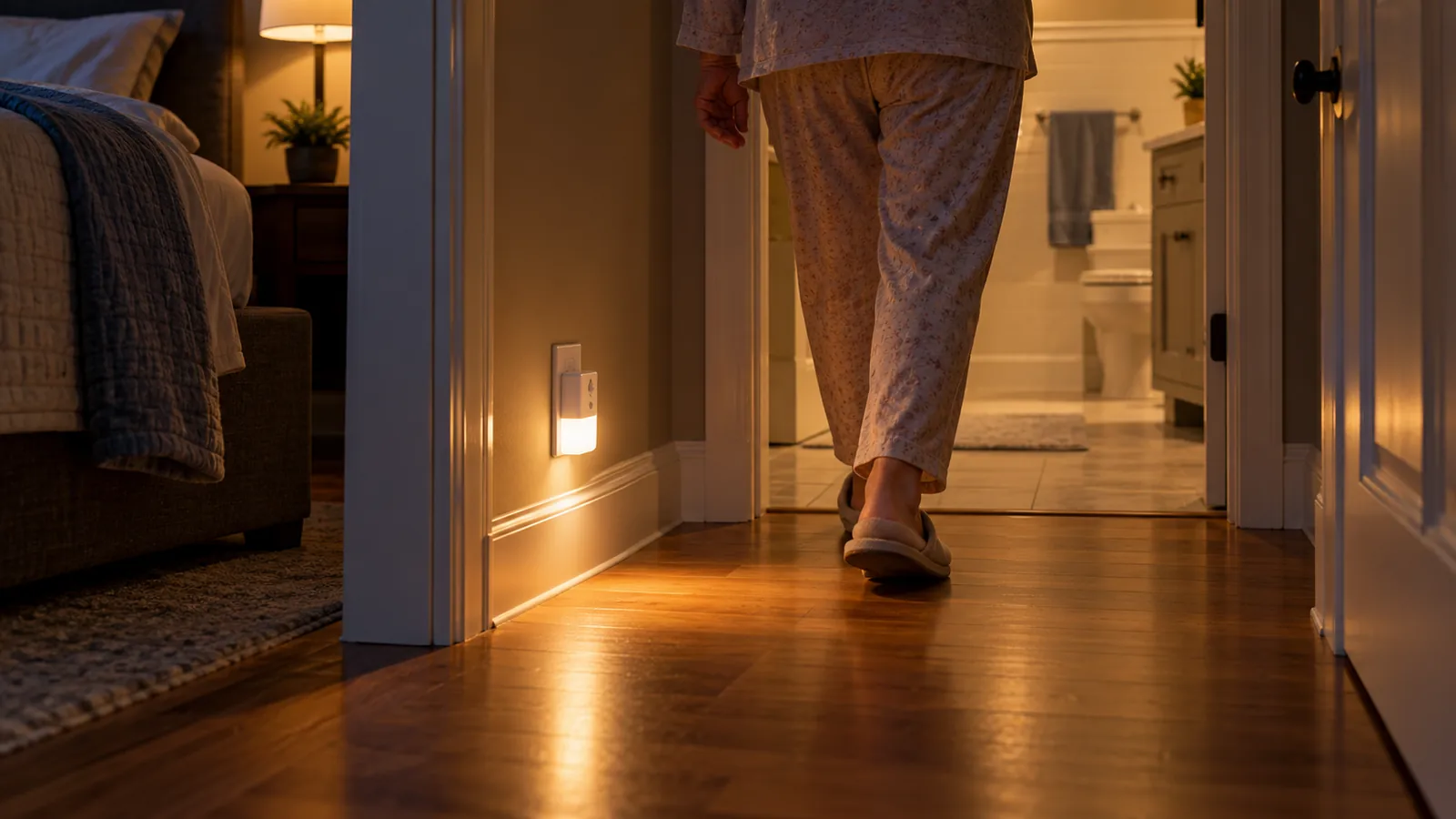
Motion sensor night light illuminating the path to a bathroom at night.

Motion Sensor Night Lights for Seniors: How to Choose Plug-In, Battery or Hardwired

Motion Sensor Night Lights for Seniors: How to Choose Plug-In, Battery or Hardwired

Quick answer: If there is an outlet along the route from the bed to the bathroom, a plug-in motion night light is usually the simplest choice. Use a battery light where there is no outlet, and plan to check the batteries. Hardwired lights suit stairways and long halls when an electrician can install them. Whatever you pick, try it at night before you rely on it (the five-minute test is below), and keep the floor clear. A light helps someone see; it does not make walking safe by itself.

Why families install motion lights

The NIA advises keeping a light on in the bathroom at night or using a night light that turns on automatically in the dark, and putting night lights and light switches close to the bed. It also suggests keeping a flashlight by the bed in case the power goes out. NIH adds good lighting at the top and bottom of stairs and at each end of a long hall. (NIA room-by-room guide, NIH falls topic). A motion sensor does that automatically, so nobody has to find a switch.

This guide is about choosing and checking the light. For the evening routine and the rest of the room, see our nighttime safety checklist.

Choose in 60 seconds

If your situation is… Consider
Outlet near the bed, hallway or bathroom door Plug-in motion night light
No outlet on the route, or a spot where cords are awkward Battery motion light
Stairway, entry or long hall; you are renovating Hardwired motion lighting (electrician)
Frequent power cuts Battery light as well as a flashlight by the bed

The three types, plainly

Plug-in. It sits in an outlet, so the light itself needs no battery changes. It still needs a periodic check that it turns on. Good fit: bedroom, hallway, bathroom with an outlet in reach. Limits: it occupies an outlet and stops when the power fails.

Battery. It can go where there is no outlet. Limits: someone has to replace or recharge the batteries, and a dead battery looks like a broken light. A standalone battery light does not need Wi-Fi, an app or the power grid. It still needs maintenance.

Hardwired. Wired into the home, sometimes with a wall switch. It is the most permanent option and suits stairs and entries. Installation normally needs a licensed electrician and has to meet local code.

Example listing in the plug-in category

The L LOHAS motion night light (2-pack, plug-in) is one example of a plug-in model families look at. The manufacturer’s Amazon listing states: two brightness levels (30 and 60 lumens); three modes (on, off and automatic), where automatic mode turns on when it detects motion in the dark; a motion range of about 3 to 5 meters at up to 120 degrees; an automatic shut-off about 60 seconds after motion stops; a 3000K color temperature; and a maximum power draw of 0.6 W. These are the manufacturer’s stated figures. We have not tested the product or verified them independently. Check the current listing before buying, because prices and specifications change.

Affiliate link: L LOHAS plug-in motion night light, 2-pack, on Amazon Affiliate link — we may earn a commission if you purchase.

What to check before you buy

  1. Does it switch on before the first step? The sensor should detect you as you sit up or stand at the bedside, not two steps later. Range and angle on the box are claims; the night test shows what happens in your room.
  2. Sensor position. Put it where it sees the route, not facing a wall. Mount low enough to light the floor.
  3. Brightness and glare. Look at the light from the bed and from the toilet. If it is uncomfortable to look at, it is too bright or too exposed. Lower brightness or a light that is pointed down can help.
  4. Off delay. The listing says how long it stays on after motion stops. Too short and it may switch off while someone is standing still (for example, at the sink); too long and it stays on without need.
  5. Upkeep. Plug-in: no battery changes, but a periodic check that it still turns on. Battery: who checks the batteries, and when.
  6. Place it fits. Outlet height and position, tight spots, stairs, steam in a bathroom, and any manufacturer limits on where it may be used.
  7. Power cuts. A plug-in light stops with the power. Keep a flashlight by the bed (see our power outage guide and backup power plan).

A five-minute night test (a family member does it first)

Safety comes first. A family member runs this test before the parent uses the light. Keep a backup light ready, such as a second lamp or a flashlight, and never ask a person who is at risk of falling to walk the route in the dark to test it.

  1. Make sure the backup light works. Then turn off the other lights and wait for the night light to switch off.
  2. The family member sits up and stands at the edge of the bed, as the parent would. Does the night light come on before the first step?
  3. Walk the route to the bathroom slowly, and note any dark gap and whether the light follows.
  4. Stop for 30 seconds in the bathroom doorway. Does the light stay on while someone is there? If it switches off, move the light or choose another model.
  5. Look at the light from the bed and from the toilet. Is it harsh?
  6. Ask your parent what feels easy. Their answer matters more than the numbers on the box.

Repeat the test after any move of the light, and check battery models monthly.

What these lights cannot do

  • They do not eliminate the risk of falls. They can make a step or a rug easier to see; they do not fix balance, weakness or medication effects.
  • They are not a medical alert or an emergency call.
  • A basic night light does not message anyone. Alerts need a separate device.
  • Specifications vary, so check each model’s listing.

If walking has become unsteady, talk with a doctor or physical therapist, and see our fall prevention checklist and room-by-room checklist.

FAQ

Is plug-in or battery better for seniors? Plug-in is simpler if there is an outlet on the route. Battery is for places with no outlet and needs a routine check.

Do motion night lights work in a power outage? Plug-in models do not. Battery models do.

Should the light stay on all night? Many families prefer motion activation with a short off delay. Use the night test to decide what works for your parent.

Do I need an electrician? For hardwired lighting, yes. Plug-in and standalone battery lights need no wiring.

Conclusion

Pick the type that fits the route, the outlets and the power situation. Test it at night, keep the path clear, and treat the light as one part of a safer evening, not a guarantee.

Older adult making morning tea, a simple daily routine that can double as a quiet check-in signal.

Daily Check-Ins for a Parent Who Lives Alone: Simple Ways to Know They’re Okay (Without Cameras)

Daily Check-Ins for a Parent Who Lives Alone: Simple Ways to Know They’re Okay (Without Cameras)

Published September 28, 2026

The Short Answer

Start with the simplest option your parent will actually use every day. For most families, that’s an intentional check-in: your parent taps an app once a day, or answers an automated call, and you’re notified only if that doesn’t happen. If a daily action isn’t realistic — because of memory, routine changes, or simply not wanting one more thing to remember — a passive signal from something they already do, like opening the fridge, can work instead. Whichever you choose, agree in advance on what happens if a check-in is missed. That plan matters more than the device.

This isn’t about watching your parent. It’s about one quiet, agreed-on signal that today is a normal day, and a clear next step if it isn’t.

What a Daily Check-In Is (and Isn’t)

A daily check-in has three parts: a signal, a missed-signal alert, and a plan for what you do next. Your parent does something (or something happens automatically) that says "I’m okay today." If that signal doesn’t arrive by an agreed time, you’re notified. And because you decided in advance what a missed check-in means, you’re not left guessing at 9 p.m. whether to call, drive over, or wait.

It isn’t monitoring. It isn’t fall detection. It isn’t proof that your parent is safe — a received check-in only means normal activity happened, and a missed one only means it’s worth reaching out. If you want the broader case for why check-ins and simple signals are often a better starting point than cameras, we cover that in detail separately. This article focuses on the check-in mechanism itself: the options, how reliable each one is, and how to set up a missed-check-in plan that actually works.

Decide Together First

A daily check-in only works if your parent knows about it and agrees to it. Before you pick anything, talk through:

  • What the signal is — an app tap, a phone call, a text reply, or something passive like a door sensor — and make sure your parent understands what’s being shared and with whom.
  • Who sees it, and when. Most check-in apps and services only alert your family after a check-in is missed, not in real time. Say that plainly, since it’s often a relief.
  • That your parent can change or stop it. This is their daily routine and their home. If a check-in method isn’t working for them, revisit it.
  • No hidden devices, and nothing in bedrooms or bathrooms. A daily check-in should never involve something your parent doesn’t know is there.

If memory or judgment is changing. Keep your parent involved in the conversation as much as they’re able to be, and include whoever holds legal decision-making authority, if anyone, along with their care team. Every family’s situation is different here, so for anything specific, talk to your parent’s doctor or a qualified elder-care professional rather than relying on general advice.

Four Kinds of Daily Check-In, From Least to Most Data

"I’m OK" check-in apps.

Your parent opens an app once a day and taps a button to confirm they’re fine. It’s the most intentional option and shares the least information — usually just that one daily tap, plus a way to reach your parent if it doesn’t happen.

Snug Safety is a free daily check-in app built around this idea. The parent taps a check-in in the app once a day before a deadline they choose, or checks in by calling Snug’s toll-free automated line from any phone — a useful fallback if the app itself isn’t working that day. Snug sends reminders in the hours before the deadline, then again around the deadline itself, and treats a check-in as missed 10 minutes after the deadline passes. On the free plan, a missed check-in sends a text to the emergency contacts your parent chose, and they decide what to do next. Snug also offers a paid tier, Snug Dispatch, where a dispatcher calls your parent directly, then the emergency contacts, and coordinates a wellness check with local first responders if no one can confirm your parent is okay.

One thing worth telling your parent directly: Snug stores only the most recent location (it doesn’t keep a location history), and that location is shared with emergency contacts specifically when a check-in is missed. Snug describes itself as not being a real-time tracking service — it’s a check-in tool, not a way to watch where your parent is throughout the day. Snug’s privacy policy states it doesn’t sell data to advertisers or other third parties, and your parent can access or delete their data through the app.

The main limitation: this depends on your parent having a phone nearby and remembering to check in, or knowing to use the call-in line. A dead battery or a silenced phone can produce a false "missed" alert — which is exactly why the plan for a missed check-in (below) starts with a phone call, not panic.

Automated check-in calls or texts.

For a parent who doesn’t use a smartphone, or simply doesn’t want an app, a text- or call-based service can do the same job.

CheckinBee sends a daily text at a time your parent chooses, and they reply "YES" or "OK" to confirm they’re fine. It works on any phone that can send and receive texts — no smartphone or app required. The reminder text arrives about an hour before the check-in time your parent set. If there’s no reply, CheckinBee notifies the "care circle" your parent set up, by text, about 10 minutes after the missed check-in. It’s a subscription service with a free trial period; check current pricing and plan details directly with CheckinBee, since they change and aren’t fixed here. On privacy, CheckinBee’s policy states it won’t sell data to advertisers or other third parties, and your parent can access, amend, or delete their information through the service’s dashboard. CheckinBee is explicit that it isn’t a replacement for a medical alert system or for calling 911 — it’s a daily reassurance signal, not an emergency response service.

The limitation here is similar to an app: it depends on your parent reading and replying to a text. There’s no live dispatcher involved, and no automatic escalation to first responders.

Everyday-object signals.

Some families would rather not add an app or a service at all, and instead use something your parent already does — like opening the refrigerator each morning — as a passive signal. A contact sensor on the fridge door or a kitchen cupboard can quietly log that normal morning activity happened, without your parent doing anything extra.

Be realistic about what this actually gives you, though. Mainstream sensors are built to alert you when something happens — the door opened at 7:42 a.m. — not when it doesn’t. If you want to be told "the fridge hasn’t opened by 11 a.m.," that typically requires setting up an automation yourself, which is more technical than most families want to take on. In practice, a fridge or cupboard sensor works best as something you glance at when you’re wondering how the morning went, not as a system that proactively tells you a check-in was missed. Keep sensors in shared spaces only — never a bedroom or bathroom — and make sure your parent knows it’s there and who can see the activity.

Motion or presence sensors in shared spaces.

A motion sensor in the kitchen or hallway works on the same idea, but with more room for false alarms — a pet, a visiting neighbor, or a grandchild staying over can all register as activity. We go into the privacy tradeoffs of motion sensors in more detail in our guide to monitoring a parent without invading their privacy; the short version here is that a sensor gives you more automatic insight, at the cost of more data and more tuning to avoid false alarms.

When a subscription activity-monitoring platform makes sense.

Some families need more insight than a single sensor or app can give — for example, tracking patterns across several rooms over time. Subscription activity-monitoring platforms exist for this, learning a household’s routine across multiple sensors. They’re worth considering only if the simpler options above genuinely aren’t enough, since they involve more ongoing cost, more data collection, and more dependence on one vendor. Treat this as a "if you need more" tier, not a starting point.

Options Compared

OptionParent does…Camera or mic?Needs smartphone?Internet needed?Cost modelFalse-alarm riskBest for
Snug Safety (app)Taps a daily check-in, or calls a toll-free lineNoNo (app or phone call both work)Yes for the app; a phone call works without dataFree plan, or paid Snug DispatchMissed tap or call if the phone is dead or silencedParents comfortable with a smartphone, or willing to use a call-in line
CheckinBee (text)Replies YES/OK to a daily textNoNoBasic texting onlySubscription with a free trialMissed reply if the phone is off or texts are missedParents without a smartphone, or who dislike apps
Local "R U OK?" programAnswers a daily reassurance callNoNoNo (landline works)Often free where availableMissed call if nobody’s home brieflyParents on a landline, where a local program exists
Fridge or cupboard sensorNothing — opens the fridge as usualNoNoYes (hub/app)One-time hardware costDoesn’t flag a missed morning on its own; family must checkParents who won’t do a daily "check-in" action at all
Motion sensor (shared space)Nothing — moves through the room as usualNoNoYes (hub/app)One-time hardware cost, sometimes subscriptionPets, visitors, routine changesFamilies wanting more automatic activity insight
Subscription activity platformNothing — lives normallyUsually no (verify per vendor)NoYesSubscriptionVaries by vendorFamilies needing multi-room pattern insight, after simpler options fall short

What a Missed Check-In Does and Doesn’t Mean

A missed check-in is a reason to reach out — never proof that something is wrong. And a received check-in is another sign that things look normal — never proof that your parent is safe. Keep both in mind, because the gap between "the app didn’t get a tap" and "something happened" can be caused by a lot of ordinary things:

  • A dead or silenced phone, or one left in another room.
  • A Wi-Fi or power outage, which can also affect sensors and hubs. (If outages are common where your parent lives, it’s worth having a basic backup power plan so essential devices, including check-in tools, keep working.)
  • A visitor, an early appointment, or simply a morning that ran later than usual.
  • Delayed notifications on the service’s end.

None of this means you should ignore a missed check-in — it means your first response should be a phone call, not alarm. That’s exactly why the next section matters.

Set Up Your Missed-Check-In Plan

However you choose to receive a daily signal, decide these things together before you need them:

  • Check-in time. Pick a time that matches your parent’s actual routine — mid-morning works for most people, but a very early riser or a night owl may need something different.
  • Grace period. Most services build in a short buffer automatically — Snug treats a check-in as missed and starts escalating 10 minutes after the deadline; CheckinBee notifies the care circle about 10 minutes after a missed check-in too. Decide, separately, how long you personally want to wait before you call.
  • First contact: a phone call. If a check-in is missed, call your parent directly first. Most "missed" check-ins turn out to be a forgotten tap or a phone left in another room.
  • Second step: a local contact or neighbor. If your parent doesn’t answer, have a plan for who’s nearby and willing to look in — a neighbor, a friend, or another family member.
  • When to escalate further. Agree in advance on what would make you call for a wellness check or contact emergency services, so you’re not deciding that for the first time in a stressful moment.

For the in-the-moment steps if your parent doesn’t pick up the phone, see what to do when a parent doesn’t answer. If you’re also building a broader daily-contact routine around phone calls, our guide to checking in without calling all day covers how to set that rhythm.

Keep It Working

A check-in system only helps if it keeps running. A few habits make that more likely:

  • Check battery levels on sensors and hubs periodically — most show a low-battery warning in their app, but it’s easy to miss.
  • Make sure alerts are actually reaching the right people; test the missed-check-in flow occasionally so you know it works before you need it.
  • Revisit the setup every few months, or after any change in your parent’s routine, health, or living situation. What worked six months ago may need adjusting.

When a Daily Check-In Isn’t Enough

A daily check-in tells you whether today looks like a normal day. It isn’t designed to detect a fall, a sudden medical event, or an emergency in progress — and it shouldn’t be treated as if it can. If your parent’s fall risk or health needs are increasing, that’s a conversation to have with their care team about whether a medical alert system is a better fit. We cover emergency response setups separately. For families who already have a medical alert subscription, it’s worth knowing that some providers, including LifeFone, offer a daily check-in feature as an add-on — either a button press on the home base unit or a scheduled outbound call — on top of their emergency response service.

FAQ

Is a daily check-in the same as monitoring? No. Monitoring generally implies ongoing observation. A daily check-in is a single agreed-on signal, once a day, with your parent aware of and in control of it.

What happens if my parent forgets to check in? Depending on the service, you’ll get an alert after a short grace period — both Snug and CheckinBee notify contacts about 10 minutes after a missed check-in. Your first step should be a phone call, since forgetting is far more common than an emergency.

Do check-in apps work without a smartphone? Not the app-based ones directly, but there are alternatives: Snug offers a toll-free call-in line, and CheckinBee works over basic text messaging on any phone that can send and receive texts.

Can a sensor tell if my parent has fallen? No. Consumer sensors like fridge or motion sensors aren’t fall-detection devices, and you shouldn’t rely on one to catch a fall. If fall detection is a real concern, that’s a separate conversation about medical alert systems with your parent’s care team.

Are there free daily check-in options? Snug Safety offers a free plan. Some communities also run free daily reassurance-call programs through a local sheriff’s office, police department, or town — ask your parent’s local non-emergency line or senior services office whether one exists nearby, since availability varies by location. The Eldercare Locator, a public service of the U.S. Administration for Community Living (eldercare.acl.gov, 1-800-677-1116), is another way to find senior services offices near your parent that may know what’s available locally.

What if my parent doesn’t want any of this? Respect that. A daily check-in only works with your parent’s buy-in — pushing it on someone who doesn’t want it tends to backfire, and there may be other ways to stay connected that feel less like being checked up on.

The Bottom Line

You don’t need cameras or constant calls to know your parent is okay — you need one agreed-on daily signal and a clear plan for what happens if it’s missed. Start with the simplest option your parent will actually keep up with, whether that’s an app tap, a phone call, or something passive like a sensor. Then spend more time on the plan than the technology: who gets called first, who checks in person, and when it’s time to escalate. That plan is what actually protects your parent — the device is just how the signal gets to you.

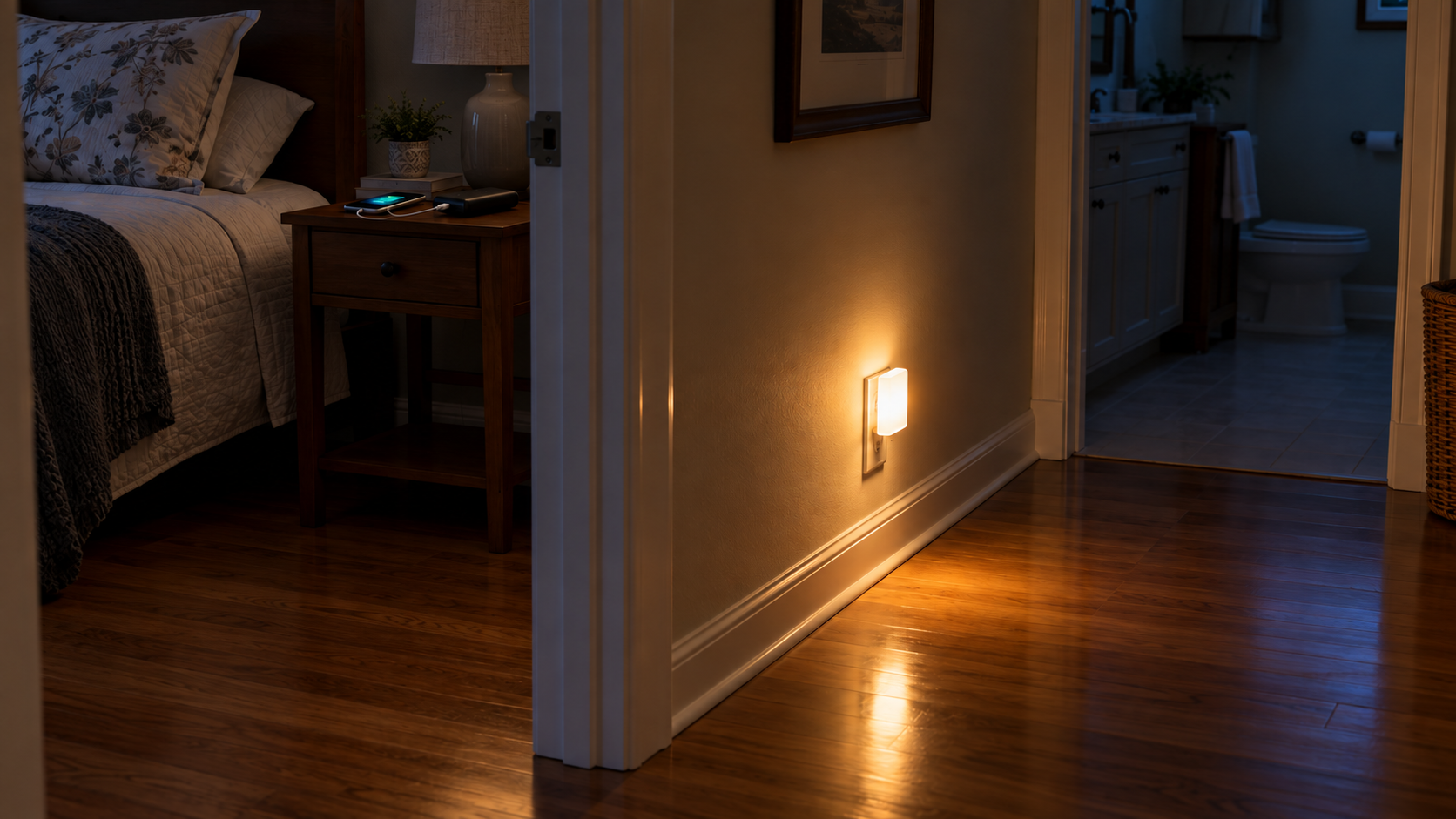
Plug-in emergency light glowing in a dark hallway beside a phone charging from a battery bank.

Backup Power for Seniors: A Simple Plan to Keep Essential Devices Working in an Outage

Backup Power for Seniors: A Simple Plan to Keep Essential Devices Working in an Outage

Updated September 28, 2026

When the power goes out at your parent’s home, the first question isn’t whether Alexa still works. It’s simpler than that: can Mom see where she’s walking, can she call you, and can you reach her?

This guide starts from that question. It doesn’t try to keep a whole smart home running. It helps you decide what actually needs backup power, in what order, and which options work without your parent having to do anything. The setup and the upkeep are the family’s job, done calmly and well before the next outage.

This page contains affiliate links. If you buy through one, Senior Smart Home Lab may earn a commission at no extra cost to you. As an Amazon Associate I earn from qualifying purchases.

The Short Answer

Protect things in this order, and stop once you’ve covered what your parent really needs:

  1. Light. A plug-in emergency light that turns on by itself when the power fails.
  2. The phone in their hand. A charged cellphone, plus a simple power bank to top it up.
  3. The home phone. Find out whether it will keep working without power, and what backup the provider offers.
  4. Internet. A small battery backup (UPS) for the modem and router, if staying online really matters.
  5. Larger backup, only if needed. A compact power station, for households with frequent or long outages and someone willing to maintain it.

For most parents, the first two steps plus a router battery backup cover the essentials. Anything beyond that is optional.

Before You Buy Anything: What This Guide Does and Doesn’t Cover

This guide covers everyday home devices: lights, phones, the router and similar low-power electronics.

If your parent uses powered medical equipment, such as an oxygen concentrator, CPAP, ventilator, powered bed or medication that must stay refrigerated, that backup plan belongs with their doctor, the device supplier and the electric utility. The FDA advises checking with the device manufacturer or distributor about whether the device can run on batteries or a generator, and letting the electric company and fire department know that someone at home depends on powered medical equipment. Ready.gov likewise recommends talking to a doctor about how to power medical devices during an outage.

Nothing in this guide, including power banks, battery backups and power stations, is meant to replace that medical plan. If your parent uses equipment like this, keep this guide for the rest of the house and handle the medical side separately.

What Actually Stops Working When the Power Goes Out

Anything that plugs into the wall stops, and anything that depends on the internet can stop too, even if it still has power. That includes Alexa, smart-home routines and Wi-Fi calling. We explain what fails, what keeps working and why in what happens to a senior’s smart home when the internet or power goes out. This guide picks up from there: what to prepare and buy.

The Priority Ladder: What’s Worth Keeping On

Light First

The first real risk in an outage is walking through a dark house. An older adult getting up at night to use the bathroom suddenly has no hallway light, no bathroom light and possibly no idea where the flashlight is.

That’s why light comes first, and why the best emergency light is one that turns itself on. A light your parent has to find and switch on is a light they may not reach in time. If nighttime moves around the house are already a concern, our guides to nighttime safety at home and the fall prevention checklist are worth pairing with this step.

Ready.gov recommends flashlights and battery-powered lights over candles during an outage.

The Phone in Their Hand

In many outages, the most dependable link between you and your parent is their cellphone on the mobile network, not the home Wi-Fi. A cellphone doesn’t need the home’s power or internet to make calls, so it can often keep working when the house loses both. Cell networks can also be affected in larger outages, though, so treat the cellphone as your best route, not a guaranteed one.

The weak point is the phone’s battery. Keep the phone charged as a habit, and keep a small power bank nearby, charged and ready. It’s also worth agreeing in advance what happens if your parent doesn’t answer during an outage. Our guide on what to do when an elderly parent doesn’t answer the phone can help you set that plan now rather than in the moment.

The Home Phone

Whether a landline keeps working depends on how it’s delivered.

  • Home phone service that isn’t powered through the phone line itself (many cable, fiber and internet-based VoIP services) generally needs power at the home to work. Under FCC rules adopted in 2015, providers of this kind of home phone service must offer customers the option to buy backup power: at least 8 hours, plus a 24-hour option. It isn’t added automatically; the customer decides whether to buy it. AT&T, for example, describes its battery backup as keeping the phone working, warns that also running its internet service will drain the battery quickly, and suggests up to 24 hours of backup for households with medical or safety power needs.
  • Cordless phones: many have a base station that plugs into a wall outlet. Check your parent’s phone. If the base needs wall power and has no battery of its own, the handsets may stop working in an outage even when the line itself is still live.

What to do:

  • Call the provider and ask plainly: "Will this phone work in a power outage, and what backup options do you offer?"
  • If the parent relies on the home phone, consider the provider’s backup option, and keep the cellphone charged as a second route.

Internet and Alexa

Keeping the modem and router powered can keep Wi-Fi, Alexa and video calls going during a short, local outage. But there’s a catch families often miss: your parent’s router can only reach the internet if the provider’s network is still up. If the outage is wide enough to take the provider’s equipment down, a battery on the router won’t help.

That’s why internet comes fourth on the ladder, not first. It’s worth protecting, especially if your parent relies on Alexa for medication reminders or an emergency routine. Even so, every Alexa-based routine should have a manual fallback: a paper reminder list, a phone number written by the bed, and a charged cellphone.

Backup Options Compared

OptionWhat it keeps workingWorks automatically?Best forUpkeepPlacement / weight
Auto-on emergency lightLight in a hallway, bedroom or bathroomYes, it turns on when the power failsEvery household, especially for nighttime movesVery low; it recharges while plugged inWall outlet; very light
Phone power bankCellphone chargingNo, someone plugs the phone inKeeping the main line of contact aliveMust be charged ahead of time and topped upNightstand; pocket-sized
Provider’s phone battery backup (VoIP lines)Home phone serviceDepends on the provider’s equipment; ask themParents who rely on the landlineBattery replacement per providerInstalled with provider equipment
Small UPS for the routerModem, router and one or two small devicesYes, it switches to battery when the power failsShort outages where Wi-Fi or Alexa mattersBattery replacement over time; the family configures the alarmFloor or desk, next to the router; stays put
Compact power stationSeveral small devices over a longer outageOnly on some models, and only if set up that wayFrequent or longer outages, with a family member to maintain itRegular charging and checksOne fixed spot; weight varies by model, so check it before buying

The Setup We’d Choose for Most Parents

This is the combination we’d put in place for most older parents before the next outage. It’s built around one rule: automatic beats manual.

Auto-On Emergency Lights

For the first rung of the ladder, we’d choose the GE 3-in-1 Rechargeable Power Failure LED Night Light (model 11281), made by Jasco under the GE brand.

It does three jobs:

  • It’s an everyday plug-in night light.
  • It’s an emergency light that switches on by itself when the power fails.
  • It comes off the wall as a handheld flashlight.

Jasco lists it at 5 lumens in night-light mode and 20 lumens as a power-failure light or flashlight. It has a dusk-to-dawn sensor and a built-in rechargeable battery that charges while plugged in, so there are no batteries to replace. The prongs fold in for handheld use, and it weighs about 2.9 ounces. Jasco says it is UL certified.

Why this one fits: your parent doesn’t have to do anything. The power fails and the light comes on. The same unit is useful every night as a low night light. Based on its 20-lumen rating, think of it as a light for finding your way rather than for lighting a whole room, which is the job it needs to do in a hallway at 3 a.m.

How many: one for each route your parent actually walks at night, usually bedroom to bathroom, the hallway, and the top of any stairs.

Jasco doesn’t publish a battery runtime for this light, and we don’t quote one.

A Simple Phone Battery Bank

What to look for:

  • Around 10,000mAh. A common size that balances capacity against size and weight. Check the listed weight before buying.
  • A built-in USB-C cable, so there’s no separate cable to lose. Check that it matches your parent’s phone.
  • A clear battery percentage display, not just a row of tiny dots.
  • Simple controls and no app.
  • Manageable size and weight for your parent’s hand and bedside table.
  • A reputable manufacturer that states its safety certification clearly.

Before buying any power bank, check for current recalls on cpsc.gov. Power banks are a product category where recalls happen regularly, so a quick look at the specific model is worth the minute it takes.

Give the power bank a fixed home, such as the nightstand next to the phone. Make topping it up part of your regular visits. A power bank only helps if it’s charged before the outage, not after.

A Small UPS for the Router

If staying online matters, we’d choose the APC Back-UPS 600VA (model BE600M1) and put it next to the modem and router.

A UPS (uninterruptible power supply) sits between the wall and your devices. When the power fails, it switches to its battery automatically, and your parent doesn’t touch anything.

What APC specifies for the BE600M1:

  • 600VA / 330W.
  • Seven outlets: five with battery backup and surge protection, two with surge protection only.
  • One USB charging port.
  • A sealed lead-acid battery that the owner can replace (APC part APCRBC154).
  • Certification to UL 1778, the safety standard for UPS equipment.
  • About 7.7 lb.

Two setup details matter more than any spec:

  1. Plug the modem and router into the battery-backup outlets, not the surge-only ones. It’s an easy mistake, and it means nothing stays on in an outage.
  2. Deal with the alarm before your parent ever hears it. The UPS beeps while it’s running on battery. APC explains that a short press of the power button (under two seconds) silences the alarm, but holding the button for more than two seconds turns the UPS off, which shuts down the internet too. A startled parent pressing and holding the button is exactly how that happens.
    • APC also documents a way to change the on-battery alarm behavior from the power button. Set this up during your visit, following APC’s instructions for this model.
    • Label the unit clearly: "Internet backup — do not switch off."

Follow APC’s setup instructions for the first charge before you rely on it. Over time the battery wears out, and the UPS will warn when it needs replacing. That’s a job for the family, not your parent.

How long it keeps the router running depends on what’s plugged in. We don’t quote a runtime. Check APC’s own runtime information for your equipment. And remember the limit from above: a powered router only helps if the provider’s network is still up.

When a Portable Power Station Makes Sense

Most parents don’t need a power station. It’s worth considering only if:

  • outages in the area are frequent or last for hours,
  • there’s a clear need beyond a phone and a router, and
  • someone in the family will keep it charged and check it.

What to look for:

  • A compact model sized for a handful of small devices, not the whole house. Bigger capacity means more weight and more to maintain.
  • A weight a family member can lift and place comfortably. Check the listed weight; it should mostly stay in one spot.
  • Standard AC outlets plus USB ports.
  • Battery chemistry stated clearly. Many compact models now use LiFePO4 (lithium iron phosphate) batteries; compare the manufacturer’s stated cycle life if you’re choosing between models.
  • A clear, readable display showing the charge level.
  • Automatic switchover where available. Some power stations can pass power through to plugged-in devices and switch to battery on their own when the power fails. Not every model does this, and it isn’t the same as a dedicated UPS, so check the manufacturer’s specifications.
  • A clearly stated safety certification and no current recalls.

This isn’t a device for your parent to carry around or manage. Set it up in one sensible spot and make charging it part of the family’s routine. As with everything in this guide, it isn’t a backup for medical equipment.

Safe Placement and Everyday Upkeep

Most of the products in this guide are made for use inside the home, but safety depends on the specific model and on how it’s used. Choose products with a clearly stated safety certification, follow the manufacturer’s indoor-use and placement instructions, and keep them in good condition. A few habits make a big difference:

  • Check recalls on cpsc.gov before you buy, and again now and then for the specific models you own.
  • Follow the manufacturer’s placement instructions, including any clearance around the unit.
  • Keep vents clear. Don’t cover devices, tuck them under bedding or push them tight against furniture.
  • Keep cords out of walkways. A backup setup shouldn’t create a new tripping hazard.
  • Don’t daisy-chain power strips or extension cords to reach a backup device.
  • The family owns the upkeep: charging the power bank, responding to UPS battery warnings, and topping up a power station if you have one. Put it on a calendar alongside other home-safety checks.

Set It Up Together, Then Test It

For the general way to test a smart home’s outage behavior, see our outage explainer. This checklist is only for the backup setup described here, and fits into one visit:

  1. Test the emergency lights. Unplug each one from the wall and check that it comes on. Plug it back in and let it recharge.
  2. Charge and place the power bank. Charge it fully, check the cable fits your parent’s phone, and give it its fixed spot by the bed.
  3. Check the router outlets. Confirm the modem and router are plugged into the UPS’s battery-backup outlets, not the surge-only ones.
  4. Configure the UPS alarm. Set the on-battery alarm behavior following APC’s instructions, and show your parent the one thing to avoid: holding the power button down.
  5. Label everything. Put "Internet backup — do not switch off" on the UPS, and label the power bank’s spot.
  6. Agree on an outage check-in. Decide who calls whom, and what happens if nobody answers within a set time.
  7. Write a one-page family plan. List where the lights and power bank are, the key phone numbers, and who to call. Keep it by the phone.

What Backup Power Can’t Do

  • It can’t keep the internet provider online. If the provider’s network goes down, a powered router won’t bring the internet back.
  • It isn’t whole-home backup. Everything in this guide supports a few small, essential devices, not the fridge, heating or cooling, or the rest of the house.
  • It isn’t medical backup. Powered medical equipment needs its own plan, made with the doctor, the device supplier and the utility.
  • It doesn’t replace a manual fallback. Keep the paper list, the charged cellphone, the written phone numbers and the agreed check-in plan.

FAQ

Will Alexa work during an outage if the router has backup power? Only if the internet itself is still working, and only if the Echo device has power too. A UPS keeps the router on, but Alexa needs the provider’s network to be up. Treat Alexa as a bonus during an outage, not the plan.

Can a power station run CPAP or oxygen? Don’t rely on this guide for that. Ask the device supplier and your parent’s doctor what backup is appropriate. The FDA advises checking with the device manufacturer or distributor, and telling the electric company and fire department about powered medical equipment in the home.

Is a portable battery safe to keep indoors? Power banks, UPS units and battery power stations are generally made for indoor use, unlike fuel-burning generators. Safety still depends on the specific product: choose models with a clearly stated safety certification, check for recalls, follow the manufacturer’s indoor-use and placement instructions, and keep the vents clear.

How long will a UPS keep Wi-Fi running? It depends on how much power the plugged-in equipment draws. That’s why we don’t quote a number. Check the UPS maker’s runtime information for your specific modem and router. A small UPS is meant for short outages, not long ones.

Will the home phone work during a power outage? It depends on the service. Phone service delivered over cable, fiber or the internet needs power at the home, and providers must offer a backup power option, which you generally choose and pay for. Many cordless phones also need wall power for the base station. Call the provider and ask directly.

Do we need a generator? For the essentials in this guide, no. If your family does use a generator, Ready.gov is clear: use it outdoors, at least 20 feet away from windows, doors, garages and other openings into the building, because of the risk of carbon monoxide poisoning. Never run one inside the home or in a garage.

The Bottom Line

You don’t need to turn your parent’s home into a power plant. Start with auto-on emergency lights along the paths they walk at night, keep the cellphone charged with a simple power bank close by, find out how the home phone behaves in an outage, and add a small UPS for the router if staying online matters. Consider a power station only if outages are frequent or long and someone will look after it.

Then do the part that matters most: set it up together, test it once, write the plan down, and keep it charged. The goal isn’t more technology. It’s a parent who can see, reach you, and be reached when the lights go out.

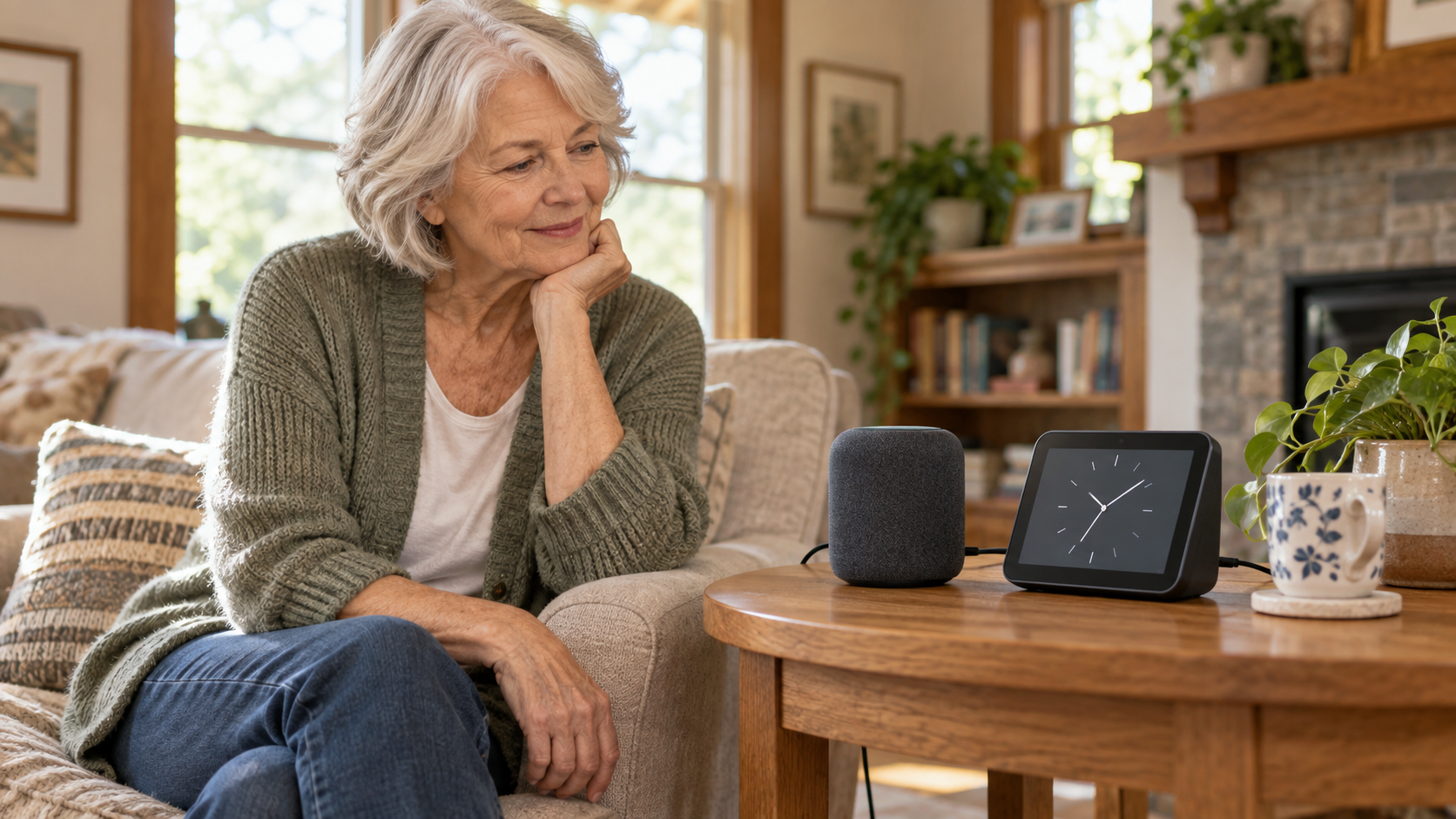
Older woman beside a generic smart speaker and smart display on a wooden table in a sunlit living room

Echo Devices for Seniors: Which One Should Your Family Buy?

Echo Devices for Seniors: Which One Should Your Family Buy?

Updated September 28, 2026

If you’ve decided Alexa could help your parent with reminders, easy calls to family, music, or simply asking what day it is, the next question is which Echo to buy. Amazon sells speakers without screens, smart displays in several sizes and a long list of bundles, which makes the choice look more complicated than it is.

This guide doesn’t rank devices by specs. It asks a different question: which Echo will your parent find easiest to live with every day? The answer depends on how well they hear and see, how they feel about technology, whether video calls matter, and how comfortable everyone is with a camera in the home.

This page contains affiliate links. If you buy through one, Senior Smart Home Lab may earn a commission at no extra cost to you. As an Amazon Associate I earn from qualifying purchases.

The Short Answer

  • For a parent who just wants to talk to it: the Echo Dot (5th Gen). It has no screen, no camera and a few physical buttons, and it’s the least expensive option here.
  • For voice-only use with fuller sound in a larger room: the Echo Dot Max. It’s worth the extra cost mainly if music or room-filling sound matters.
  • For a parent who often misses what Alexa says: consider an Echo Show. Echo devices with a screen can show captions of Alexa’s replies and of calls.
  • For regular video calls with family: the Echo Show 8. It has a bigger screen and a sharper camera than the Show 5; Amazon documents electronic camera controls, while a built-in sliding shutter is not clearly confirmed for the current model.
  • For a screen plus a camera you can physically cover: the Echo Show 5. It’s the smallest Echo Show and the one in this guide with a built-in camera cover.

If you’re unsure, start simple. It’s easier to add a screen later than to win back a parent who was put off by one.

Comparison at a Glance

DeviceBest fitScreenVideo callsPhysical & privacy controlsSetup effort*Main trade-off
Echo Dot (5th Gen)Voice only, simplestNoneNo video; voice calling supportedMicrophone-off button; no cameraLowestNo visual backup when a reply is missed
Echo Dot MaxVoice only, fuller soundNoneNo video; voice calling supportedMicrophones enable/disable button; no cameraLowCosts more than the Dot, mainly for sound
Echo Show 5 (3rd Gen)A small screen with a camera cover5.5-inch touchscreenYesMicrophone/camera-off button plus built-in camera coverModerateSmall screen and a basic 2 MP camera
Echo Show 8 (2025 model)Regular video calls8.7-inch touchscreenYesMicrophones/camera enable/disable button plus on-device and in-app camera controlsModeratePhysical shutter not clearly documented for the current model

Setup effort is our editorial judgment of relative effort, not a measurement.

Start With Your Parent, Not the Product

Three questions settle most of this decision.

Will a screen help, or get in the way? A screen can show a clock, reminder text, a caller’s face or captions. It’s also one more thing to navigate, and on an Echo Show it comes with a camera. If your parent already finds a smartphone screen frustrating, a speaker with no screen may serve them better, whatever the spec sheet says.

What will they actually use it for? Timers, weather, music and reminders need nothing but a speaker. Video calls need a screen. So do on-screen reminder text, photos and captions. Be honest about which uses your parent will actually take up, not which ones sound good in a store. Our list of everyday uses for older adults can help you picture a normal day with it.

Who will set it up and help later? Every Echo needs an Amazon account and Wi-Fi. Echo Dot setup uses the Alexa app on a compatible phone or tablet, while Echo Show setup can be completed on the display. A simpler device leaves less to go wrong when you’re not there. That often matters more than any single feature. If you’re still deciding whether Alexa is right at all, start with how to introduce Alexa to an elderly parent.

The Four Devices Worth Considering

Echo Dot (5th Gen): the simplest choice

This is for a parent who wants to ask about the weather, set a timer, play a favorite station or hear a reminder, and wants nothing to look at or tap. It has no screen and no camera, and it includes a microphone-off button. It supports Alexa voice calling, but it has no screen for video calls.

What they give up: when a spoken reply is missed, there’s nothing on a screen to fall back on.

Check current price and availability of the Echo Dot (5th Gen) on Amazon.

Echo Dot Max: voice only, with more sound

The Echo Dot Max works the same way as the Dot, with no screen and no camera, but it’s built for sound. Amazon says it has nearly three times the bass of the Echo Dot (5th Gen) and better detection of the wake word. It makes sense in a living room or kitchen where your parent plays music or talks to Alexa from across the room. For a bedside table, the standard Dot usually does the job.

What they give up: nothing in simplicity, but you pay more, mostly for audio.

Check current price and availability of the Echo Dot Max on Amazon.

Echo Show 5: a small screen with a camera cover

The Echo Show 5 has a 5.5-inch touchscreen for a clock, on-screen reminder text, photos and captions, plus a 2 MP camera for video calls. It’s the only Echo Show in this guide with a built-in cover you can slide over the camera, along with a button that turns off both the microphones and the camera. For a parent who wants a screen but is uneasy about a camera in the bedroom, that simple, visible cover can make the device easier to accept.

What they give up: the screen is small and the camera is basic, so long video calls are less comfortable than on a larger display.

Check current price and availability of the Echo Show 5 on Amazon.

Echo Show 8: a better screen for video calls

If video calls with children and grandchildren are the main reason you’re buying, the Echo Show 8 is the most practical fit here. The current model has an 8.7-inch HD screen and a 13 MP camera with auto-framing. Amazon documents a microphones-and-camera enable/disable button, plus camera controls on the device and in the Alexa app.

One thing to know before buying: Amazon’s current US listing and support documentation describe electronic camera controls but do not clearly confirm a built-in sliding shutter for the 2025 model. Amazon documents a button that disables the microphones and camera, plus camera controls on the device and in the Alexa app. If a physical lens cover matters, verify the exact model before buying. Talk it over with your parent before you choose.

What to verify before buying: whether the exact model includes the physical camera cover your family wants.

Check current price and availability of the Echo Show 8 on Amazon.

What about the Echo Show 11 and Echo Show 15?

The Echo Show 11 has an 11-inch Full-HD display and a 13 MP auto-framing camera. Amazon documents a microphones-and-camera enable/disable button plus on-device and in-app camera controls. It’s worth considering only if a bigger screen is the specific need, for example video calls watched from across a room. A bigger screen for its own sake isn’t a reason. The Echo Show 15 is a 15.6-inch hub with Fire TV built in, designed for a kitchen wall or counter. It does have a built-in camera cover, but it’s a shared household screen more than a personal assistant, so it’s a different purchase from the ones above.

Matching the Device to Your Parent

If hearing is the challenge

Turning up the volume only helps so much. Echo devices with a screen can display captions of Alexa’s replies, captions during Alexa calls and live text during calls. Amazon lists these as accessibility features, available where supported. All the Echo models in this guide can also slow Alexa’s speaking rate. For a parent who often mishears, seeing the words may help more than a bigger speaker. That points toward an Echo Show rather than the Dot Max.

An Echo is a voice assistant, not a hearing device, and it doesn’t replace a hearing aid or professional hearing care. Once you’ve chosen a device, our Alexa setup tips for seniors who are hard of hearing walk through what to turn on first.

If vision is the challenge

A screen isn’t automatically better. For significant vision loss, a voice-only Echo Dot is often the simplest: ask, listen, done. If your parent has some usable vision and would benefit from a large clock or photos, Echo Show devices include a screen reader (VoiceView), a Screen Magnifier, Color Correction and Color Inversion. The Show 8’s larger screen gives more room than the Show 5’s. Amazon notes that some settings menus differ on the Echo Show 5. Our low-vision setup guide covers configuration.

If speaking or reaching is harder

Every Echo in this guide supports Adaptive Listening, which gives your parent more time to finish speaking before Alexa responds. On Echo devices with a screen, Tap to Alexa lets someone use Alexa by touch instead of voice. Before you buy, think about where the device will sit and whether your parent can comfortably reach its buttons from their chair or bed.

If video calls are the main reason

Alexa can make voice or video calls to anyone with a supported Alexa device or the Alexa app, so family members can call an Echo Show from their phones. For regular calls, the Show 8’s larger screen and camera make conversations easier to follow than the Show 5’s. Some families also use Drop In, which lets approved contacts connect without the call being answered. It works only with permission and needs a clear conversation first; our guide to Alexa Drop In covers how to set it up respectfully.

If privacy matters (and it should, to everyone)

Every Echo has microphones and a button to turn them off. Every Echo Show also has a camera, and this is where current models differ:

  • Built-in camera cover: Echo Show 5, Echo Show 15.
  • 2025 Echo Show 8 and Echo Show 11: Amazon documents a microphones-and-camera enable/disable button and electronic camera controls. Verify the exact model if a physical lens cover is essential.

A cover doesn’t make a device "private" on its own, and a device without one isn’t unsafe. A cover is simply a signal your parent can see and control without menus. Whichever device you choose, set it up together. Show your parent where the off button is, agree on when the camera is used, and treat the device as their tool, not a way to check up on them.

Set It Up Together

Plan a real setup session, not a five-minute unboxing. You’ll need an Amazon account (decide together whose account it will be) and your parent’s Wi-Fi details. Echo Dot setup also uses the Alexa app on a compatible phone or tablet; Echo Show setup can be completed on the display. Then use it together a few times before you leave. Start with one or two things that matter to your parent, such as a daily weather check or a way to set up medication reminders. Treat reminders as a helpful prompt, not medical supervision.

Some older articles mention Amazon’s caregiver service, Alexa Together. It has been discontinued, so don’t count on managing your parent’s device from a distance. In-person setup is the most reliable path.

What an Echo Can’t Do

An Echo, with or without a screen, isn’t a medical device. Do not rely on it to detect a fall or guarantee an emergency response, and it doesn’t replace a medical alert system, professional care or regular contact with family. It also needs power and, for most features, an internet connection. It’s useful for reminders, conversation, easy calls and everyday independence. It’s worth being clear about its limits too; see what Alexa cannot do for seniors.

FAQ

Is the Echo Dot or Echo Show better for seniors? Neither is better for everyone. If your parent mainly wants voice features such as reminders, music, weather and timers, the Echo Dot is simpler and cheaper. If video calls, captions or on-screen reminder text matter, an Echo Show is worth the extra cost and complexity.

Does the Echo Show 8 have a camera cover? Amazon’s current US listing and support documentation for the 2025 model describe a microphones-and-camera enable/disable button and electronic camera controls, but they do not clearly confirm a built-in sliding shutter. If a physical cover matters to your family, verify the exact model before buying; the Echo Show 5 has one built in.

Can I set up Alexa for my parent from a distance? Plan to set it up in person. Echo Dot setup uses the Alexa app on a compatible phone or tablet; Echo Show setup can be completed on the display. Both require an Amazon account and Wi-Fi, and Amazon’s former caregiver service, Alexa Together, has been discontinued. Once it’s running, family members can call the device from the Alexa app.

Does Alexa work without internet? Mostly not. Answering questions, calls, streaming and most smart-home control depend on the internet, and every Echo needs to be plugged in. A few basics, such as alarms already set, may keep working, but don’t rely on an Echo during an outage. Here’s how to plan for when the internet or power goes out.

The Bottom Line

The right Echo is the one your parent will actually use. For voice-only use, start with the Echo Dot. If your parent often misses spoken replies or wants to see family on calls, choose an Echo Show: the Show 8 for regular video calls, or the Show 5 if a built-in camera cover matters to your family. Choose the simplest device that does the job, set it up together, and add more only when your parent is ready for it.

Senior at home with smart home devices during an internet or power outage

What Happens to a Senior’s Smart Home When the Internet or Power Goes Out?

What Happens to a Senior’s Smart Home When the Internet or Power Goes Out?

Quick Answer: An internet outage and a power outage are not the same problem. When the internet goes down, cloud-dependent services such as Alexa voice responses, remote app access, and some caregiver alerts may stop working, while certain standalone or local systems may keep doing their basic job. When the power goes out, any device that needs household electricity stops unless it has battery backup or is connected to a suitable UPS. The safest plan for an older adult is not to assume every smart device will work, but to keep simple manual fallbacks for lighting, access, communication, and daily safety.

If your parent uses smart lights, Alexa reminders, a video doorbell, motion alerts, or other connected devices, it is reasonable to ask a simple question: what happens when the internet or power goes out?

That question matters because smart-home technology can be genuinely helpful for seniors living independently. It can reduce effort, support reminders, improve lighting, and make it easier for family members to stay informed. But a smart home is still a system. Like any system, it has weak points.

The goal is not to scare families away from technology. The goal is to understand which parts of the setup are convenient, which parts are safety-related, and which parts need a backup plan. For older adults, resilience often comes from simple choices: a physical light switch that still works, a key that is not locked away, a phone that stays charged, and family members who know what to do when an alert does not arrive.

This guide explains what usually stops, what may keep working, and how families can design a senior-friendly smart home that still makes sense when technology fails.

Prefer a quick visual explanation? Watch this video on what still works and what stops working when a senior smart home loses internet or power.

What Actually Stops Working When the Internet Goes Down?

The first thing to understand is that the internet is not the same as electricity. During an internet outage, the lights may still be on, the microwave may still work, and a standard wall switch may still turn on a lamp. What changes is the connected layer.

For a senior, the outage may feel simple: Alexa stops answering, the app will not load, or a smart device looks “offline.” Behind the scenes, the device may be unable to reach a company server, process a voice request, send a notification, or receive a remote command from a caregiver.

Common features that may stop or become unreliable during an internet outage include:

  • Alexa voice responses and cloud-based voice commands
  • Remote access through a phone app
  • Notifications sent to family members outside the home
  • Manufacturer cloud automations
  • Smart speaker routines that depend on online services
  • Some video doorbell live views and alerts
  • Integrations between different brands that rely on cloud services

Imagine your mother uses Alexa to turn on the living room lamp. If the internet goes down, she may say the command and hear no useful response. But if that same lamp is still connected to a regular wall switch, she can walk over and turn it on manually. That difference is important: the smart feature failed, but the essential function still had a fallback.

The problem becomes more serious when the smart feature is the only practical way to complete the task. If the only way to unlock a door, turn on a hallway light, or contact family depends on a cloud connection, the system is too fragile for an older adult who lives alone.

For Alexa-specific safety planning, families should also understand the limits of voice assistants in urgent situations. The article on Alexa emergency routines for elderly parents explains why Alexa can support a safety plan but should not be treated as an emergency service replacement.

What Can Keep Working Without Internet?

Some devices can continue doing useful work without an active internet connection, but the answer depends on how the system is built. A simple way to think about it is to separate devices into three categories: standalone, local control, and cloud-dependent.

Standalone Devices

A standalone device does its job without needing Wi-Fi, a cloud account, or a phone app. A battery-powered motion light is a good example. If someone walks into a hallway at night, the light turns on because the sensor and the light are built into the same simple device.

Standalone devices are not always glamorous, but they can be excellent for older adults because they reduce dependence on several layers of technology. They may not send alerts to family members or appear in an app, but they can solve one narrow problem reliably.

Examples can include:

  • Battery-powered motion lights
  • Basic smoke and carbon monoxide alarms
  • Standalone door alarms with built-in sound
  • Plug-in night lights with battery backup, depending on model
  • Simple physical timers or switches

The lesson is not that “dumb” devices are better than smart devices. The lesson is that one simple device may be more reliable for one essential task than a complicated system that depends on several connections.

Local Control

Local control means devices can communicate and act inside the home without needing to reach a remote server on the internet. This is where some smart-home systems become more resilient.

For example, certain hubs, switches, remotes, and sensors can keep basic automations working inside the house if the internet connection is down. The system may lose remote access, app notifications, voice assistant control, or cloud integrations, but a local automation may still run if the hub, router, and devices remain powered.

This is a helpful middle ground for families. A local setup can preserve some smart convenience without making every task dependent on the cloud.

Cloud-Dependent Devices

A cloud-dependent device needs an internet connection to complete its main function or an important part of that function. Many Wi-Fi-only smart devices, voice assistants, cameras, doorbells, apps, and cross-brand integrations fall into this category.

Cloud-dependent does not mean bad. It often enables useful features such as remote viewing, phone notifications, voice control, software updates, and easier setup. But families should know which features disappear when the cloud connection disappears.

For a senior’s home, the most practical question is not “Is this device smart?” It is: “If the internet is down, can my parent still do the essential thing another way?”

Alexa: What Happens When the Internet Is Down?

Alexa is one of the most useful smart-home tools for many seniors because it removes friction. A parent can ask for the weather, set reminders, make a call, play music, turn on supported lights, or start a routine without opening an app.

But Alexa is also heavily cloud-dependent. Echo devices need internet connectivity for normal Alexa voice processing. If the device is offline, families should not rely on it for everyday voice commands, caregiver communication, or urgent help requests.

That does not mean Alexa has no place in a senior’s home. It means Alexa should be treated as a helpful layer, not the only layer.

When the internet is down, Alexa may not reliably:

  • respond to ordinary voice requests
  • run cloud-dependent routines
  • control many connected devices by voice
  • place calls or send messages
  • trigger emergency-contact features
  • provide remote reassurance to family members

Amazon’s own help materials for Alexa emergency contacts state that the service is not a substitute for emergency response services or 911 and that an Echo device needs Wi-Fi connectivity for the feature to work correctly. That is the right framing for families: Alexa may support safety, but it should not be the only emergency plan.

If your family is still deciding what Alexa should and should not handle, the guide What Can Alexa Do for Seniors? is a useful companion. It focuses on practical everyday uses rather than treating Alexa as a complete safety system.

A Simple Reliability Ladder for Families

A more resilient smart home does not have to be more complicated. In many homes, the best answer is a ladder: start with simple fallbacks, add local control where it helps, and only use advanced automation when someone can maintain it.

Level 1: Simple and Standalone

Level 1 is the foundation. These are devices and habits that do not depend on Wi-Fi, apps, cloud servers, or voice assistants.

Examples include:

  • a physical wall switch for important lights
  • a regular house key or keypad fallback
  • battery-powered motion lights in hallways
  • standalone smoke and carbon monoxide alarms
  • written emergency numbers near the phone
  • a charged mobile phone
  • a clear family check-in plan

This level matters because seniors do not need a perfect smart-home setup to be safer. Sometimes the most reliable improvement is a hallway light that turns on automatically at night or a backup key that prevents a lockout.

Families reviewing the whole home can pair this thinking with a broader room-by-room home safety checklist for seniors. Internet resilience is only one part of a safer home.

Level 2: Local Smart Home

Level 2 adds smart-home convenience while trying to keep some functions local. This is where systems such as Lutron Caseta, some Aqara hub automations, and Philips Hue with a bridge can be useful examples.

Lutron Caseta is a good example of local architecture because Caseta devices do not rely on Wi-Fi or the internet to communicate with one another inside the home. Physical switches and dimmers remain usable, and compatible Pico remotes can control devices locally under the right setup conditions. That matters for seniors because the wall control still feels familiar.

Aqara can also support local automations in certain hub-based setups. The careful wording is important: with an Aqara hub, some local automations can continue when internet access is lost if the hub and relevant devices remain powered and the automation is actually local. Remote access and cloud-dependent functions can still stop.

Philips Hue with a Hue Bridge is another example where basic local lighting control can continue without internet in some setups, while remote access and cloud-dependent features require connectivity. The bulbs and bridge still need power.

These examples are not product recommendations. They illustrate an architectural idea: if a family wants smart devices for an older adult, it is worth asking whether the most important functions can still work locally.

Level 3: Advanced Local Automation

Level 3 is for families with technical support available. Home Assistant is the main example because it can run on local hardware in the home and can continue controlling local devices during an internet outage when the system is configured that way.

Home Assistant’s own documentation explains that devices using local protocols such as Zigbee, Z-Wave, Matter, Thread, and ESPHome can continue operating locally without an internet connection. At the same time, cloud-dependent integrations, remote access, updates, app-store access, and integrations with Amazon Alexa still depend on internet connectivity.

That distinction is crucial. Home Assistant can be powerful, but it is not automatically simple for a senior. It is usually best managed by a tech-comfortable adult child, caregiver, installer, or family member who understands the setup.

For the right household, advanced local automation can improve resilience. For the wrong household, it can become another system nobody knows how to troubleshoot.

What Happens During a Power Outage?

A power outage is different from an internet outage. During an internet outage, the house may still have electricity. During a power outage, anything that depends on household electrical power stops unless it has a battery, generator, or UPS backup.

During a power outage:

  • Echo devices stop unless powered by a compatible battery setup.
  • Smart hubs stop unless they have backup power.
  • Smart bulbs cannot produce light without electricity.
  • Routers and modems stop unless backed up.
  • Home Assistant hardware stops unless backed up.
  • Wi-Fi access points stop unless backed up.
  • Battery-powered standalone devices may continue.
  • Battery-powered sensors may still have power, but their hub, siren, router, or alert path may not.

This is where many families accidentally overestimate their smart home. A smart light may be excellent during normal life, but it cannot light a hallway without electricity. A motion sensor may still have battery power, but if the hub is off, the automation may not run and the family may not receive an alert.

For seniors, the most important power-outage planning usually involves the basics:

  • safe lighting
  • a charged phone
  • a way to unlock and exit the home
  • medication and medical-equipment planning, if relevant
  • local emergency contacts
  • a plan for heat, cooling, or evacuation when weather is severe

Smart-home devices can support some of this, but they should not replace practical outage planning.

Can a UPS Help?

A UPS, or uninterruptible power supply, is a battery backup that can temporarily power connected equipment when household electricity goes out. Families sometimes use a UPS for a router, modem, smart-home hub, or small local server.

For a senior’s smart home, a UPS may help keep low-consumption equipment running long enough to preserve local control, Wi-Fi, or short-term communication. But it is not magic. Runtime depends on battery capacity, the amount of equipment connected, device power draw, efficiency, and battery age.

It is also important to understand one limitation: keeping the router powered does not guarantee that the internet service provider’s network is still available. Your parent’s home equipment may stay on, but the wider connection may still be down.

That makes a UPS useful in some cases, but not a complete answer. It should be viewed as one backup layer, not a guarantee that every smart-home feature will keep working.

For a practical family setup, see our backup power plan for seniors.

The Most Important Question: Is There a Manual Fallback?

Smart-home convenience should never be the only way a senior can perform an essential household task.

This is the central principle of the whole article. If a device makes life easier, that is good. If it becomes the only way to do something important, families should pause.

Good manual fallbacks include:

  • a physical switch for essential lights
  • a physical key or reliable keypad option for entry
  • a charged mobile phone, not just a smart speaker
  • written emergency contacts
  • a flashlight in predictable locations
  • manual thermostat controls or clear instructions
  • a family contact plan for outages
  • a nearby person who can check in if remote alerts fail

Not every smart-home feature needs full redundancy. If music streaming stops for an afternoon, that is annoying but usually not dangerous. If hallway lighting, door access, or the ability to call for help fails, the stakes are different.

Families should prioritize fallbacks for:

  • entry and exit
  • lighting
  • communication
  • medication routines
  • heat or cooling during extreme weather
  • safety-critical daily movement

This is also where remote support should stay respectful. If your parent lives independently, the backup plan should not feel like a takeover. It should be discussed clearly: “If the internet is out and we do not hear from you, what should we do?” That conversation protects both safety and dignity.

Families thinking about distance caregiving may also find How to Monitor an Elderly Parent Remotely Without Invading Privacy useful, because the same principle applies: support should not become unnecessary surveillance.

Reliability Matrix

Use this matrix as a practical starting point. It is not a promise for every model. Always test the exact setup in your parent’s home.

SystemWithout InternetWithout PowerLocal FunctionRemote AlertsManual Fallback
Alexa / EchoNormal voice features are not reliableNo, unless separately poweredLimited or not dependable for ordinary Alexa useNo or unreliablePhone, physical controls, written plan
Philips Hue + BridgeBasic local lighting may continue in some setupsNo, lights and bridge need powerYes for some bridge-based local controlCloud/remote features may stopWall switch or non-smart light
Lutron CasetaLocal device communication can continueSwitches need household powerYes, depending on setup and powered devicesRemote/app features may depend on connectivityPhysical switch/dimmer
Aqara Hub + Local AutomationLocal automations may continue if configured locallyHub and devices must remain poweredDepends on hub, automation, and device setupRemote notifications need cloud/internetStandalone alarm/light or manual plan
Home Assistant + Local DevicesLocal devices can continue if configured locallyServer, router, hub, and devices need powerYes, for local protocols and local integrationsRemote/cloud features may stopPhysical controls and family plan
Standalone Battery Motion LightYesYes, if battery-powered and chargedYesNoReplace batteries, keep flashlight
Wi-Fi-only Smart DeviceModel-dependent; many cloud features may stopUsually no without powerDepends on manufacturer and modelUsually no or unreliablePhysical switch, key, or non-smart backup
UPSDoes not provide internet by itselfTemporarily powers connected equipmentCan support router/hub/server for a limited timeDepends on ISP and connected systemsManual plan when battery runs out

The safest interpretation is “test, do not assume.” A family can learn a lot by turning off Wi-Fi temporarily, checking which lights still work from a switch, and confirming whether a parent can still complete essential tasks without the app.

Wi-Fi-Only Devices Need Extra Caution

Wi-Fi-only smart devices can be useful because they are often affordable and easy to install. But their behavior during an internet or network outage varies by manufacturer and model.

Some devices may keep a previous state. Some may work through a local app. Some may become unavailable. Some may depend heavily on the manufacturer’s cloud. The only responsible answer is to check the documentation for the specific device and test it in the actual home.

For a senior’s home, Wi-Fi-only devices are usually safest when they control convenience tasks rather than essential access or safety functions. A Wi-Fi plug for a lamp is helpful. A setup where the only practical way to turn on safe nighttime lighting depends on a cloud command is less reassuring.

If your parent already uses Alexa voice commands for smart devices, the guide to Alexa commands for seniors can help identify which voice actions are genuinely useful. Then you can decide which of those actions need a non-voice fallback.

Smart Locks, Sensors, and Alarms: Be Specific

Smart locks are another area where families should avoid simple answers. Whether a smart lock works without internet can depend on the model and setup. Some locks may support a physical key, keypad, Bluetooth, local hub control, or Wi-Fi bridge. Others may depend more heavily on app access or cloud features.

The best senior-friendly lock setup is usually one that preserves at least one simple access method if the phone, Wi-Fi, or cloud service is unavailable.

Contact sensors also need careful wording. A contact sensor usually detects whether a door, cabinet, or window is open or closed. It does not automatically mean there is a loud local alarm. A siren, hub, speaker, phone notification, or standalone alarm may be a separate device or feature.

For families, the practical question is:

  • Who hears or receives the alert?
  • Does that alert still happen without internet?
  • Does it still happen without power?
  • Can the older adult still open, close, lock, unlock, or exit safely?

Those questions are more useful than asking whether a product is “smart.”

How Families Can Test a Parent’s Smart Home Safely

The best way to understand reliability is to test the setup in calm conditions, not during a real outage.

Do this when your parent is home, comfortable, and not depending on the system for an urgent need.

Step 1: List the Essential Tasks

Write down the tasks that matter most:

  • turning on hallway and bathroom lights
  • unlocking and locking doors
  • contacting family
  • receiving reminders
  • using heating or cooling controls
  • moving safely at night
  • hearing important alarms

Step 2: Identify the Smart Layer

For each task, ask what technology is involved. Is it Alexa? A smart bulb? A hub? A phone app? A Wi-Fi plug? A sensor? A caregiver alert?

This helps you see whether the task depends on one device or several connected layers.

Step 3: Test Internet Loss

Temporarily disconnect internet service or unplug the router only if you can do it safely and restore it easily. Then test basic tasks:

  • Do physical switches still work?
  • Does Alexa still respond usefully?
  • Do local remotes still control lights?
  • Do family notifications still arrive?
  • Can your parent still make a normal phone call?

Do not test emergency features by calling real emergency services. Review instructions and use safe test modes where available.

Step 4: Test Power-Loss Planning Without Creating Risk

Do not create an unsafe situation by cutting power to the home. Instead, review what would happen:

  • Which devices are plugged into the wall?
  • Which devices have batteries?
  • Which batteries need replacement?
  • Is there a flashlight in the bedroom?
  • Is the mobile phone charged overnight?
  • Does the door lock still have a physical key or keypad option?

If you use a UPS, test it according to the manufacturer’s instructions and keep the setup simple enough that a family member can maintain it.

Step 5: Write Down the Fallback Plan

A fallback plan should be boring and clear:

  • If Alexa does not respond, use the wall switch.
  • If the app does not load, call directly.
  • If there is no answer by a certain time, contact the nearby neighbor or family member.
  • If there is immediate danger, call emergency services.
  • If the outage lasts, check medication, temperature, lighting, and access.

The best smart-home safety plan is not the one with the most devices. It is the one everyone understands when something goes wrong.

Common Mistakes Families Should Avoid

Assuming Internet and Power Failures Are the Same

They are different. A device may survive an internet outage but fail during a power outage. Another device may have battery power but still be unable to send remote alerts without connectivity.

Treating Alexa as the Backup

Alexa is useful, but it depends on connectivity for normal voice processing and communication features. It should not be the only way a senior turns on lights, calls family, or asks for help.

Buying More Devices Instead of Fixing the Fallback

More devices can sometimes create more points of failure. Before adding another sensor or smart plug, ask whether the essential task has a manual alternative.

Forgetting the Router and Hub

Families often think about the visible devices, such as speakers and bulbs. But the router, modem, bridge, hub, or local server may be the part that determines whether the system still works.

Not Testing the Setup

Documentation matters, but the real home matters more. Test the exact devices in the exact configuration your parent uses.

Bottom Line

A senior’s smart home can still be useful when the internet goes down, but only if the most important functions are not entirely cloud-dependent. During a power outage, the situation changes again: powered devices, hubs, routers, and smart speakers usually need battery backup or they stop working.

The safest approach is calm and practical. Use smart-home technology where it reduces friction, improves lighting, supports routines, or makes communication easier. But keep manual fallbacks for essential tasks.

For families, the real question is not whether a smart home is “reliable” in the abstract. The better question is: if the internet or power fails tonight, can my parent still turn on a light, unlock the door, contact someone, and stay safe until help arrives?

If the answer is yes, the smart home is supporting independence instead of quietly replacing the basics.

FAQ

Does Alexa work without Internet?

Alexa should not be relied on for normal voice commands without internet connectivity. Echo devices depend on cloud connectivity for ordinary Alexa voice processing, communication features, and many routines. Keep a phone, physical controls, and a clear family plan available.

Do smart lights work without Wi-Fi?

It depends on the system. Some bridge-based or locally controlled lighting systems may continue basic local control without internet, while many Wi-Fi-only smart lights depend on the manufacturer, model, app, and cloud setup. Smart lights still need electrical power to produce light.

Does Home Assistant work without Internet?

Home Assistant can work without internet when it is running locally and controlling devices through local protocols or local integrations. Cloud-dependent integrations, remote access, Alexa integration, updates, and app-store functions may still require internet. The Home Assistant hardware and network equipment also need power.

Will smart locks work without Internet?

It depends on the lock. Some smart locks may still support a physical key, keypad, Bluetooth, or local control, while remote app features may require Wi-Fi or a hub. Families should confirm the exact model and keep a simple entry backup.

Can a UPS keep a router running?

A UPS can temporarily power low-consumption equipment such as a router, modem, or smart-home hub, but runtime varies by battery capacity, load, efficiency, and battery condition. Keeping the router powered does not guarantee that the internet provider’s network is still available.

What smart-home devices work without Internet?

Standalone devices, some local hub-based systems, and some locally controlled automations may keep working without internet. Cloud-dependent apps, remote alerts, voice assistants, cameras, and Wi-Fi-only devices may lose important features. The safest answer is to test the exact setup.

Does a smart home work during a power outage?

Only some parts may work. Devices that need household electricity stop unless backed by batteries, a UPS, or another safe power source. Battery-powered standalone devices may continue, but hubs, routers, smart speakers, bulbs, and local servers usually need power to operate.

Alexa medication reminders for seniors and family caregivers

How to Set Medication Reminders on Alexa for Seniors: Step-by-Step

How to Set Medication Reminders on Alexa for Seniors: Step-by-Step

Alexa medication reminders for seniors can be useful when an older adult needs a simple spoken reminder to take pills at the same time each day. The key is to treat Alexa as a reminder system, not as a medical device or proof that medication was actually taken.

Quick Answer

Quick Answer
Yes. Alexa can remind a senior to take medication by announcing a reminder on an Echo device at a chosen time. You can create the reminder by voice or in the Alexa app, make it repeat daily, choose the device that announces it, test it with your parent, and edit or cancel it later. Alexa can remind, but it cannot confirm that pills were taken, manage prescriptions, replace a caregiver, or provide medical advice.

Can Alexa Remind a Senior to Take Medication?

Yes, Alexa can announce reminders such as “Take morning medication” or “It is time for your evening pills.” Amazon’s current Alexa help explains that reminders can be created by voice or in the Alexa app, and that the reminder is announced on the device selected for that reminder.

For many families, this is enough for a low-risk daily prompt. It can be especially helpful when a parent already responds well to voice prompts, has a predictable medication schedule, and does not need a locked dispenser or caregiver confirmation.

But the boundary matters: reminder does not mean adherence verification. Alexa can say the reminder. It does not know whether the person heard it, understood it, opened the correct container, took the correct dose, or skipped the dose.

What You Need Before Setting Up the Reminder

Before setting up a medication reminder, keep the setup narrow and practical. You do not need to turn this into a full smart home project.

  • An Echo speaker, Echo Show, or other Alexa-enabled device in a place the senior can hear clearly.
  • The Alexa app on a phone if a family member will create or manage the reminder through the app.
  • The medication name or a simple label the senior understands, such as “morning pills.”
  • The exact time and repeat schedule, such as every day at 8:00 AM.
  • Consent from the senior, especially if a family member is helping manage reminders.

If Alexa is not set up yet, start with the Alexa for Seniors beginner guide before creating medication-specific reminders. If the goal is broader daily automation, keep that work inside other useful Alexa routines for seniors.

How to Set a Medication Reminder on Alexa

The simplest method is usually to create the reminder in natural language first, then confirm it in the Alexa app. Families should use plain wording and avoid medical details that do not need to be spoken aloud.

Create the reminder

A senior or family member can say a simple command near the device, such as: “Alexa, remind me to take my morning pills every day at 8 AM.”

If your parent is still learning voice phrases, keep a short list of Alexa commands for seniors nearby and practice only the commands they actually need.

Choose the medication time

Choose a time that matches the real routine, not an ideal routine. A reminder at 8:00 AM is only helpful if your parent is usually awake, near the device, and ready to act at that time.

For medications tied to meals, use a phrase that connects the reminder to the routine: “Take breakfast pills,” “Take pills after lunch,” or “Take evening medication.” Avoid vague labels like “medicine” if there are several different doses during the day.

Make the reminder repeat

For daily medication, make the reminder recurring. A simple recurring reminder is easier to manage than creating individual reminders one by one.

NeedExample commandFamily note
Once dailyAlexa, remind me to take morning pills every day at 8 AM.Good for a stable daily schedule.
Twice dailyCreate separate morning and evening reminders.Use different wording so the senior knows which dose is meant.
Weekly itemAlexa, remind me every Sunday at 6 PM.Useful for pill organizer refill reminders.
Temporary medicationSet a reminder with an end review date.Review manually when the prescription changes.

Choose the Alexa device

In the Alexa app, Amazon’s help describes the path as opening the Alexa app, going to More, selecting Reminders, adding a reminder, and choosing the Alexa device that should announce it. The selected device matters because a kitchen Echo will not help much if your parent spends mornings in the bedroom.

For a senior living alone, choose the device closest to the medication routine. If pills are taken at the kitchen table, the kitchen device may work best. If medication is taken from a bedside table, a bedroom device may be better.

How to Test the Medication Reminder

Do not wait until the real medication time to find out whether the reminder works. Test it first with a harmless practice reminder.

  1. Create a test reminder for five or ten minutes from now.
  2. Stay with your parent while it goes off.
  3. Confirm the announcement is loud enough and easy to understand.
  4. Ask your parent what they heard and what they would do next.
  5. Check whether the reminder appears on the intended Echo device or Echo Show.
  6. Adjust the wording, volume, or device location if anything feels confusing.

Family Tip
Use a practice phrase such as “This is a test medication reminder” so nobody mistakes the test for a real dose.

How to Change or Cancel a Medication Reminder

Medication schedules can change. A reminder that was correct last month may become wrong after a doctor visit, pharmacy change, or new routine. Families should review Alexa medication reminders whenever prescriptions or daily schedules change.

To change a reminder, open the Alexa app, go to the reminders area, select the medication reminder, and edit the time, repeat schedule, wording, or device. The exact screen labels can vary by app version, so focus on finding the existing reminder and reviewing its details before saving.

To cancel a reminder, select the reminder and delete or cancel it in the Alexa app. Some reminders may also be canceled by voice if Alexa recognizes the reminder name clearly. If there are several similar medication reminders, use the app so you can confirm you are deleting the correct one.

Tips for Making Alexa Medication Reminders Easier for Seniors

  • Use plain wording: “Take morning pills” is usually better than a long prescription name.
  • Avoid announcing private medical details if visitors may be nearby.
  • Set the volume high enough to hear, but not so loud that it feels startling.
  • Place the Echo device where the senior already takes medication.
  • Keep medication containers organized separately from the Alexa setup.
  • Avoid too many reminders at the same time of day.
  • Test reminders with the senior, not only from your own phone.
  • Review reminders after any medication change.

What Alexa Medication Reminders Cannot Do

This is the most important safety section of the guide. Alexa reminders can support a routine, but they do not replace human judgment or medical systems.

  • Alexa cannot confirm that medication was actually taken.
  • Alexa cannot check the correct pill, dosage, or prescription.
  • Alexa cannot safely handle medication changes without a person updating the reminder.
  • Alexa cannot replace a caregiver, nurse, pharmacist, doctor, or emergency service.
  • Alexa cannot lock pills, dispense pills, or prevent accidental double dosing.
  • Alexa cannot guarantee that a senior with memory loss will understand or act on the reminder.

If missed doses, double dosing, or confusion are serious concerns, compare Alexa with dedicated medication reminder devices for seniors before relying on voice reminders alone.

Alexa Medication Reminders vs Dedicated Medication Reminder Devices

Alexa is usually best for simple spoken prompts. Dedicated medication reminder devices are usually better when the family needs compartments, alarms tied to pill access, locking features, caregiver alerts, or a stronger medication management system.

SituationAlexa reminder may be enoughConsider a dedicated device
One simple daily reminderYes, if the senior understands and responds to voice prompts.Maybe not necessary.
Multiple doses at different timesPossible, but wording must be very clear.Helpful if confusion is likely.
Missed doses are commonAlexa cannot verify adherence.Often worth reviewing.
Memory loss or dementiaUse with caution and family oversight.May require stronger support.
Caregiver needs alertsAlexa alone may not provide enough confirmation.Look for caregiver notification features.

Use Alexa as a Prompt, Not as Medication Management

Amazon’s official guidance explains that Alexa reminders can be created by voice and managed in the Alexa app. Availability and behavior can depend on the account, profile, device, and current Alexa software, so families should test the exact reminder on the device the senior will hear. See Amazon’s official reminder instructions.

A reminder does not confirm that the correct medicine was taken, that the dose was correct, or that a missed dose should be taken later. The National Institute on Aging’s medication guidance recommends keeping an up-to-date medicine list, following labels and professional instructions, and asking a doctor or pharmacist what to do about a missed dose. Use the wording and schedule already provided by the prescriber or pharmacist; do not use Alexa to invent or change a medication plan.

  • Test whether the reminder can be heard from the usual room.
  • Keep the written medication list and pharmacy instructions as the source of truth.
  • Use a caregiver, pharmacy service, or dedicated dispenser when a spoken prompt is not enough.

Frequently Asked Questions

Can Alexa remind someone to take pills every day?

Yes. Alexa can create recurring reminders, including daily reminders. A family might say, “Alexa, remind me to take morning pills every day at 8 AM.” The reminder should still be tested and reviewed regularly.

Can Alexa give medication reminders more than once a day?

Yes. You can create more than one reminder, such as one for morning pills and another for evening pills. Use clear labels so the senior understands which medication routine the reminder refers to.

Can I change an Alexa medication reminder remotely?

A family member may be able to manage reminders in the Alexa app if they have the correct authorized account access and the senior has agreed to that arrangement. Do not assume remote management is appropriate without consent, and always confirm changes with the senior when possible.

Are Alexa medication reminders suitable for seniors with dementia?

Use caution. Alexa may help with simple routines for some people, especially in earlier stages, but it can also create confusion if the person does not understand the prompt. Families should read more about using Alexa with a senior who has dementia and should not rely on Alexa alone for medication safety.

What if a senior ignores the Alexa reminder?

Alexa does not know whether the senior acted on the reminder. If reminders are ignored, missed, or misunderstood, the family may need a different support plan, a caregiver check-in, a medication dispenser, or professional advice.

Conclusion

Alexa medication reminders for seniors can be a practical first step when the goal is a simple spoken prompt at the right time. The setup should stay narrow: choose clear wording, choose the right device, make the reminder repeat, test it, and review it whenever medication changes.

For low-risk routines, that may be enough. For higher-risk medication needs, Alexa should be treated as one helpful reminder tool inside a broader family plan, not as proof that medication was taken.

Senior using a voice assistant from a living room chair

Alexa for Seniors With Limited Mobility: Helpful Uses and Important Limits

Alexa can help some seniors with limited mobility because it turns certain everyday actions into voice requests. That can matter when standing up is tiring, reaching a light switch is difficult, or a phone is across the room.

But Alexa is not physical help. It cannot lift someone from a chair, prevent every fall, unlock every problem, or replace a caregiver, medical alert system, phone, or emergency plan. The best use of Alexa is modest and practical: choose a few daily tasks that become easier by voice, then keep reliable backup options in place.

Quick Answer

Alexa may help seniors with limited mobility by making some daily tasks hands-free, such as turning compatible lights on, calling family, setting reminders, playing music, or starting simple routines. It cannot provide physical assistance, prevent every emergency, replace caregivers, or work reliably without power, Wi-Fi, compatible devices, and a clear backup plan.

What Limited Mobility Means in This Guide

Limited mobility can mean different things. For one person, it may mean difficulty walking across the room. For another, it may mean arthritis, balance concerns, fatigue, recovery from surgery, use of a walker, or trouble getting out of a favorite chair.

This guide is not about diagnosing mobility problems. It is about practical home situations where voice control may reduce small daily struggles.

Examples include:

  • reaching a wall switch from bed;
  • getting to a phone quickly;
  • standing up to turn off a lamp;
  • walking across a dark room;
  • remembering simple tasks;
  • asking a family member for help;
  • starting music, radio, or audiobooks without handling a device.

The key question is not “Can Alexa make someone independent?” The better question is: “Which two or three daily tasks could become easier if they did not require standing, reaching, or crossing the room?”

How Voice Control Can Reduce Small Daily Struggles

Voice control works best when the task is simple, repeated, and already safe to automate. Turning on a compatible lamp, hearing a reminder, or calling a daughter hands-free from a chair may reduce stress.

Voice control is less useful when the task requires judgment, physical movement, medical decision-making, or emergency response.

Callout: Helpful Use Alexa is most helpful when it removes a small barrier from a task the person already wants to do, such as turning on a lamp, calling family, or hearing a reminder.

Families should begin with the senior’s own frustrations. Ask: “What feels annoying or tiring during the day?”

How Alexa May Help With Limited Mobility

Daily challengeHow Alexa may helpImportant limit
Reaching light switchesVoice control for compatible lightsRequires compatible devices and setup
Reaching the phoneHands-free calls to approved contactsDoes not replace emergency systems
Remembering small tasksVoice remindersCannot confirm the task was completed
Getting bored or isolatedMusic, radio, audiobooks, and callsStill needs human connection
Moving at nightA routine may turn on lightsDoes not remove fall hazards
Managing several small actionsA simple routine may group tasksNeeds testing and periodic review

Helpful Alexa Uses for Limited Mobility

Lights

Smart lights or compatible plugs can let a senior turn lamps on and off by voice. This may be helpful from bed, a recliner, or a favorite chair.

For example, a parent might say, “Alexa, turn on the living room lamp” before standing. The room may be brighter before movement begins.

Families should use simple device names. “Lamp” is easier than “Smart Plug 3.” If there are multiple lights, names like “bedroom lamp” and “hall light” are clearer.

Smart plugs and compatible devices

Smart plugs may help with some lamps, fans, or simple devices that can safely be turned on or off at the outlet. They are not appropriate for appliances where remote power control could create heat, fire, medical, or safety risks.

Check manufacturer guidance before connecting any device. Compatibility and safety matter more than convenience.

Calls and messages

Hands-free calling may be useful when a phone is out of reach. A senior may be able to ask Alexa to call a family member or answer an incoming Alexa call, depending on device, account, region, contacts, and settings.

This is communication support, not an emergency guarantee. Amazon’s Alexa communication guidance distinguishes communication features from emergency services.

Reminders

Alexa reminders can support daily routines: drink water, take a walk if safe, charge the phone, prepare for an appointment, or check whether the front door is locked. Medication reminders can be helpful for some families, but Alexa cannot confirm that medication was actually taken correctly.

For medication routines, families should avoid relying on a voice reminder alone when errors would create serious risk. A dedicated medication plan, caregiver support, or medication reminder device may be more appropriate.

Entertainment and comfort

Music, radio, weather, news briefings, audiobooks, and podcasts can make long periods in a chair or bed feel less isolating. This is not a small benefit. Comfort and connection matter, especially for a parent who spends more time in one room.

Still, entertainment should not replace human contact. A useful setup supports connection; it does not become a substitute for it.

Using Alexa From a Chair or Bed

A common mobility scenario is the parent who spends much of the evening in a recliner or favorite chair. Getting up repeatedly to adjust lights, find the phone, or start music may be tiring.

A simple setup might include:

  • one Echo device within hearing range;
  • one clearly named lamp;
  • a few family contacts;
  • reminders for phone charging or bedtime routines;
  • a backup phone within reach.

The device should be placed where voice commands are likely to be heard, but not so far away that the senior must shout. Volume should be tested during real use, not just during setup.

If the parent uses a walker, wheelchair, lift chair, or bedside table, think about where they naturally spend time. Technology should fit the routine instead of forcing a new one.

A Practical Example

Robert spends most evenings in his living room chair because walking back and forth is tiring. His daughter helps him set up one Echo device, a compatible lamp, and a small set of simple voice requests.

In the evening, Robert can ask Alexa to turn on the lamp, call his daughter, remind him to charge his phone, and play music. The family also keeps his mobile phone on the side table and checks that he can reach it. They do not treat Alexa as his emergency system. It is a comfort and convenience tool, supported by a backup plan.

Simple Routines That May Help

Alexa routines can group actions together, but this article is not a full routine setup guide. For limited mobility, routines should stay simple.

Examples:

  • “Alexa, good morning” turns on a lamp and gives the weather.
  • “Alexa, movie time” dims a compatible lamp and turns on the TV if the setup supports it.
  • “Alexa, bedtime” turns off a lamp and reminds the person to keep the phone nearby.

Do not create complicated routines that the senior cannot remember. A routine is useful only if it works reliably and the person understands what it does.

A Brief Note on Drop In

If already discussed, consented to, and configured, Alexa Drop In may be one hands-free way for a family member to communicate with a parent from a chair or bed. This article does not cover setup, permissions, audio versus video, privacy settings, or troubleshooting; those belong in the dedicated Alexa Drop In guide.

Important Limits Families Should Understand

Alexa cannot move objects or provide physical assistance

Alexa cannot help someone stand, transfer from a chair, pick up a dropped item, open a heavy door, clean a spill, or physically respond after a fall. If a parent needs hands-on help, the answer is human support, home modifications, mobility equipment, or professional guidance.

Callout: Important Limit Alexa can respond to voice commands, but it cannot provide physical assistance. Families should not use it as a replacement for mobility aids, caregivers, medical advice, or emergency response systems.

Alexa depends on power, Wi-Fi and clear voice commands

Alexa needs power and internet access. If the power goes out, the Wi-Fi fails, or the device is unplugged, many features will not work. Voice recognition can also be affected by speech changes, background noise, distance from the device, accent, volume, or confusion about the command.

This is why every setup needs a backup method.

Alexa may not be enough during urgent situations

Alexa communication features are not a complete emergency plan. Families should keep a reachable phone, local contacts, and, when appropriate, a medical alert system or other emergency response option.

National Institute on Aging guidance notes that emergency medical alert systems can help in some situations, but they require correct setup, batteries or charging, and regular use. No single tool removes the need for planning.

When Alexa Is Not the Right Solution

Alexa may not be the right primary solution when:

  • the senior cannot reliably speak commands;
  • hearing or vision barriers make responses hard to understand;
  • internet service is unreliable;
  • the person needs hands-on transfers or personal care;
  • fall risk is high and there is no emergency backup;
  • confusion or memory changes make voice technology frustrating;
  • the family expects Alexa to replace human check-ins.

In those cases, Alexa may still support comfort, but it should not be the main safety tool.

Alexa Setup Checklist for Limited Mobility

  • Place the Echo device where the senior naturally spends time.
  • Test whether Alexa hears normal speaking volume.
  • Keep the device plugged in and connected to reliable Wi-Fi.
  • Use simple names for lights and plugs.
  • Start with three tasks, not twenty.
  • Set up only compatible devices that are safe for voice control.
  • Review contact settings and calling options.
  • Keep a phone within reach.
  • Discuss privacy and consent.
  • Practice commands together.
  • Test the setup after one week.
  • Keep a backup plan for power, internet, falls, and urgent needs.

Callout: Backup Plan A good Alexa setup should make daily life easier, but it should sit beside a real backup plan: phone access, local contacts, family routines, and emergency support when needed.

What Families Should Set Up First

Start with the tasks that create the least risk and the most daily value:

  1. One lamp or light.
  2. One or two family contacts.
  3. One reminder that matters.

That is enough for a first test. If the senior uses it comfortably, families can add more. If it feels confusing, scale back.

The best setup is not the most advanced setup. It is the one your parent will actually use.

Frequently Asked Questions

Can Alexa help seniors with limited mobility?

Yes, Alexa may help with hands-free tasks such as lights, calls, reminders, music, and simple routines. It should not be treated as a caregiver or emergency system.

What Alexa features are most useful if a senior has trouble walking?

Voice-controlled lights, hands-free calls, reminders, music, weather, and simple routines are common starting points. The best choices depend on home layout, comfort, and support plan.

Can Alexa turn lights on and off by voice?

Yes, if the home has compatible smart lights, plugs, switches, or other supported devices set up correctly. Use simple device names and test them in the right rooms.

Can Alexa call family from a chair or bed?

Alexa may support hands-free communication with contacts depending on the device, app settings, account, region, and contact setup. It is useful as a communication option, but it should not replace a reachable phone or emergency plan.

What can Alexa not do for someone with limited mobility?

Alexa cannot lift someone, prevent every fall, bring objects, provide physical care, guarantee emergency response, or work during every power or internet outage. It can support convenience, but it cannot replace human help when physical assistance is needed.

Is Alexa enough for a senior who is at risk of falling?

No. Alexa may help with lights or communication, but fall risk usually requires broader planning: home safety changes, mobility aids, medical guidance, family support, and possibly a dedicated alert system.

What should families set up first?

Start with one light, one communication method, and one useful reminder. Test them together for a week. If the senior uses them comfortably, add more gradually.

What backup plan should families keep?

Keep a phone within reach, local contacts, family check-ins, and emergency options appropriate to the person’s risk level. Alexa should support the plan, not become the whole plan.

Bottom Line

Alexa for seniors with limited mobility can be helpful when it reduces small daily barriers: lights, calls, reminders, music, and simple routines. The safest approach is realistic and limited. Choose a few tasks that genuinely make life easier, test them with your parent, and keep backup support in place for physical help, falls, power outages, and emergencies.

CTA

Choose three practical tasks your parent would actually use this week. Start with one light, one communication option, and one reminder. If those work comfortably, build from there without creating dependence on a system that still needs power, Wi-Fi, setup, and human backup.

Adult daughter checking her phone after an elderly parent does not answer

What to Do When an Elderly Parent Does Not Answer the Phone

What to Do When an Elderly Parent Does Not Answer the Phone

If an elderly parent does not answer the phone, the first job is not to panic. The first job is to move through a calm, agreed order of steps so the family can find out what is happening without creating unnecessary fear.

This guide is for the moment after a normal check-in fails. It is not about designing a daily routine, setting up cameras, or choosing a monitoring device.

Quick Answer

If an elderly parent does not answer the phone, check the usual context, call again, and try another agreed contact method. If there is still no response, contact a nearby trusted person or visit if possible. Escalate faster when the missed call is unusual, there is known risk, or there is credible concern. Call emergency services if danger seems immediate.

First, Pause and Check the Context

A missed call can mean many things: a shower, nap, television, a phone in another room, or simply not hearing it ring. It can also be a warning sign if the missed call is unusual.

First, look at the context:

  • Was this a scheduled call or a casual call?
  • Is this time of day normal for your parent?
  • Have they recently been ill, confused, dizzy, or unsteady?
  • Did they mention plans to leave home?
  • Is there severe weather, extreme heat, or a local outage?
  • Have they recently missed medication, meals, or appointments?
  • Is not answering unusual for them?

Context matters because one rigid timeline does not fit every family. A casual missed call is different from a missed medication check-in after recent falls, confusion, or illness.

Step 1: Try the Call Again

Start with the simplest possibility: the first call was missed. Wait a short, reasonable moment based on your family agreement, then call again. If your parent needs time to reach the phone, avoid repeated rapid calls that may create stress without helping.

Try to keep your voicemail calm. A message such as, “Hi Mom, just checking in. Please call me when you get this,” is usually better than a frightened message that may worry them later.

If your family has an agreed phrase, use it consistently. “Please call me back or text OK when you can” is easier than a long explanation.

Step 2: Use Another Agreed Contact Method

If the second call does not work, try another method your parent already knows and has agreed to use. A backup method is most useful when it was discussed before the stressful moment.

Text message

Send a short text:

  • “Just checking in. Please reply OK.”
  • “I called for our usual check-in. Can you text me back?”
  • “If your phone is on silent, please call when you see this.”

Text can work when a person does not want to talk, is in a noisy room, or sees notifications more easily than missed calls.

Video call

If your parent is comfortable with video calls, use the app they normally recognize.

Video can help if they sometimes miss phone calls but answer another familiar option. Keep the request simple.

Alexa Drop In if already agreed

If your family has already set up and discussed Alexa Drop In, it may be one alternative channel for a brief check-in. It should not be used secretly, and this article does not cover setup, permissions, privacy, or device rules. Those belong in the dedicated Alexa Drop In for elderly parents guide.

What to Do When a Parent Does Not Answer

This table is general family guidance. It is not medical, legal, or emergency advice, and it should be adapted to your parent’s health, location, routine, and local services.

SituationReasonable next stepWhen to escalate
Missed routine call but no known immediate riskTry another agreed methodEscalate if the silence remains unusual after reasonable attempts
Recent fall risk, illness, confusion, or medication concernContact a nearby trusted person quicklyEscalate sooner if no one can confirm safety
Parent sounded confused or distressed earlierTry direct contact and a local backup contactConsider welfare or emergency help if concern is credible
Phone may be dead, muted, or misplacedTry text, video, or another known deviceAsk someone local to check if the pattern is unusual
Bad weather, power outage, or mobility concernContact a neighbor, building staff, or local family memberEscalate if the environment creates immediate risk

Step 3: Contact Someone Nearby

If your parent still has not responded, contact a trusted local person. This might be a sibling, neighbor, building manager, close friend, caregiver, church contact, or relative who lives nearby.

The goal is to get one calm, reliable person to check what they can safely check.

When you contact them, be specific:

  • “Can you knock or call from nearby?”
  • “Can you check whether the car is in the driveway?”
  • “Can you tell me if the lights are on or if anything looks unusual?”
  • “Please do not enter the home unless that is already agreed and safe.”

This step works best when the local contact is already part of the family plan. National Institute on Aging guidance emphasizes keeping important numbers organized when family members live far away.

Step 4: Check the Usual Routine

Before escalating, review what your parent might normally be doing. A simple weekly routine sheet can reduce confusion during a missed call.

Check whether your parent might be:

  • at a regular appointment;
  • visiting a friend;
  • attending church, a class, or a community activity;
  • taking a nap at a usual time;
  • outside in the garden;
  • using a different phone;
  • with a caregiver or home aide;
  • in an area with poor reception.

This is also a good moment to check with siblings or caregivers. One person may know something the others do not.

Step 5: Visit or Request an In-Person Check

If you or a trusted person can visit safely, an in-person check may be the clearest next step. If you are going yourself, tell another family member where you are going and when you expect to arrive.

If no trusted person can visit and the concern is credible, you may need to contact a local non-emergency number or appropriate local authority to ask about a welfare check. Procedures vary by location.

Callout: Before Requesting a Welfare Check Have the full address, phone number, recent contact attempts, known risks, access details if appropriate, and the reason for concern ready. A clear explanation helps the local responder understand why the missed contact matters.

When to Request a Welfare Check

A welfare check may be appropriate when there is credible concern and no family member, neighbor, caregiver, or trusted local person can verify that your parent is okay.

Examples might include:

  • your parent recently fell or was ill;
  • they missed a call that they never normally miss;
  • they sounded confused, distressed, or unsafe earlier;
  • there is severe weather or a power outage;
  • they live alone and cannot be reached by any agreed method;
  • a local person notices something concerning at the home.

Local police or public safety departments handle these requests differently. Some communities have senior check-in programs where a missed daily call triggers follow-up, but those are local examples, not a national rule.

When to Call Emergency Services

Call emergency services when there is immediate or credible danger. According to 911.gov, 911 is for situations requiring immediate police, fire, or ambulance help.

That may include a known fall, signs of a medical emergency, a direct message suggesting danger, a fire, a break-in concern, a person threatening self-harm, or another urgent risk. If you are unsure and the concern is serious, follow local emergency guidance.

Be prepared to explain:

  • the address;
  • the phone number you are calling from;
  • the nature of the concern;
  • when contact last happened;
  • known medical or mobility concerns;
  • who else has tried to reach them;
  • any access information responders may need.

Callout: Do Not Ignore Known Risk A missed call from a parent with recent confusion, falls, illness, medication risk, or unusual behavior deserves faster escalation than a missed casual call with no other warning signs.

What Information to Have Ready

Families often lose time because one sibling has the address, another has the neighbor’s number, and no one remembers the apartment code. A simple information sheet can help.

Include:

  • full address and apartment or gate details;
  • main phone and backup phone;
  • nearby contacts;
  • primary doctor or clinic if known;
  • medications or conditions that matter in an emergency;
  • mobility concerns;
  • preferred hospital if the family knows it;
  • pet information if responders may enter;
  • who has a key;
  • who should be called first, second, and third.

This does not need to be a complicated document. A one-page shared note is better than nothing.

What Not to Do

When a parent does not answer, avoid steps that create confusion or violate trust.

Do not:

  • call ten people with conflicting instructions;
  • post publicly on social media;
  • assume the worst without checking context;
  • use monitoring tools in a way your parent did not agree to;
  • enter the home without permission unless there is a legitimate safety reason and it is lawful and safe;
  • delay emergency help when there is credible danger;
  • blame your parent later for causing worry.

A Simple Scenario: Two Siblings Follow a Plan

Maria usually calls her mother at 7 p.m. On Tuesday, her mother does not answer. Maria waits a few minutes, calls again, and leaves a calm voicemail. She texts, “Please reply OK when you see this.”

When there is still no response, Maria checks the shared family note. Her brother David confirms that their mother did not mention plans that evening. Maria calls a neighbor who has agreed to be a backup contact. The neighbor knocks and sees that the house looks normal.

A few minutes later, their mother calls back. Her phone had been charging in the bedroom while she watched television in the living room. Afterward, Maria and David update the plan: their mother will keep the phone on the side table during evening check-ins, and the neighbor remains the local backup.

The plan helped everyone stay calm.

After the Situation Is Resolved

Once your parent is safe, talk about what happened without scolding. A missed call can reveal that the family plan needs a small improvement.

Ask:

  • Was the phone hard to hear?
  • Was it in another room?
  • Was the check-in time inconvenient?
  • Should the family use a different backup method?
  • Does your parent want a local contact involved?
  • Would a reminder, louder ringer, or simple charging spot help?

Callout: After the Situation Is Resolved Update the plan while the details are fresh. The best time to improve a check-in system is after a small problem, not during the next stressful moment.

When Phone Check-Ins Are Not Enough

A missed phone call does not always mean something is wrong, but repeated missed check-ins are worth taking seriously. After the immediate situation is resolved, families may want to create a simple backup safety plan for the next time it happens.

That plan can include agreed check-in times, a list of nearby contacts, clear instructions for when to visit in person, and a written note about when to call emergency services. For some families, it may also make sense to consider backup options such as a medical alert system, fall detection device, or caregiver check-in system.

These tools do not guarantee safety, prevent every fall, or replace 911, family support, or professional care. But they can be part of a broader plan that helps families respond faster and with less confusion when a parent cannot be reached.

Use this moment to review backup options as part of a broader family safety plan, not as a rushed buying decision.

When a Parent Does Not Answer: Family Action Checklist

  • Call once, then call again calmly.
  • Send a short text or agreed message.
  • Try one other familiar contact method.
  • Check the usual schedule.
  • Contact another family member.
  • Contact a local trusted person.
  • Gather address, access, phone, and risk information.
  • Decide whether an in-person check is needed.
  • Request local welfare help if concern is credible and no one can verify safety.
  • Call emergency services if there is immediate danger.
  • Document what happened.
  • Update the family contact plan afterward.

Frequently Asked Questions

What should I do first if my elderly parent does not answer the phone?

Check the context, call again, and try another agreed contact method. Escalate faster if the missed contact is unusual or there are known health, mobility, weather, or safety concerns.

How long should I wait before checking on an elderly parent?

There is no universal waiting time. The response depends on routine, health, mobility, time of day, recent behavior, and family agreement. Escalate faster when the silence is unusual or risk is higher.

Should I call a neighbor if my parent does not answer?

Yes, if the neighbor is trusted and your parent has agreed they can be contacted. Keep the request calm and specific.

When should I request a welfare check for an elderly parent?

Consider a welfare check when you have credible concern and no trusted local person can confirm safety. Local procedures vary.

When should I call emergency services?

Call emergency services when there is immediate or credible danger, such as a known fall, medical emergency, fire, break-in concern, severe confusion, or a message suggesting urgent risk.

Can Alexa Drop In help if a parent does not answer?

It may help only if it was discussed, consented to, and set up before the missed call. It should not be used secretly or as a replacement for emergency services.

How can families prepare for missed check-ins?

Create a simple contact sheet with address, phone numbers, local contacts, routines, access notes, health concerns, and an escalation plan.

What should I avoid doing in a panic?

Avoid conflicting instructions, assuming the worst without context, using technology your parent did not agree to, or delaying emergency help when danger is credible.

Bottom Line

When an elderly parent does not answer the phone, families need a calm sequence: check context, try another agreed method, contact someone nearby, arrange an in-person check, and escalate when risk is credible. The goal is not to panic or control your parent. The goal is to protect safety while preserving dignity, trust, and independence.

CTA

Before the next missed call happens, create a one-page family check-in sheet with your parent’s address, phone numbers, local contacts, usual routines, relevant health notes, and an escalation plan. Keep it simple enough that every sibling or caregiver can use it under stress.