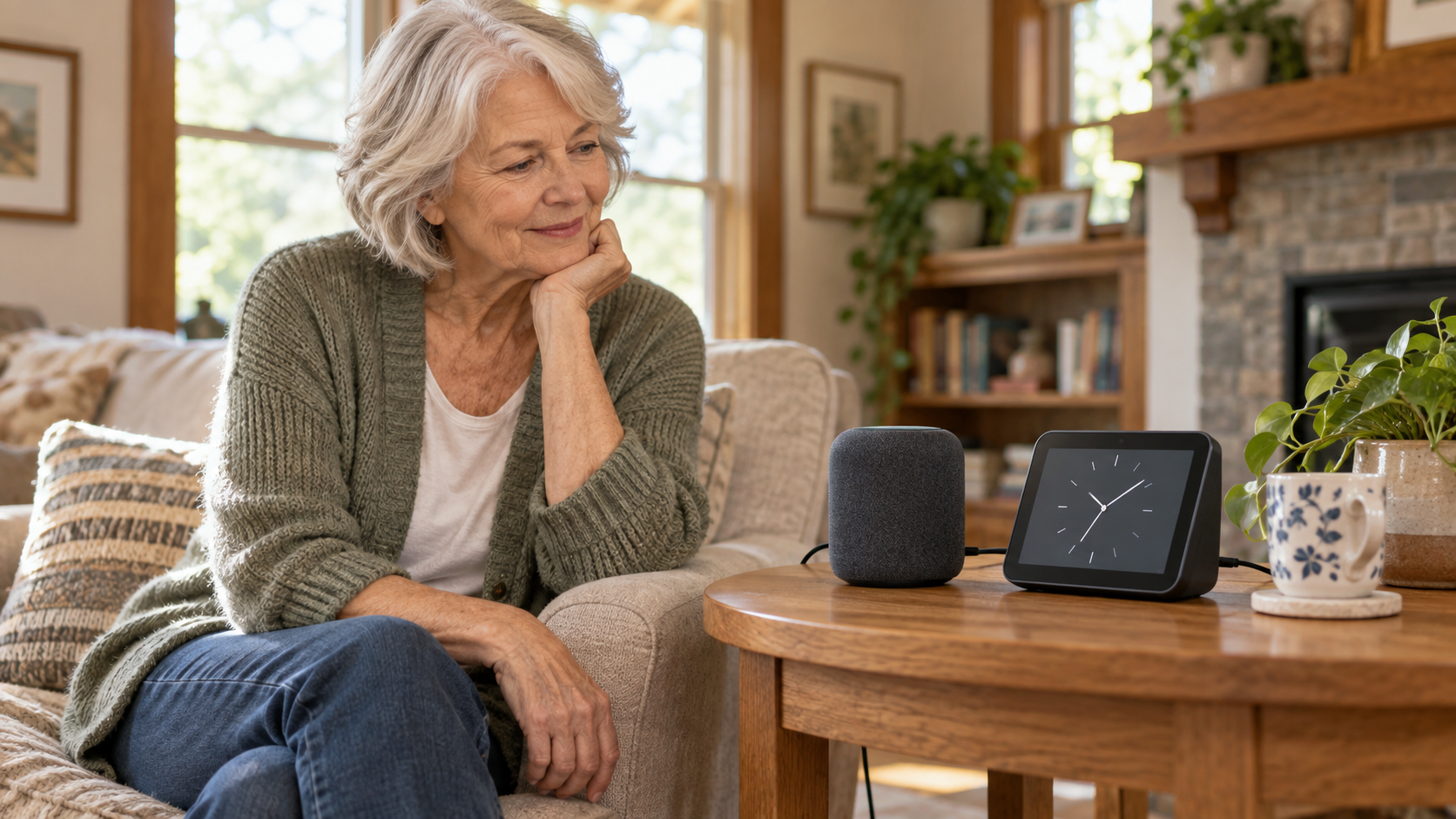
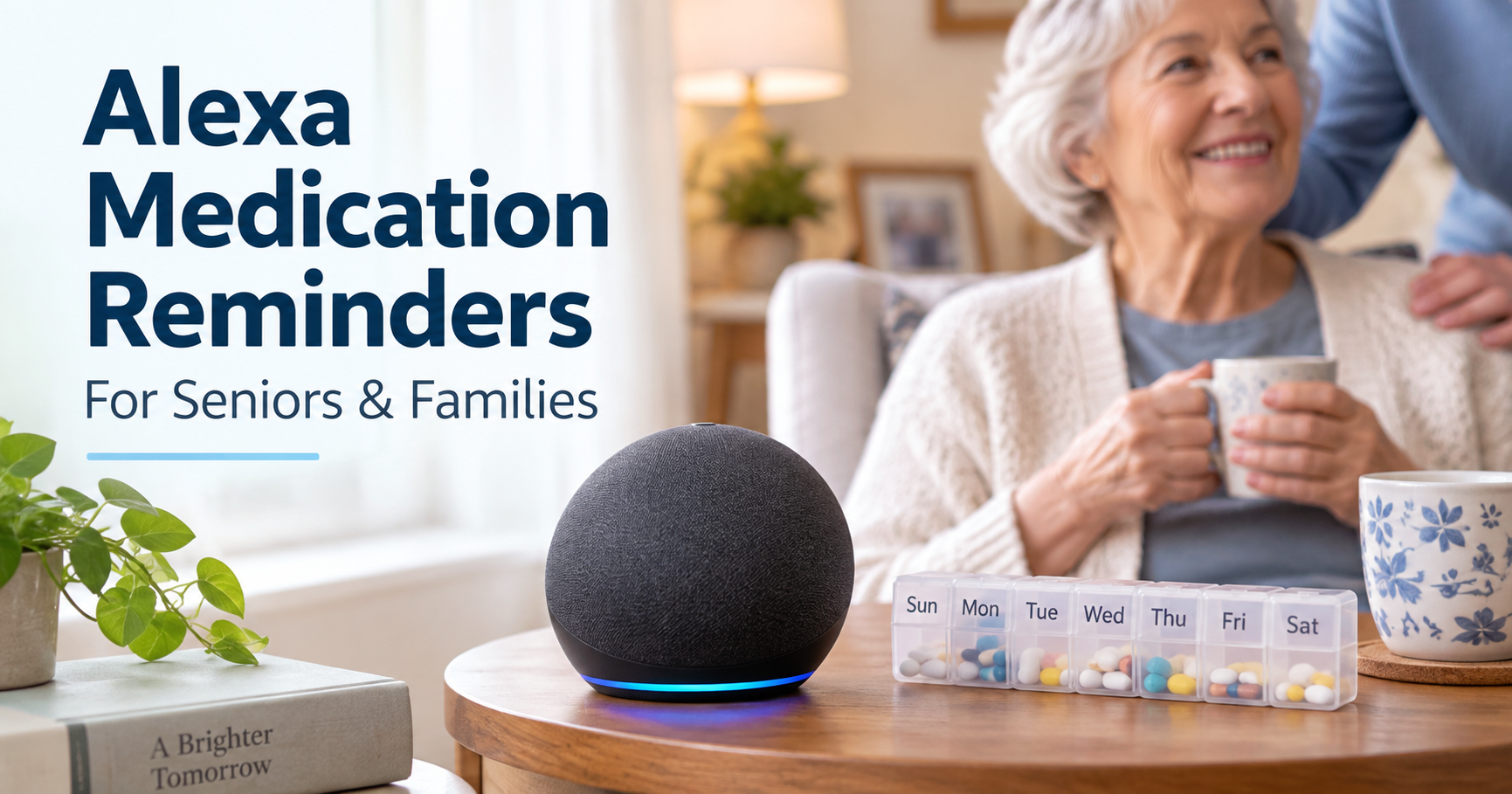
Older adult and daughter reviewing the important limits of Alexa for seniors

What Alexa Cannot Do for Seniors: Important Limits Families Should Know

What Alexa Cannot Do for Seniors: Important Limits Families Should Know

Quick Answer

Alexa can help seniors with reminders, calls, routines, and smart home control, but Amazon Alexa cannot guarantee safety, reliably detect every fall, replace 911, or supervise medical needs. Families should treat Alexa as one support layer and keep backup plans for emergencies, medication, power outages, and human check-ins.
Why Alexa’s Limits Matter for Families

Many families first buy Alexa because it feels easy. A parent can say, “Alexa, remind me to take my medicine,” or “Alexa, call my daughter,” without opening a phone or learning a complicated app.

That is genuinely helpful.

The risk begins when a helpful tool starts to feel like a complete solution.

Alexa is a voice assistant. It can respond to commands, run routines, control compatible smart devices, and support communication features when everything is configured correctly. It is not a nurse, a medical alert pendant, a fall detection system, a home care plan, or a guarantee that someone is safe.

For families, this distinction matters because the most important safety decisions are usually not about technology alone. They are about risk, backup plans, human support, and knowing when a parent needs more help than a smart speaker can provide.

What Alexa Cannot Do for Seniors: Key Safety Limits

Here is the simple version.

NeedWhat Alexa may help withWhat Alexa cannot guarantee
Emergency responseVoice-triggered help phrases, calls, routines, some paid servicesReliable 911 access in every situation
FallsCalling help if the person can speakAutomatic fall detection by itself
MedicationRemindersCorrect pill, dose, or confirmation that medication was taken
SafetyLights, routines, reminders, communicationA safe home environment
MonitoringCheck-ins, routines, some connected devicesProof that a parent is okay
PrivacySettings and mute controlsTrust if features are installed without consent

Alexa is best used as one layer. It should not become the layer that everything depends on.

Alexa Cannot Replace 911 or Emergency Services

Direct answer: Standard Amazon Alexa features should not be treated as a guaranteed way to reach 911 or emergency services. Emergency capabilities may depend on country, device, setup, subscription, and current Amazon service availability.

One of the most important limits is emergency response.

Families often ask whether Alexa can call 911. The safest answer is: do not assume standard Alexa calling can replace emergency services. Emergency calling features vary by service, location, device, account setup, and subscription availability. Amazon has offered services such as Alexa Emergency Assist, but families need to verify current availability and limitations directly through Amazon before relying on any emergency feature, including Amazon’s official guidance on Alexa features used to get help in an emergency.

If a parent has serious fall risk, heart concerns, advanced memory issues, or lives alone with limited local support, a dedicated emergency plan matters.

That plan may include:

  • A mobile phone within reach.
  • A landline or cellular backup if appropriate.
  • A medical alert system.
  • Trusted neighbors.
  • Family escalation steps.
  • Written emergency contacts.
  • A plan for what to do if the parent cannot speak.

Alexa may help start a routine or make a family call, but families should not build an emergency plan around a single voice command.

For a practical safety setup, see the guide to creating an Alexa emergency routine for elderly parents.

Alexa Cannot Reliably Detect Every Fall

Direct answer: Amazon Alexa should not be treated as reliable fall detection by itself. If falling is a serious concern, families should consider dedicated fall detection, medical alert devices, home safety changes, or human support.

Alexa does not replace fall detection.

If an older adult falls and can speak clearly, an Echo device may help them call a family member or trigger a routine, depending on setup. But that still depends on several things going right:

  • The device must be close enough to hear.
  • The parent must be conscious and able to speak.
  • The command must be understood.
  • Wi-Fi and power must be working.
  • Calling or routine features must be configured correctly.

That is very different from reliable fall detection.

If falling is a major concern, families should look beyond Alexa. A dedicated medical alert device, wearable fall detector, professional monitoring system, or home safety assessment may be more appropriate.

Alexa can support a fall-prevention plan by turning on lights, reducing the need to walk in the dark, and making communication easier. It does not remove the need to fix rugs, stairs, bathrooms, clutter, and poor lighting.

Alexa Cannot Provide Medical Supervision

Direct answer: Alexa can provide reminders, but it cannot verify health status, medical decisions, correct medication, or whether a dose was actually taken.

Alexa can remind. It cannot supervise.

That difference is especially important with medication, chronic conditions, and memory changes. A reminder can say, “It is time to take your evening medication.” It cannot verify that the right pill was taken, that the dose was correct, that the person swallowed it, or that a medication should still be used.

For low-risk reminders, Alexa may be useful. For higher-risk medication routines, families may need a dedicated medication reminder device, pharmacy packaging, caregiver visit, pill dispenser, or clinician guidance.

If medication mistakes are already happening, do not treat a voice reminder as the whole fix. Use it as a prompt, not as proof.

Alexa Cannot Guarantee Someone Is Safe at Home

Families sometimes want technology to answer one impossible question: “Is my parent okay?”

Alexa can give clues. It may support calls, reminders, routines, lights, and smart home controls. But it cannot fully know whether a parent ate, drank water, avoided a fall, made safe decisions, or felt confused during the day.

Even remote monitoring tools have limits. A motion sensor can show activity. A doorbell can show a visitor. A medication reminder can show a prompt was sent. None of those facts automatically prove wellbeing.

If your family needs a broader privacy-conscious plan, the remote monitoring guide explains how to support an elderly parent without turning the home into a surveillance system.

Alexa Cannot Work Without the Right Setup

Direct answer: Alexa depends on power, Wi-Fi, compatible devices, correct account settings, and a setup the older adult can actually use.

Alexa depends on practical conditions that are easy to overlook.

It may fail or become less useful if:

  • The internet is down.
  • Power is out.
  • The device is unplugged.
  • The volume is too low.
  • The microphone is muted.
  • The parent forgets the command.
  • Contacts are not configured.
  • A feature changed in the Alexa app.
  • The device is in the wrong room.
  • The parent’s voice is too soft, unclear, or far away.

That does not make Alexa bad. It makes it realistic.

Families should test the actual setup in the actual room where the parent will use it. A command that works while standing next to the device may not work from a chair across the room.

Alexa May Mishear Voice Commands

Direct answer: Alexa can misunderstand soft speech, background noise, similar names, accents, or long commands, especially during stressful moments.

Voice assistants are helpful because they reduce the need for screens. But voice control can still be frustrating.

Alexa may misunderstand:

  • Soft voices.
  • Accents.
  • Speech changes after illness.
  • Background noise.
  • Similar contact names.
  • Long or complicated commands.
  • Commands spoken during stress.

This matters because stressful moments are exactly when families most want technology to work.

For older adults, the best Alexa setup uses short, repeatable commands. A printed command card can help. The Alexa commands for seniors guide is a better starting point than trying to teach every feature at once.

Alexa Cannot Solve Privacy Problems by Itself

Privacy is not just a setting. It is a relationship issue.

An older parent may feel differently about Alexa than an adult child does. One person may see convenience. The other may worry about listening, cameras, family control, or being watched.

Families should discuss:

  • What device is being installed.
  • Where it will sit.
  • What it can and cannot do.
  • Who can call or communicate.
  • Whether voice history or privacy settings should be reviewed.
  • How to mute the microphone.
  • Whether a screen or camera feels acceptable.

If a parent feels pressured, the setup can damage trust. Safety should not feel like a quiet takeover of the home.

Alexa May Not Be Enough for Cognitive Decline

Direct answer: Alexa may help some people with early memory changes, but it should not be relied on as a dementia care plan or substitute for caregivers, clinicians, or structured support.

Alexa can help some people with early memory changes by supporting reminders, music, simple routines, and family calls. But dementia and cognitive decline require extra caution.

Some people may find voice assistants confusing. Others may forget what the device is, become frustrated when Alexa misunderstands, or repeat commands without getting the help they need.

Families should be especially careful with:

  • Medication reminders.
  • Door and stove safety.
  • Financial or shopping features.
  • Communication settings.
  • Any feature that could create confusion or anxiety.

For dementia-related use, Alexa should be a small support layer, not a care plan.

When Alexa Is Not Enough

Alexa is probably not enough when:

  • A parent has frequent falls.
  • Medication errors are recurring.
  • They miss meals or forget essential routines.
  • They cannot reliably use voice commands.
  • They are often confused or disoriented.
  • They do not answer calls and there is no backup contact.
  • They live alone with high medical risk.
  • They dislike or distrust the device.
  • A family needs confirmation, not just reminders.

Those are signs to consider more support. That may mean a home safety review, caregiver visits, neighbor involvement, medical advice, emergency alert tools, or a different living arrangement.

Backup Options Families Should Consider

The right backup depends on the risk.

ConcernPossible backup
FallsGrab bars, lighting, stair safety, medical alert device
MedicationPill organizer, automated dispenser, pharmacy packaging, caregiver check
Emergency responseMedical alert system, phone, emergency contacts, neighbor plan
IsolationScheduled family calls, visits, community support
ConfusionCaregiver support, medical evaluation, simplified routines
Door safetySmart doorbell, locks, visitor rules
Nighttime riskMotion lights, clear pathways, bedside phone

Alexa can fit into this plan, but it should not replace it.

Family Checklist Before Relying on Alexa

Use this checklist before depending on Alexa for an older parent:

  • Have we tested the most important commands together?
  • Can my parent remember the commands?
  • Can Alexa hear them from normal sitting and sleeping areas?
  • Are family contacts configured correctly?
  • Do we have a backup if Wi-Fi or power fails?
  • Is there a plan for falls or medical emergencies?
  • Are medication reminders enough, or is a dedicated system needed?
  • Does my parent understand privacy settings?
  • Does my parent want this device in the home?
  • Do we know when to escalate to human help?

If any answer is unclear, slow down and fix that part first.

Example Scenario: When Alexa Is Helpful but Not Enough

Example: A family sets up Alexa for lights, reminders, and easy calls for an older father who lives alone. During the review, they realize Alexa cannot detect every fall, will not work during every power or Wi-Fi problem, and cannot confirm medication was taken. They keep Alexa for convenience, but add a bedside phone, better hallway lighting, a medication plan, and a local emergency contact.

Frequently Asked Questions

Can Alexa replace a medical alert system for seniors?

No. Alexa may help with calls, routines, or reminders, but it should not be treated as a replacement for a dedicated medical alert system when emergency response is a serious concern.

Can Alexa call 911 for an elderly parent?

Do not assume standard Alexa features can call 911 reliably. Emergency capabilities depend on current services, location, device, setup, and subscription availability. Families should verify details directly with Amazon and keep another emergency option available.

Can Alexa detect falls?

Alexa alone should not be treated as reliable fall detection. If fall risk is high, consider dedicated fall detection devices, medical alert systems, and physical home safety changes.

Can Alexa remind seniors to take medication?

Yes, Alexa can provide medication reminders. But it cannot confirm that the correct medication was taken at the correct dose.

Is Alexa safe for seniors with dementia?

It depends on the person. Some seniors may benefit from simple reminders or familiar music, while others may become confused or frustrated. Families should use extra caution and involve appropriate care professionals when needed.

What is the safest way to use Alexa for an elderly parent?

Use Alexa for simple, low-risk support first: reminders, calls, lights, music, timers, and routines. For emergencies, medication, falls, and cognitive decline, build a backup plan that does not depend on Alexa alone.

Bottom Line

Alexa can make daily life easier for seniors, especially with reminders, lights, calls, and routines. But Alexa is not a safety guarantee. It cannot replace emergency services, medical judgment, fall detection, caregiver support, or a backup plan. Use Alexa for convenience and low-risk support, then protect critical needs with human help, dedicated devices, and clear family procedures.

CTA

Before adding more Alexa features:

  1. List the tasks your family expects Alexa to handle.
  2. Mark each task as convenience, safety support, or critical safety.
  3. Create a backup for anything that affects health, emergency response, medication, or human contact.
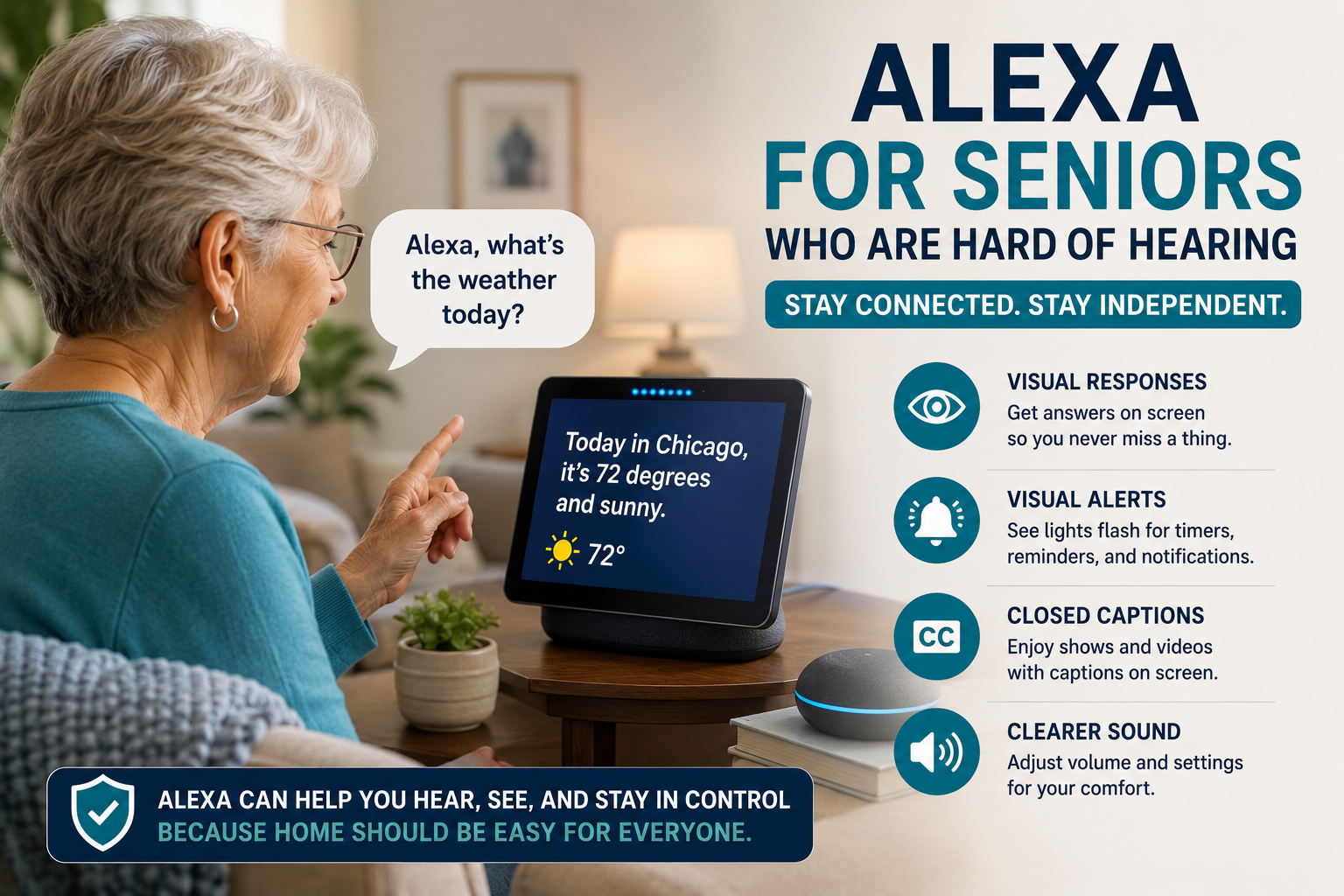
Older adult using Alexa with visual responses, captions, visual alerts, and accessibility features for hearing difficulties

Alexa for Seniors Who Are Hard of Hearing: Setup Tips That Help

Alexa for Seniors Who Are Hard of Hearing: Setup Tips That Help

Quick Answer

Alexa can help some seniors who are hard of hearing when the device is placed well, volume is adjusted, responses are simple, and visual cues are used where appropriate. Families should test placement, background noise, captions or display options, and whether voice calling is actually comfortable.
For a senior who is hard of hearing, a voice assistant can be helpful or frustrating depending on setup. If Alexa is too quiet, too far away, or competing with a television, the device may feel unreliable even when the idea is good.

This guide focuses on hearing-related setup. For broader Alexa basics, see our Alexa for seniors beginner guide.

Table of Contents

  • What Alexa can and cannot do
  • Setup checklist
  • What to test
  • Best first features
  • Decision path
  • FAQ

What Alexa Can and Cannot Do

Alexa can speak reminders, answer questions, play audio, control lights, and support calls. It cannot guarantee that a hard-of-hearing person will hear every alert, understand every response, or respond in an urgent situation.

Use Alexa as support, not as a substitute for hearing care, caregivers, emergency services, or professional advice.

Setup Checklist

  • Place the device in the room where it is needed most.
  • Keep it away from loud appliances and television speakers.
  • Test volume during real daily conditions.
  • Use short routines and predictable phrases.
  • Consider a display if visual cues help.
  • Keep calls simple and contacts easy to say.
  • Test reminders from another room before relying on them.
  • Review whether alarms need additional visual support.

What to Test

Setting Why It Matters What Families Should Try
Volume Responses must be audible Test in morning, evening, and with TV on
Placement Distance affects hearing and microphone pickup Move device closer to common seating
Visual display Some seniors benefit from seeing information Try large clock, reminders, captions where available
Routine wording Complex phrasing can confuse Use short, familiar phrases
Calling Audio clarity matters Test with real family calls

Best First Features

Family calls

Voice calls can reduce phone friction, but only if your parent can hear and understand the call clearly.

Visual reminders

If using a display, reminders can be both spoken and visible. That may help when audio alone is not enough.

Smart lights

Lights can provide visible feedback when a routine starts or when a room needs to be easier to navigate.

Simple commands

Use our Alexa commands for seniors guide, but begin with only a few phrases.

Decision Path

  • If volume is the issue: adjust volume and move the device closer.
  • If understanding is the issue: simplify routines and use visual cues.
  • If background noise is the issue: change placement away from TV or appliances.
  • If reminders are missed: add visual support or use another reminder method too.
  • If hearing changes are significant: consult a hearing professional.

Privacy and Respect

Accessibility setup should be collaborative. Ask your parent what is easier to hear, what feels annoying, and what they want Alexa to do. Do not turn on features they do not understand or want.

Frequently Asked Questions

Is Alexa good for seniors who are hard of hearing?

It can help if volume, placement, and visual support are configured well. It may not be enough for important alerts.

Is Echo Show better than an Echo speaker?

Sometimes, because the screen can show clocks, reminders, and visual cues. But it can also feel more complicated.

Can Alexa make phone calls louder?

Volume can be adjusted, but call clarity depends on hearing needs, room noise, and device placement.

Can Alexa replace hearing aids?

No. Alexa is not a hearing device or medical solution.

What should families set up first?

Start with volume, placement, one family contact, and one simple reminder.

30-Minute Setup Review

  • Test volume from normal seating.
  • Move the device away from noise.
  • Try one call.
  • Try one reminder.
  • Ask what was hard to hear.
  • Adjust before adding more features.
Older adult using Alexa accessibility features and a smart speaker in a bright American living room

Alexa Accessibility for Seniors With Low Vision: Simple Setup Tips for Families

Alexa Accessibility for Seniors With Low Vision: Simple Setup Tips for Families

Quick Answer

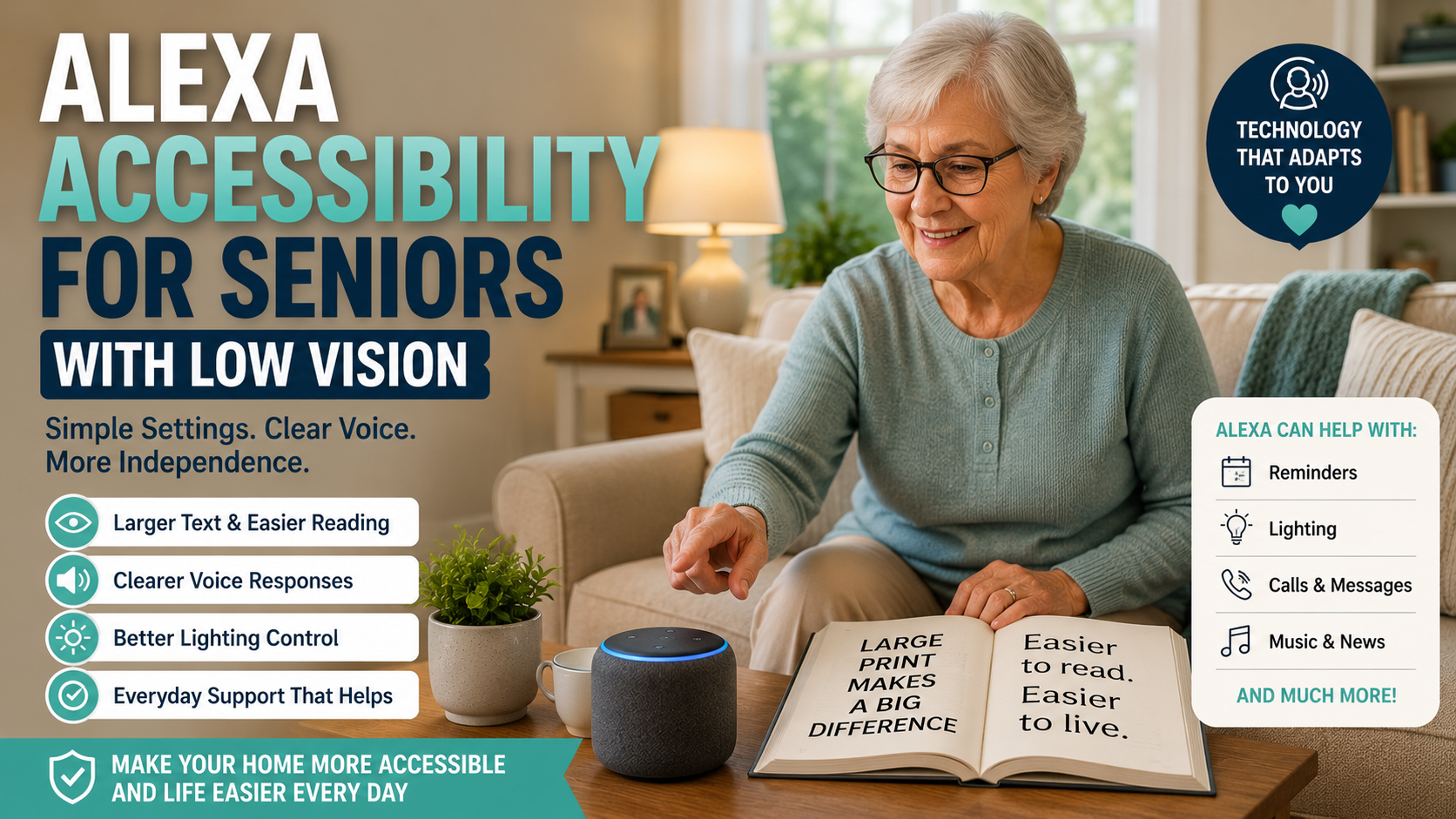
Alexa can be helpful for seniors with low vision because many tasks can be done by voice instead of by reading small text or tapping through apps. Families should start with simple commands, clear volume, predictable routines, easy calling, and display settings if using an Echo Show.
Low vision can make everyday technology frustrating. A parent may struggle to read phone screens, find the right app, see small buttons, or check tiny reminder text. Alexa does not solve every accessibility challenge, but it can reduce the need to look at a screen for common tasks.

This article focuses on accessibility and setup. For general beginner setup, start with our Alexa for seniors beginner guide.

Table of Contents

  • Why voice control can help
  • Low-vision setup checklist
  • What to configure first
  • Echo speaker vs display
  • Decision path
  • FAQ

Why Voice Control Can Help Seniors With Low Vision

Voice control is useful because it removes several visual steps. A senior can ask for the time, weather, reminders, music, calls, or lights without reading a menu.

The goal is not to make Alexa complicated. The goal is to choose a few voice actions that solve real friction.

Low-Vision Alexa Setup Checklist

  • Choose one main room for the first device.
  • Set the volume high enough for normal conversation.
  • Practice five useful phrases only.
  • Use contact names that are easy to say.
  • Create reminders with plain language.
  • Use routines for repeated daily tasks.
  • If using Echo Show, increase display readability.
  • Keep the device away from loud appliances.
  • Place it where the microphone can hear clearly.
  • Write or print commands in large type if helpful.

What to Configure First

Feature Why It Helps Family Setup Tip
Time and weather Useful daily practice Teach the same phrase each morning
Reminders Reduces need to read notes Use simple wording and repeat schedules
Calls Makes contact easier Use clear contact names
Music or radio Makes the device feel friendly Set up favorite stations
Smart lights Reduces searching for switches Use names like bedroom light or kitchen light

Echo Speaker vs Echo Show for Low Vision

A voice-only Echo can be enough if your parent mainly wants reminders, calls, music, and simple answers. An Echo Show may help if large visual cues, photos, clocks, or video calls are useful.

The screen is not automatically better. If it adds confusion, keep the first setup voice-only.

Voice Commands That Are Easiest to Learn

Start with phrases that are short and useful. Our Alexa commands for seniors guide has a broader list, but low-vision setup should begin with just a few.

  • “Alexa, what time is it?”
  • “Alexa, what’s the weather?”
  • “Alexa, call my daughter.”
  • “Alexa, remind me at 8 PM.”
  • “Alexa, turn on the kitchen light.”

Decision Path

  • If reading screens is the main issue: prioritize voice reminders, calls, and information.
  • If finding switches is hard: add one smart light in a key room.
  • If video calls matter: consider whether a display is helpful or distracting.
  • If commands are forgotten: reduce the list and practice one routine at a time.

Trust and Limits

Alexa should not replace emergency services, caregivers, medical advice, or accessibility support from professionals. It can support daily routines, but it cannot judge whether a parent is safe.

Frequently Asked Questions

Is Alexa useful for seniors with low vision?

It can be useful when tasks are voice-first and simple, such as reminders, calls, weather, music, and lights.

Is an Echo Show better for low vision?

Sometimes. A larger display can help some seniors, but a screen can also add complexity. Test what feels easier.

Can Alexa read information out loud?

Alexa can answer many questions by voice and speak reminders, timers, weather, and other simple information.

Can Alexa help with lights?

Yes, with compatible smart lights or plugs. Start with one important light before adding more.

What should families avoid?

Avoid setting up too many commands at once. Keep names, routines, and expectations simple.

Final Action Plan

  • Pick one room.
  • Set volume and wake word.
  • Teach five commands.
  • Create one reminder.
  • Set up one contact.
  • Test one light only if useful.
  • Review after one week.
Alexa commands cheat sheet for seniors with simple voice command examples and daily support icons

How to Create an Alexa Emergency Routine for Elderly Parents

How to Create an Alexa Emergency Routine for Elderly Parents

Quick Answer

An Alexa emergency routine for elderly parents can help by turning on lights, announcing a message, reminding your parent what to do, and making it easier to contact family. Alexa may also support calling features depending on the device, account setup, contacts, and available services.
But Alexa should not be treated as a replacement for 911, a medical alert system, a fall detection device, a caregiver, or a professional safety plan. The safest approach is to use Alexa as one helpful layer inside a broader home safety setup.

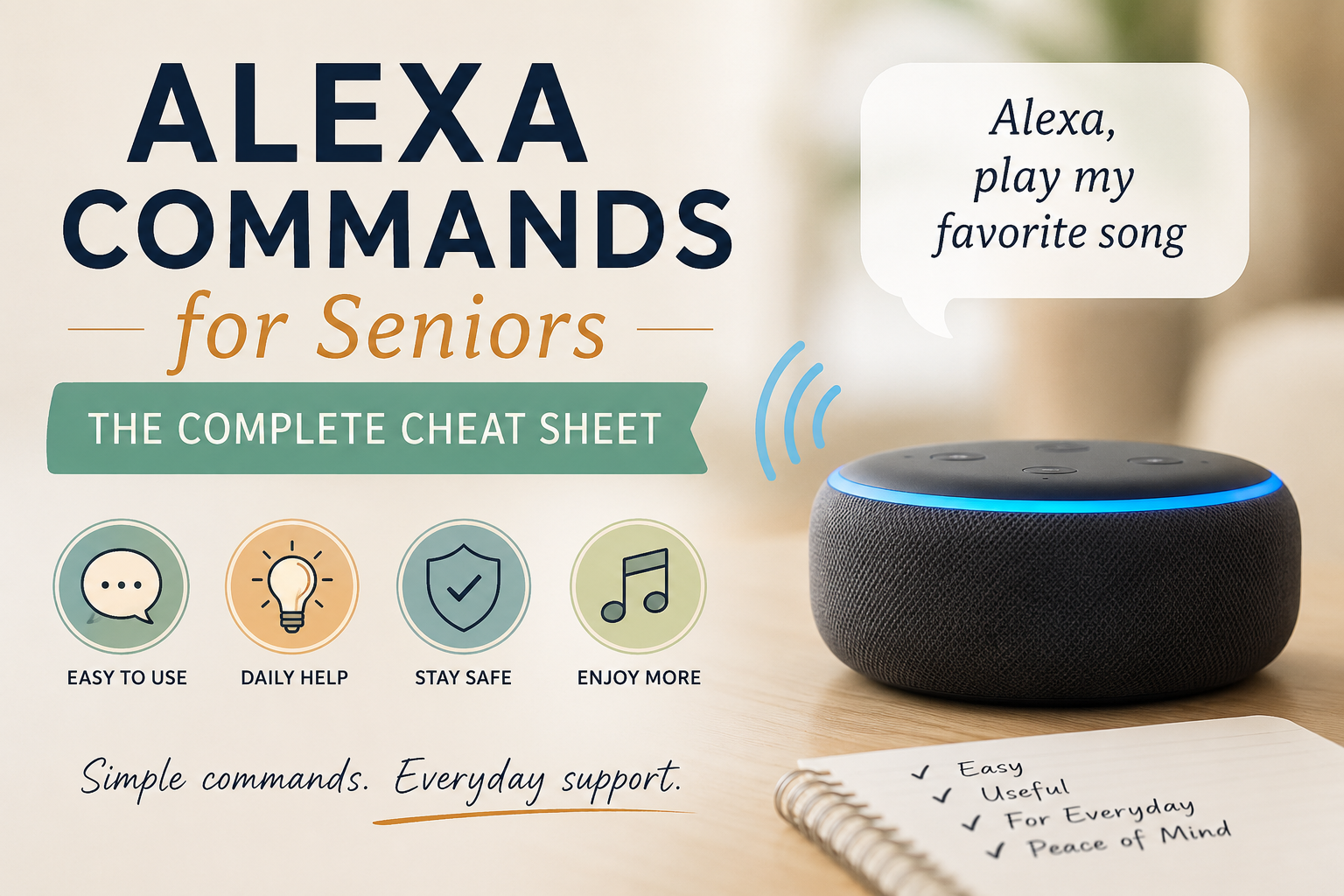
If your parent is still learning basic voice phrases, review our Alexa commands for seniors first. A routine only helps if the command is simple enough to remember during stress.

Table of Contents

  • Can Alexa help during an emergency?
  • What Alexa can do
  • What Alexa cannot do
  • How to create an Alexa emergency routine for elderly parents
  • Recommended routine example
  • Frequently asked questions

Important safety note: Use Alexa as a backup layer, not as the emergency plan itself. Families should still have a clear plan for 911, medical alert systems, caregiver support, neighbors, and direct family contact when serious risk is present.

Can Alexa Help During an Emergency?

Alexa can help in some urgent situations, but only within limits.

For example, Alexa may help an older adult call a family member, turn on lights, play a loud announcement, or trigger a reminder about what to do next. That can be useful if your parent feels unwell, hears a noise at night, needs help getting oriented, or wants to quickly contact someone.

However, families need to be honest about what Alexa is and what it is not.

Alexa is a voice assistant. It is not a guaranteed emergency response system. It does not automatically detect every fall, does not replace a medical alert pendant, and may not work if the internet is down, power is out, the device cannot hear your parent, or the account is not configured correctly.

Think of Alexa as a helper, not the whole safety plan.

If your family is building a broader aging-in-place setup, pair this guide with our aging in place checklist so the technology supports the home environment instead of standing alone.

What Alexa Can Do

Alexa can support emergency preparedness in several practical ways.

Alexa Safety FunctionHow It May HelpImportant Limitation
Voice-triggered routineStarts several helpful actions from one phraseYour parent must be able to speak clearly enough for Alexa to hear
Family callingMay help contact approved family membersCalling features depend on setup, contacts, device, and connectivity
Smart lightsCan turn on lights during a stressful momentRequires compatible bulbs, plugs, or switches
AnnouncementsCan play a loud message on Echo devicesOnly useful if devices are placed where people can hear them
RemindersCan tell your parent what step to take nextCannot confirm the step was completed
Smart home triggersCan connect with some sensors or devicesCompatibility varies and setup may be more complex

Alexa can make one command do several things

During stress, asking your parent to remember multiple steps is unrealistic. A simple phrase such as "Alexa, I need help" is easier than remembering who to call, which light to turn on, and what to do next.

An emergency-style routine can combine several actions:

  • Turn on living room lights
  • Set Alexa volume higher
  • Say a clear message
  • Remind your parent to sit down if they feel unsafe
  • Prompt them to call a family member
  • Announce a message on other Echo devices in the home

Alexa can support family communication

Depending on the device and setup, Alexa may help your parent contact family through calling or drop-in style features. Families should test this carefully and confirm that contacts, permissions, and devices are configured correctly.

This is not the same as calling emergency services. It is family communication support.

Alexa can support visibility

Smart lights are one of the most practical safety uses. If your parent hears something at night, feels unsteady, or needs to move through a hallway, a voice routine can turn on lights without requiring them to walk in the dark.

For broader room-by-room safety planning, use our room-by-room home safety checklist for seniors alongside any Alexa setup.

Alexa can give simple instructions

In a stressful moment, Alexa can say a short custom message:

"Sit down if you feel dizzy. Take slow breaths. Call your daughter if you need help."

Keep messages calm, short, and specific. Alexa should not overwhelm your parent during the exact moment they need clarity.

What Alexa Cannot Do

This is the most important part of the article.

Understanding Alexa’s limitations in an emergency matters because it cannot replace emergency services, caregivers, medical alert systems, or direct family responsibility. It can support a safety plan, but it should not be the safety plan.

Alexa does not replace 911

Do not assume Alexa will reliably call 911 in every situation. Emergency calling features vary by device, service, location, account setup, and available subscriptions. Families should verify current capabilities directly in the Alexa app and with official service information before relying on any emergency calling feature.

If your parent has serious fall risk, medical risk, or lives alone with limited support, Alexa should be considered supplemental.

Alexa does not reliably detect falls by itself

Alexa is not the same as a wearable fall detection device. Some smart home ecosystems may connect with motion sensors or third-party devices, but Alexa alone should not be treated as automatic fall detection.

If fall response is a major concern, consider a dedicated medical alert device, fall detection wearable, or professional monitoring option.

Alexa cannot confirm medication was taken

Alexa can remind your parent about medication. It cannot confirm the right pill, dose, or timing. For medication safety, families may need a pill organizer, caregiver check-in, pharmacy packaging, or dedicated reminder device.

Our guide to medication reminder devices for seniors explains when a dedicated option may be safer than a simple voice reminder.

Alexa may fail if power, Wi-Fi, or hearing conditions fail

Alexa depends on electricity, internet, device placement, microphone pickup, account settings, and your parent’s ability to speak clearly. A routine that works during testing may not work during every real emergency.

That is why families should test routines and keep backup plans.

Alexa cannot replace human judgment

If your mother sounds confused, if your father stops answering calls, or if something feels wrong, do not rely on a routine alone. Call, visit, ask a neighbor to check, or contact emergency services as appropriate.

Step-by-Step: Create an Alexa Emergency Routine for Elderly Parents

Before creating a routine, talk with your parent. Explain what the routine is meant to do, what it cannot do, and when they should still call emergency services directly.

Step 1: Choose one simple trigger phrase

Pick a phrase your parent can remember under stress.

Good examples:

  • "Alexa, I need help"
  • "Alexa, call for help"
  • "Alexa, emergency help"
  • "Alexa, help me"

Avoid phrases that sound too technical:

  • "Alexa, activate safety protocol"
  • "Alexa, launch emergency automation"
  • "Alexa, initiate response sequence"

The phrase should sound natural.

If your parent is practicing voice phrases, connect this routine to the simpler command ideas in our Alexa commands for seniors article.

Step 2: Open the Alexa app and go to Routines

A family member will usually manage this in the Alexa app.

The exact app layout may change, but the general process is:

  • Open the Alexa app
  • Go to More
  • Choose Routines
  • Tap the plus sign or create option
  • Name the routine clearly, such as "Emergency Help"

Use a name you will recognize later. Do not call it something vague like "Routine 3."

Step 3: Set the trigger

Choose "Voice" as the trigger if you want the routine to start when your parent says a phrase.

Example trigger:

"Alexa, I need help."

Test different phrases with your parent. If Alexa misunderstands, choose a simpler phrase.

Step 4: Add a calm spoken message

Add a custom Alexa response.

Example:

"I will help you start your safety routine. Sit down if you feel dizzy. If this is a serious emergency, call 911 now."

Keep it calm. Avoid loud, alarming language that might make your parent more anxious.

Step 5: Turn on key lights

If your parent uses smart bulbs or smart plugs, add an action that turns on important lights.

Good choices:

  • Living room lamp
  • Bedroom lamp
  • Hallway light
  • Entryway light

Do not try to automate every light in the house at first. Start with the areas most likely to matter.

Step 6: Increase Alexa volume

If the routine includes spoken instructions, set the Alexa volume to a level your parent can hear.

Example:

  • Set volume to 7
  • Alexa says the safety message
  • Optional: return volume to normal later

Test this in the room where the device will be used.

Step 7: Prompt a family call or check-in

Depending on the available calling setup, you may be able to guide your parent to call a family member or use Alexa communication features.

Example spoken prompt:

"Would you like to call Sarah now?"

Be careful with automation here. Families should test what actually happens on their devices. If calling requires a separate confirmation, make sure your parent knows what to say next.

Step 8: Add an announcement if there are multiple Echo devices

If there are Echo devices in different rooms, an announcement may help someone else in the home hear that help is needed.

Example:

"Help is needed in the living room."

This is most useful if another person lives in the home. For a senior living alone, family calling or external support matters more.

Step 9: Save and test the routine

Test the routine with your parent present.

Ask:

  • Did Alexa hear the phrase?
  • Was the message clear?
  • Was the volume right?
  • Did the lights turn on?
  • Did the next step make sense?
  • Did anything feel scary or confusing?

Do not skip testing. A safety routine that nobody has practiced is not reliable.

Step 10: Write down the phrase

Place a small card near the Alexa device:

"Say: Alexa, I need help."

Keep the card large, high contrast, and easy to read. If your parent has multiple Alexa commands, do not crowd the card with too many phrases.

Recommended Routine

Here is a practical example families can adapt.

Routine name

Emergency Help

Trigger

"Alexa, I need help."

Actions

StepActionPurpose
1Set Alexa volume to 7Makes instructions easier to hear
2Turn on living room and hallway lightsImproves visibility
3Alexa says a calm safety messageGives simple next steps
4Alexa prompts the parent to call familyEncourages contact
5Optional announcement on other Echo devicesAlerts anyone else in the home

Example Alexa message

"I am starting your help routine. Please sit down if you feel dizzy or unsafe. If this is a serious emergency, call 911 now. If you need family help, say, Alexa, call Sarah."

Why this routine works

This routine does not pretend Alexa can solve the emergency. It focuses on visibility, calm instructions, and family contact. Those are realistic ways Alexa may help.

Case example

Imagine your father lives alone and sometimes feels unsteady at night. He hears a noise, stands up too quickly, and feels dizzy. Instead of walking across a dark room to find a switch or phone, he says, "Alexa, I need help."

Alexa turns on the lamp, raises the volume, reminds him to sit down if dizzy, and prompts him to call you. That does not replace emergency care, but it can make the next step easier.

For a broader list of everyday Alexa uses beyond safety routines, see what Alexa can do for seniors.

Devices That Work Well With Alexa

Families choosing devices for an emergency routine should also consider low-vision Alexa setup tips so prompts, lights, and screens are easy to use under stress.

You do not need every smart home device to create a useful safety routine. Start with the devices that solve a real problem.

DeviceHow It HelpsBest Use CaseCaution
Echo speakerRuns voice routines and spoken promptsBasic safety routineNeeds Wi-Fi and power
Echo ShowAdds screen, video calling, visual remindersFamily communicationMay feel more complex
Smart lightsTurns on lights by voice or scheduleNight visibilityRequires compatible setup
Smart plugsControls lamps without rewiringSimple lamp automationWall switch habits can confuse users
Motion sensorsMay trigger lights or alertsHallway or entry movementCan feel intrusive if not discussed
Video doorbellsShows or alerts about front-door activityEntryway awarenessPrivacy and notification settings matter

Echo speaker

A basic Echo-style speaker can run routines, speak messages, and support voice commands. It is often enough for a first safety routine.

Echo Show

An Echo Show-style smart display can be helpful for video calls, visual reminders, and seeing who is at the door if connected devices support it. It may be a good fit for seniors who like screens, photos, or video calls.

Smart lights

Smart lights are one of the most useful additions because visibility affects safety. A hallway or living room lamp that turns on by voice can reduce stress at night.

Smart plugs

A smart plug can control a regular lamp. This is often simpler than replacing bulbs or switches.

Motion sensors

Motion sensors can trigger lights or other actions, but they require careful setup and consent. Some families like them. Some older adults may feel uncomfortable with them.

Video doorbells

Video doorbells can support front-door awareness, but they are not emergency systems. They work best as part of a broader home safety plan, especially for entryway visibility and family awareness.

Additional Safety Tips

An Alexa emergency routine should sit inside a larger safety plan.

Use this checklist before relying on the routine:

  • Test the routine in the actual room where it will be used
  • Confirm Alexa can hear your parent from normal sitting positions
  • Keep the trigger phrase short and visible
  • Place the device where your parent spends the most time
  • Add smart lighting only where it solves a real problem
  • Confirm family contacts are correct
  • Review emergency plans with your parent
  • Keep a phone accessible
  • Consider a medical alert system if fall or health risk is high
  • Recheck the routine after Wi-Fi, account, or device changes

For home hazards beyond Alexa, use our room-by-room home safety checklist for seniors to review lighting, floors, bathrooms, stairs, bedrooms, and entryways.

Mistakes Families Should Avoid

Mistake 1: Assuming Alexa will call 911

Do not assume this. Verify current emergency calling options, limitations, and account settings. If emergency response is essential, use a dedicated emergency solution.

Mistake 2: Using a phrase your parent cannot remember

"Alexa, I need help" is better than a complicated phrase. Stress makes memory harder.

Mistake 3: Creating a routine without testing it

Test it more than once. Test it when your parent is sitting, standing, and in the room where they would actually use it.

Mistake 4: Making the message too long

During stress, long instructions are hard to process. Keep Alexa’s message short.

Mistake 5: Skipping consent

If the routine includes family notifications, drop-in features, sensors, or cameras, discuss it openly. Safety should not feel like surveillance.

Mistake 6: Ignoring non-technology fixes

Sometimes the safest fix is not another device. It may be better lighting, removing a rug, adding grab bars, or changing furniture placement.

Use the aging in place checklist to review the full home, not just Alexa.

Mistake 7: Treating medication reminders as medication management

Alexa can remind. It cannot manage medication safety by itself. If mistakes would be dangerous, consider dedicated tools and professional guidance.

Frequently Asked Questions

How can Alexa help in an emergency?

Alexa can help by starting a voice routine, turning on lights, playing a spoken message, prompting a family call, or announcing that help is needed on other Echo devices. It can make the next step easier, but it should not be treated as a full emergency response system.

Can Alexa call someone automatically?

Alexa may support calling family or approved contacts depending on the device, account, permissions, and setup. Families should test this carefully. Do not assume Alexa will automatically contact the right person unless you have verified the exact behavior.

Can Alexa help after a fall?

Alexa may help after a fall if your parent can speak clearly and the device can hear them. For example, they may be able to trigger a routine or call a family member. Alexa alone should not be considered reliable fall detection. If fall risk is high, consider a dedicated fall detection or medical alert system.

Can Alexa contact family members?

Alexa may help contact family members through supported calling or communication features. The setup must be tested in advance, and your parent should know the correct phrase to use.

Can Alexa replace a medical alert system?

No. Alexa should not replace a medical alert system for someone with serious fall risk, medical risk, or emergency response needs. It can be a helpful extra layer, but it is not a dedicated monitored safety device.

How should I configure Alexa for an elderly parent?

Start with one simple routine, such as "Alexa, I need help." Add only a few actions: turn on lights, say a calm message, and prompt a family call. Test it with your parent and keep a printed phrase card near the device.

What is the best Alexa emergency routine for elderly parents?

A practical starter routine turns on key lights, raises Alexa volume, gives a calm safety message, and prompts the parent to contact family or emergency services depending on the situation. Keep the routine simple and test it regularly.

Is Alexa good for elderly parents living alone?

Alexa can be useful for elderly parents living alone when it supports reminders, lights, communication, and simple routines. It should be combined with family check-ins, home safety improvements, and appropriate emergency tools.

Conclusion

An Alexa emergency routine for elderly parents can be useful, but only when families understand its limits.

The best setup is simple: one memorable phrase, a calm spoken message, key lights turning on, and a clear path to contact family or emergency help. Alexa can make those steps easier. It cannot replace 911, caregivers, medical alert systems, or a real safety plan.

Start with one routine. Test it with your parent. Write down the phrase. Then review the rest of the home with a broader safety checklist.

If your parent is still learning Alexa, begin with Alexa commands for seniors. If your family needs the basics first, read the Alexa for seniors beginner guide. Then use this routine as one layer in a safer aging-in-place plan.

Alexa routine ideas for seniors showing daily reminders, lights, weather and helpful routines on an Echo Show

Alexa Routine Ideas for Seniors: Simple Daily Routines That Actually Help

Alexa Routine Ideas for Seniors: Simple Daily Routines That Actually Help

Quick Answer

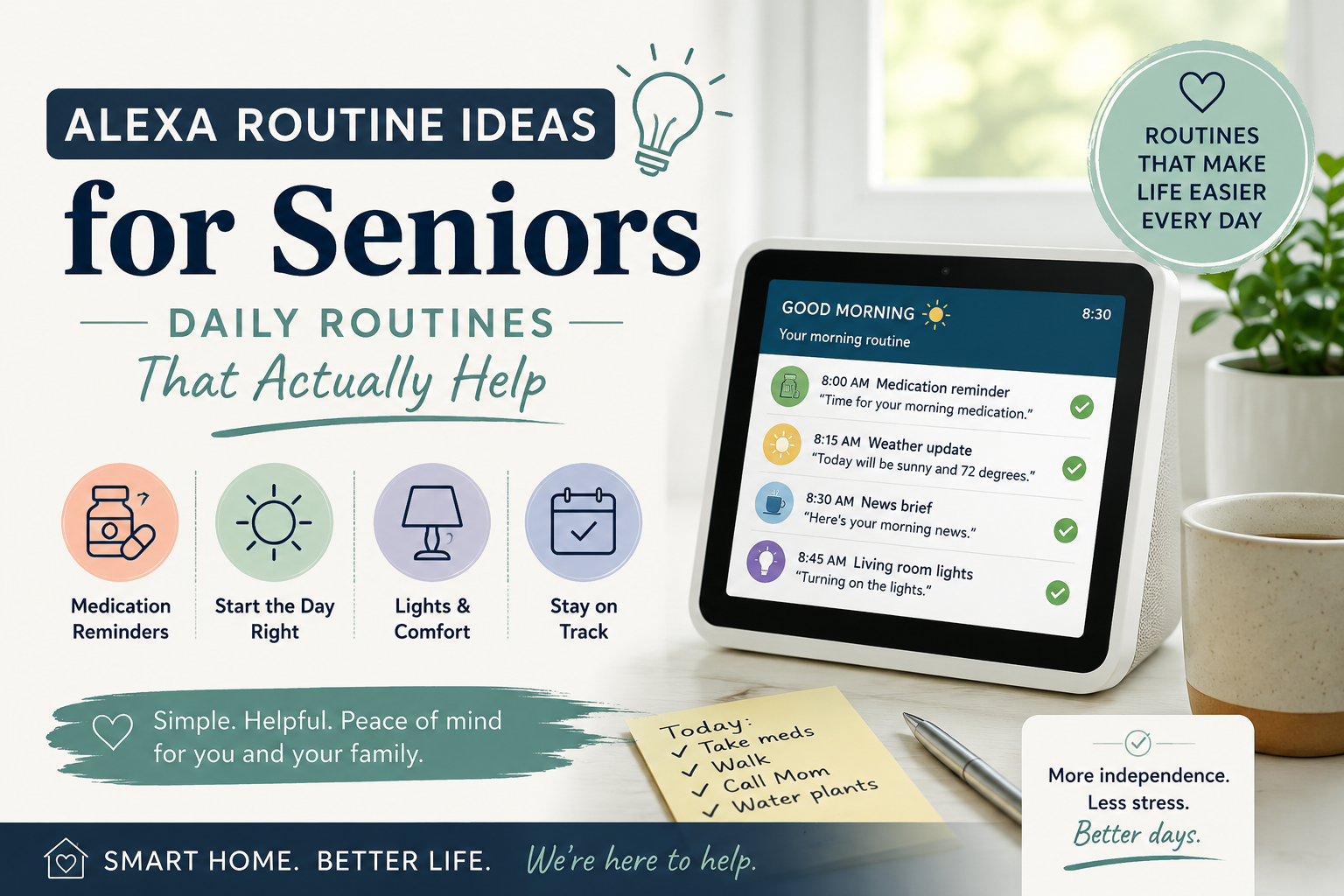
The best Alexa routines for seniors are simple, repeatable automations that support daily life without making technology feel overwhelming. Good starting routines include a morning routine, medication reminder routine, good night routine, weather update, family check-in, hydration reminder, light control routine, calendar reminder, news update, and gentle movement reminder.

Alexa routines should not replace caregivers, medical advice, emergency systems, or family support. But when they are set up thoughtfully, they can make small daily tasks easier for older adults and give families a little more peace of mind.

If your parent is still learning basic voice commands, start with our Alexa commands for seniors guide first, then come back to routines once those commands feel familiar.

Table of Contents

  • What Alexa routines are
  • Why routines can help older adults
  • 10 Alexa routines for seniors
  • How to create a routine step by step
  • Common mistakes families should avoid
  • Frequently asked questions

What Are Alexa Routines?

Alexa routines are simple automations that make Alexa do one or more actions after a trigger.

For example, your mother might say, "Alexa, good morning," and Alexa could respond by turning on a lamp, reading the weather, sharing the day’s calendar, and reminding her to drink water.

A routine can be triggered by:

  • A voice phrase
  • A scheduled time
  • Sunrise or sunset
  • A smart home device
  • A motion sensor
  • An alarm being dismissed

For seniors, the goal is not to create a complicated smart home. The goal is to reduce friction in everyday moments. A good routine should feel like a helpful nudge, not like a system your parent has to manage.

If your family is new to Alexa, our Alexa for seniors beginner guide explains the basics before you start building routines.

Why Alexa Routines Can Help Older Adults

A routine can also be useful for stressful moments; families can create an emergency routine for elderly parents that uses one memorable phrase and a short set of support actions.

Many families buy an Alexa device because they want a parent to have easier access to reminders, music, calls, or smart lights. The problem is that remembering individual commands can be difficult at first.

Routines solve part of that problem.

Instead of asking your parent to remember five different commands, you can group helpful actions into one phrase or schedule. That can be especially useful for older adults who prefer predictable habits.

Alexa routines may help with:

  • Morning structure
  • Medication reminders
  • Bedtime habits
  • Weather awareness
  • Family check-ins
  • Hydration prompts
  • Lighting
  • Calendar reminders
  • Gentle activity
  • Reducing small daily frustrations

Imagine your father wakes up and is not sure whether he has anything on the calendar. A simple morning routine can tell him the day, the weather, and his first appointment. That small moment can make the day feel more organized.

Still, routines have limits. Alexa cannot verify that medication was taken correctly, cannot detect every emergency, and cannot replace regular contact from family or caregivers. For medication-specific needs, families may also want to compare medication reminder devices for seniors.

10 Alexa Routines for Seniors That Families Can Set Up

Use the table below as a starting point. The best routine is the one your parent will actually understand, accept, and use.

RoutineWhat It DoesBest ForSetup Difficulty
Morning routineStarts the day with weather, calendar, lights, and remindersDaily structureEasy
Medication reminder routineGives scheduled medication promptsRoutine medication habitsEasy to moderate
Good night routineTurns off lights, lowers volume, and gives bedtime remindersEvening calmEasy
Weather routineShares daily weather before errands or walksPlanning the dayEasy
Family check-in routinePrompts a call, message, or reminder to contact familyStaying connectedModerate
News routinePlays a short news update or favorite stationFamiliar daily habitEasy
Hydration reminderReminds your parent to drink waterGentle wellness promptsEasy
Light control routineTurns on hallway or living room lightsVisibility and comfortModerate
Calendar reminder routineReads upcoming appointments or eventsReducing missed plansEasy
Gentle movement reminderEncourages a short walk, stretch, or chair movementDaily activity promptsEasy

Best First 3 Alexa Routines for Seniors

If your family only sets up three routines at first, choose routines that are useful every day and easy to understand. The goal is not to impress your parent with technology. The goal is to make one or two normal moments feel smoother.

Starter RoutineTriggerActionsWhy Start Here
Morning check-in"Alexa, start my day"Weather, calendar, gentle hydration reminder, living room lamp onHelps the day feel organized without asking your parent to remember several commands
Medication promptScheduled time, such as 8:00 AMCalm reminder, optional follow-up phrase, volume set clearlySupports a daily habit while reminding families that Alexa cannot confirm medication was taken
Good night routine"Alexa, good night"Turn off selected lights, lower volume, remind parent to check doors, play calming audioCreates a simple evening rhythm and reduces small bedtime worries

Example 1: Simple Morning Routine

Trigger: "Alexa, start my day."

Actions: Alexa turns on a lamp, reads the weather, mentions the first calendar event, and says, "Remember to take your time this morning."

Why it works: It gives your parent useful information without making the routine feel medical, controlling, or complicated.

Example 2: Medication Reminder Routine

Trigger: 8:00 AM every day.

Actions: Alexa says, "Good morning. It may be time to check your pill organizer." If the reminder is important, a family member can also use a separate medication system or caregiver check-in.

Why it works: The reminder is gentle and predictable. It supports a habit but does not pretend Alexa can verify the right medication or dosage.

Example 3: Good Night Routine

Trigger: "Alexa, good night."

Actions: Alexa turns off the living room lamp, turns on a bedroom lamp if connected, lowers the volume, and says, "Sleep well. Please move slowly if you get up during the night."

Why it works: It helps with lighting and calm transitions, two areas that can matter for older adults who move around in the evening.

1. Morning Routine

What it does: A morning routine can greet your parent, turn on a lamp, read the weather, mention the calendar, and give one or two simple reminders.

Why it helps: Mornings can set the tone for the day. A predictable start can help an older adult feel more oriented and less rushed.

Example: Imagine your mother wakes up and says, "Alexa, start my day." Alexa turns on the living room lamp, says the weather, reads the first calendar event, and reminds her to have breakfast.

Setup difficulty: Easy.

Start simple. Do not add ten actions on the first day. A short morning routine is more likely to become a habit.

2. Medication Reminder Routine

What it does: Alexa can announce a scheduled reminder such as, "It is time for your morning medication."

Why it helps: Many older adults benefit from consistent prompts, especially when routines happen at the same time each day.

Example: At 8:00 AM, Alexa says, "Good morning. It is time for your morning medication. Please check your pill organizer."

Setup difficulty: Easy to moderate.

Important limitation: Alexa can remind, but it cannot confirm that the right medication was taken correctly. If medication safety is a major concern, pair Alexa reminders with a pill organizer, caregiver check-in, or a dedicated medication device.

3. Good Night Routine

What it does: A bedtime routine can turn off selected lights, lower device volume, remind your parent to lock the door, and play calming music.

Why it helps: Evening habits can be easy to forget. A gentle routine can reduce small worries before sleep.

Example: Your father says, "Alexa, good night." Alexa turns off the living room light, reminds him to check the front door, and plays soft music for 20 minutes.

Setup difficulty: Easy.

Avoid making the routine too long. At bedtime, simple is better.

4. Weather Routine

What it does: Alexa gives the weather at a scheduled time or after a phrase such as, "Alexa, what’s my day like?"

Why it helps: Weather can affect clothing, errands, walks, transportation, and fall risk outside the home.

Example: At 8:30 AM, Alexa says, "Today’s weather is cool and rainy. You may want a jacket and umbrella."

Setup difficulty: Easy.

This is one of the easiest routines to test because it does not require smart home devices.

5. Family Check-In Routine

What it does: Alexa can remind your parent to call or message a family member. In some setups, Alexa calling can help start a call with approved contacts.

Why it helps: A routine can support connection without making your parent feel watched.

Example: Every evening at 7:00 PM, Alexa says, "Would you like to call Sarah?" Your parent can choose whether to call.

Setup difficulty: Moderate.

This routine should be discussed with your parent first. It works best when it feels supportive, not controlling.

6. News Routine

What it does: Alexa can play a short news briefing, local update, radio station, or favorite audio source.

Why it helps: Familiar audio can be comforting and can help some older adults feel connected to the outside world.

Example: After breakfast, Alexa plays a brief news update and then stops automatically.

Setup difficulty: Easy.

Choose sources carefully. Some news briefings may feel too fast, stressful, or noisy. Test the experience with your parent.

7. Hydration Reminder

What it does: Alexa can give a gentle reminder to drink water during the day.

Why it helps: A simple reminder can support daily habits, especially for seniors who get busy, distracted, or do not feel thirsty often.

Example: At 11:00 AM and 3:00 PM, Alexa says, "This is a gentle reminder to drink some water."

Setup difficulty: Easy.

Keep the language kind. A reminder should sound like help, not a command.

8. Light Control Routine

What it does: Alexa can turn smart bulbs, smart plugs, or compatible lights on and off at certain times or with a voice phrase.

Why it helps: Lighting matters for comfort and safety. A hallway light routine can make evening movement easier.

Example: At sunset, Alexa turns on a hallway lamp and a living room lamp.

Setup difficulty: Moderate.

This routine requires compatible smart bulbs, smart plugs, or connected switches. If your parent is new to smart home devices, start with one lamp rather than the whole house.

9. Calendar Reminder Routine

What it does: Alexa can read calendar events or remind your parent about appointments.

Why it helps: Missed appointments are frustrating for seniors and families. A calendar routine can create one more layer of support.

Example: At 9:00 AM, Alexa says, "You have a dentist appointment today at 2:00 PM."

Setup difficulty: Easy to moderate.

The setup depends on whether your family uses Google Calendar, Apple Calendar, Microsoft, or another service. Keep privacy in mind when connecting accounts.

10. Gentle Movement or Exercise Reminder

What it does: Alexa can remind your parent to stand, stretch, walk around the room, or do a short chair movement routine if that is safe for them.

Why it helps: Gentle movement reminders can support daily rhythm, but they should always match the person’s health, mobility, and professional guidance.

Example: At 10:30 AM, Alexa says, "If you feel steady and comfortable, this may be a good time to stand up and move for a minute."

Setup difficulty: Easy.

Use careful language. Alexa should not pressure a person to move if they feel dizzy, weak, or unsafe.

How to Create an Alexa Routine Step by Step

You do not need to set up every routine at once. Start with one routine, test it for a week, and adjust it based on your parent’s reaction.

Step 1: Choose one real problem

Pick one daily moment that causes friction.

For example:

  • Forgetting the weather before going outside
  • Missing a medication reminder
  • Leaving a lamp off in the evening
  • Forgetting an appointment
  • Feeling unsure how to start the day

Do not begin with a complicated smart home plan. Begin with one useful habit.

Step 2: Open the Alexa app

On a smartphone, open the Alexa app and look for "Routines." The exact menu may change over time, but it is usually found under "More" or a similar settings area.

If your parent does not use a smartphone, a family member can usually manage routines from their own phone if the account and device are set up appropriately.

Step 3: Choose the trigger

Decide what starts the routine.

Common triggers include:

  • A voice phrase like "Alexa, good morning"
  • A scheduled time like 8:00 AM
  • Sunset
  • An alarm being dismissed
  • Motion from a compatible sensor

For seniors, voice phrases and scheduled times are usually easiest.

Step 4: Add actions

Choose what Alexa should do.

Simple actions include:

  • Say a custom phrase
  • Read the weather
  • Read the calendar
  • Set volume
  • Play music
  • Turn on a light
  • Announce a reminder

Limit the first routine to two or three actions. If the routine feels too busy, your parent may ignore it.

Step 5: Test it with your parent

Do not set up routines privately and hope they work. Sit with your parent and test the routine together.

Ask:

  • Does this feel helpful?
  • Is the voice too loud?
  • Is the phrase easy to remember?
  • Is the reminder too early or too late?
  • Would you rather remove anything?

This step matters because routines should support independence, not take control away.

Step 6: Write the phrase down

If the routine uses a voice trigger, write the phrase on a small card. Keep it near the Alexa device.

For example:

  • "Alexa, start my day"
  • "Alexa, good night"
  • "Alexa, call my daughter"

This pairs well with a printed command sheet. See our guide to Alexa commands for seniors for more examples.

Common Mistakes Families Should Avoid

Alexa routines can be helpful, but families often make them too complicated too quickly.

Mistake 1: Setting up too many routines at once

If you add ten routines in one afternoon, your parent may feel overwhelmed. Start with one or two.

Mistake 2: Using phrases your parent will not remember

Use natural phrases. "Alexa, start my day" is easier than "Alexa, activate morning automation."

Mistake 3: Making reminders sound bossy

Tone matters. A reminder like "It may be time to drink some water" feels better than "Drink water now."

Mistake 4: Treating Alexa like a safety system

Alexa can support routines, reminders, and communication. It is not a medical alert system, fall detection system, or emergency response plan by itself.

Mistake 5: Ignoring privacy and consent

Talk with your parent before setting up routines that involve calls, reminders, sensors, or family check-ins. The goal is support, not surveillance.

Mistake 6: Forgetting to maintain routines

Appointments change. Medication schedules change. Family phone numbers change. Review routines every month or two so they stay accurate.

Best Alexa Devices for Running Routines

The best device depends on what your parent will actually use. This section is not about buying the most expensive option. It is about choosing a device that matches the routine.

Echo speaker

A basic Echo-style speaker is often enough for reminders, weather, timers, music, and voice routines. It works well for a bedroom, kitchen, or living room.

Echo Show-style smart display

A smart display may help if your parent benefits from seeing the time, weather, reminders, photos, or video calls. It can be useful for family connection, but it may also feel more complicated for some seniors.

Smart plug

A smart plug can make one lamp easier to control. This is a simple way to test light routines without changing wiring.

Smart bulbs

Smart bulbs can support evening lighting routines, but they require setup and may confuse someone if wall switches are turned off. Use them carefully.

Motion sensor

Motion sensors can trigger lights or routines, but they should be introduced thoughtfully. Some families like them for hallway lighting. Others may feel they are too intrusive.

For broader examples beyond routines, see what Alexa can do for seniors.

Alexa Routine Setup Checklist for Families

Testing routines with the older adult also helps families notice whether Alexa commands for hearing support are needed before a routine becomes part of daily life.

Before you call the setup finished, review this quick checklist:

  • Choose one routine to start
  • Use a simple trigger phrase or scheduled time
  • Keep the routine to two or three actions
  • Test the routine with your parent present
  • Adjust volume and timing
  • Write down any voice phrase
  • Avoid emergency promises Alexa cannot fulfill
  • Review medication-related routines carefully
  • Ask for consent before check-ins or sensor-based routines
  • Revisit routines every month or when care needs change

Frequently Asked Questions

Are Alexa routines good for seniors?

Alexa routines can be useful for seniors when they are simple, predictable, and built around real daily needs. The best routines help with reminders, weather, lights, bedtime habits, and family connection. They should not replace caregivers, medical advice, or emergency systems.

Can Alexa remind seniors to take medication?

Yes, Alexa can give scheduled medication reminders. However, Alexa cannot verify that the correct medication was taken, confirm dosage, or replace a caregiver or medical professional. For higher-risk medication needs, families may want a dedicated medication reminder device in addition to Alexa.

Can Alexa routines help someone living alone?

Alexa routines may help someone living alone by supporting daily structure, reminders, lighting, and family check-ins. They are best used as one layer of support, not as the only safety plan.

Do Alexa routines work without a smartphone?

Once routines are set up, many can run without the senior using a smartphone. However, a family member usually needs the Alexa app on a smartphone to create and manage routines.

Are Alexa routines safe for older adults?

Alexa routines are generally safe when used for simple reminders and convenience tasks. Families should avoid using Alexa as a substitute for medical monitoring, emergency response, or direct caregiving. Privacy, consent, and simplicity are important.

What is the best Alexa morning routine for seniors?

A good Alexa morning routine for seniors might include turning on a lamp, reading the weather, sharing the day’s first calendar event, and giving one gentle reminder. Keep it short so it does not feel overwhelming.

What is the easiest Alexa routine for seniors to start with?

The easiest Alexa routine for seniors to start with is usually a morning routine or bedtime routine because both connect to habits your parent already has. Avoid complex automations at first. One phrase, two or three actions, and a clear benefit are enough.

Can Alexa create bedtime routines for older adults?

Yes. A bedtime routine can turn off selected lights, lower volume, play calming audio, and remind the person to check doors or prepare for sleep. The routine should be calm, brief, and easy to understand.

Conclusion

Alexa routines for seniors work best when they are simple, respectful, and tied to real daily moments. A morning routine, medication reminder, good night routine, weather update, and family check-in are often better starting points than a complicated smart home setup.

Start with one routine. Test it with your parent. Keep the language gentle. If it helps, build from there.

For the next step, review our Alexa commands for seniors so your parent has easy phrases to practice. If your family is still setting up the basics, start with the Alexa for seniors beginner guide before adding more routines.

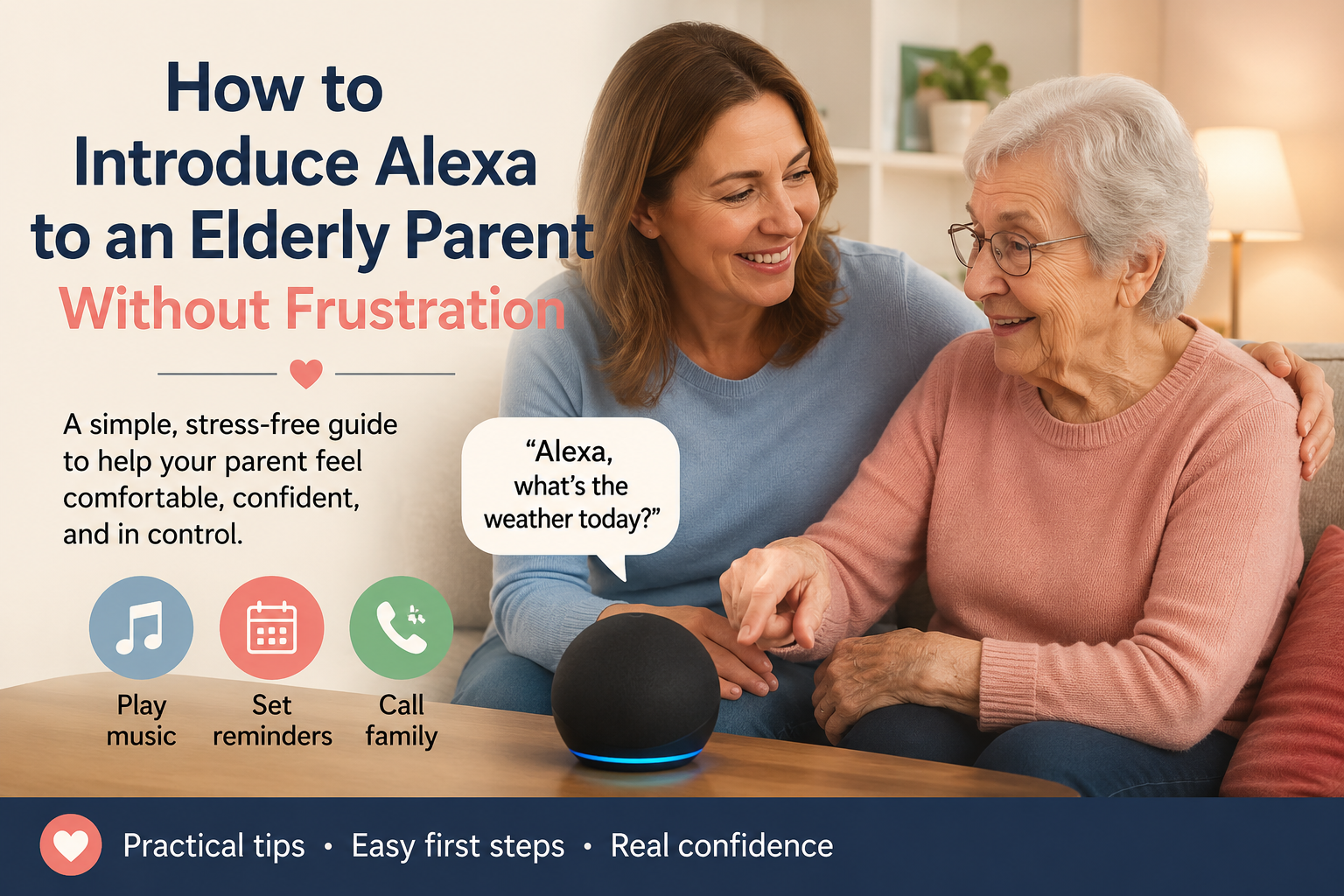
Adult daughter helping her elderly mother learn how to use Alexa at home without frustration

How to Introduce Alexa to an Elderly Parent Without Frustration

How to Introduce Alexa to an Elderly Parent Without Frustration

Quick Answer

The best way to introduce Alexa to an elderly parent is to set it up before handing it over, start with only two or three useful commands, and connect Alexa to one daily habit your parent already has. Do not begin with every feature. Begin with something simple, like weather, music, reminders, or calling family.

Older adults are more likely to use Alexa when it feels helpful, respectful, and easy. They are less likely to use it if the family rushes setup, explains too much at once, or makes the device feel like surveillance.

If your parent is completely new to voice assistants, start with our Alexa for seniors beginner guide first. Then use this article to make the first week feel calm and successful.

Why Some Seniors Reject New Technology

When an older parent resists Alexa, it does not always mean they are "bad with technology." Often, the real problem is emotional, not technical.

Your parent may be thinking:

  • "I don’t want another thing to learn."
  • "What if I say the wrong thing?"
  • "Is it listening to me all the time?"
  • "I don’t want my children monitoring me."
  • "I have lived without this for years."
  • "I do not want to feel dependent."

Those concerns are reasonable. A smart speaker can feel strange at first, especially if someone did not grow up talking to devices.

Families sometimes make the mistake of presenting Alexa as a solution before listening to the parent’s concern. That can make the device feel imposed instead of helpful.

A better approach is to connect Alexa to something your parent already cares about.

For example:

  • If your mother likes music, start with music.
  • If your father checks the weather every morning, start with weather.
  • If your parent worries about missed appointments, start with reminders.
  • If family connection matters most, start with calling.

The first goal is not to teach Alexa. The first goal is to create one positive moment.

This Is an Adoption Guide, Not a Setup Manual

Before teaching features, families need to earn trust. This article is not meant to replace a technical setup guide. It is about helping an older parent feel comfortable enough to try Alexa without embarrassment, pressure, or the sense that technology is being forced into their home.

Think of the first week as a confidence-building period. Your parent does not need to understand routines, skills, smart plugs, or every setting. They only need to experience one or two moments where Alexa feels useful and respectful.

For example, a parent who says, "I don’t need that thing," may still enjoy hearing a favorite song, checking the weather without standing up, or calling a daughter hands-free. The emotional doorway often opens before the technical one.

If your family needs device setup instructions, use the Alexa for seniors beginner guide. Then return here for the softer part: helping your parent actually accept and use it.

Choose the Right Alexa Device

If vision is part of the challenge, families should also review Alexa accessibility for seniors with low vision before deciding between a speaker and a display.

You do not need the most advanced device to help an older adult. The best Alexa device is the one your parent will actually accept and use.

Device TypeBest ForWhy Families Choose ItPossible Downside
Echo Dot-style speakerSimple voice commands, weather, music, remindersSmall, affordable, not visually overwhelmingNo screen for visual prompts
Echo speakerBetter sound for music and voice responsesClearer audio in larger roomsStill voice-only
Echo Show-style displayVideo calls, visual reminders, photos, screen promptsHelpful for family connection and visibilityCan feel more complicated
Smart display in kitchen or living roomDaily routines, calendars, video callsEasy to place in a central areaNeeds careful setup and explanation

Echo Dot-style speaker

A small speaker is often the easiest first device. It does not look intimidating, and it can handle basic commands such as weather, music, timers, reminders, and simple questions.

This can be a good fit if your parent is hesitant about screens.

Echo Show-style display

A smart display may be better if your parent likes seeing information. It can show the time, weather, photos, reminders, and video calls.

However, a screen can also make the device feel more complicated. If your parent is easily overwhelmed, keep the home screen simple and avoid adding too many features.

Which one should families choose first?

If your parent is nervous about technology, start with a simple Echo speaker. If your parent already uses a smartphone or enjoys video calls, an Echo Show-style display may be useful.

Do not buy the device based only on features. Buy it based on your parent’s comfort.

Set Up Alexa Before Giving It to Your Parent

One of the biggest mistakes families make is handing over a boxed device and saying, "Don’t worry, it’s easy."

It may be easy for you. That does not mean it feels easy for your parent.

Set up the basics first:

  • Connect Wi-Fi.
  • Choose the right room.
  • Set the volume.
  • Add family contacts if appropriate.
  • Disable or simplify features your parent does not need.
  • Test weather, music, timers, and reminders.
  • Write down the first few commands.

The first experience should feel smooth. If your parent watches you struggle through setup, passwords, apps, permissions, and updates, they may decide the device is too complicated before they ever use it.

Choose the right location

Place Alexa where your parent naturally spends time.

Good locations:

  • Kitchen counter
  • Living room side table
  • Bedroom nightstand
  • Small table near a favorite chair

Avoid locations where the device cannot hear clearly or where your parent has to walk across the room to use it.

Set the volume carefully

Test the volume with your parent in the room. Many older adults need Alexa to speak clearly, but not loudly enough to feel startling.

Ask:

  • "Can you hear it comfortably?"
  • "Is it too loud?"
  • "Does the voice sound clear?"

Small adjustments matter.

Remove unnecessary friction

If there are too many notifications, skills, shopping prompts, or confusing features, simplify the setup. Your parent does not need everything on day one.

Think of the first setup as a quiet introduction, not a technology demonstration.

Teach Only a Few Commands First

The easiest way to teach seniors Alexa is to begin with a tiny command set.

Do not teach 25 commands in one afternoon. That turns a helpful device into homework.

Start with three commands:

First CommandWhy It WorksExample
WeatherUseful every day"Alexa, what’s the weather?"
MusicPositive and familiar"Alexa, play Frank Sinatra."
Timer or reminderPractical and easy"Alexa, set a timer for 10 minutes."

Once those feel natural, add more.

For a larger printable list, use our Alexa commands for seniors guide.

Say the command together

Do not just explain the command. Practice it together.

Example:

"Mom, try saying: Alexa, what’s the weather?"

Then wait. Let her say it. Let Alexa respond. Let the small success happen.

Let your parent make mistakes

If Alexa misunderstands, stay calm. Laugh gently if your parent laughs. Do not take over too quickly.

The goal is not perfect command pronunciation. The goal is comfort.

Write commands on a simple card

Use large print and only a few commands.

Example:

  • Alexa, what’s the weather?
  • Alexa, play music.
  • Alexa, set a timer for 10 minutes.
  • Alexa, call Sarah.

Keep the card near the device. Do not make it look like a complicated manual.

Create a Positive Daily Habit

Alexa becomes useful when it becomes part of something your parent already does.

Do not start with abstract benefits. Start with a habit.

Morning habit

If your parent checks the weather every morning, make Alexa part of that moment.

Example:

"After breakfast, just ask Alexa for the weather."

This is easier than saying, "Alexa can help you manage your day."

Music habit

Music is often the best emotional entry point.

Imagine your father hears a favorite song from his younger years. Suddenly Alexa is not a strange gadget. It is a way to bring back something familiar.

Example:

"Alexa, play 1960s jazz."

Kitchen habit

Timers are simple and useful.

Example:

"Alexa, set a timer for 15 minutes."

This can help with tea, cooking, laundry, or short tasks.

Family connection habit

If calling is set up correctly, Alexa can make family contact easier.

Example:

"Alexa, call my daughter."

Test this before relying on it. Make sure contacts and permissions are correct.

Reminder habit

Reminders can be helpful for appointments, trash day, meals, or daily tasks.

For medication-related needs, keep expectations realistic. Alexa can remind, but it cannot confirm that the right medication was taken. If medication safety is a bigger concern, compare medication reminder devices for seniors before relying only on a voice assistant.

A Simple First-Week Alexa Plan

Use this as a gentle introduction plan.

DayGoalWhat to Practice
Day 1Make Alexa feel friendlyWeather and one favorite song
Day 2Repeat the same commandsWeather, music, volume
Day 3Add one practical useTimer or reminder
Day 4Practice family contactCall or message if configured
Day 5Add one daily habitMorning weather or evening music
Day 6Review what feels usefulRemove anything confusing
Day 7Decide what to add nextCommands, routines, or skills

This slower pace may feel unnecessary to tech-comfortable adults, but it can make the difference between adoption and rejection.

Mistakes Families Should Avoid

Mistake 1: Giving a long demonstration

Showing every feature is tempting. It is also overwhelming.

Instead of saying, "Alexa can do weather, music, reminders, calls, lights, routines, skills, shopping lists, recipes, timers, alarms, and more," start with one useful thing.

Mistake 2: Making Alexa about safety too soon

Families often buy Alexa because they worry about safety. That is understandable. But if the first message is "We bought this because we are worried about you," your parent may feel watched or diminished.

Start with usefulness and enjoyment. Safety features can come later.

Mistake 3: Correcting too quickly

If your parent pauses, says the phrase awkwardly, or gets it wrong, resist the urge to jump in immediately.

Give them space. Confidence grows through small wins.

Mistake 4: Using childish language

Do not talk down to your parent. Alexa may be new to them, but they are still an adult with preferences, habits, and pride.

Use respectful language:

"Let’s try this together."

Not:

"See? It’s easy. You just have to learn it."

Mistake 5: Installing too many smart devices at once

Do not introduce Alexa, smart lights, cameras, sensors, plugs, and routines all in the same weekend.

Start with the speaker. Add smart home devices only when your parent understands why they are useful.

Mistake 6: Ignoring privacy concerns

If your parent asks, "Is this listening to me?" take the question seriously.

Explain in plain language what the device does, how mute works, and what settings you control. If privacy concerns remain strong, Alexa may not be the right fit.

Mistake 7: Expecting daily use immediately

Some older adults need time. They may ignore Alexa for a few days, then use it once for music, then slowly add more.

Adoption is not always instant. That is normal.

When Alexa Might Not Be the Right Solution

Alexa can be helpful for many older adults, but it is not right for everyone.

It may not be a good fit if:

  • Your parent strongly dislikes voice devices.
  • Privacy concerns create ongoing stress.
  • Hearing or speech difficulties make Alexa frustrating.
  • Cognitive changes make voice commands confusing.
  • The home has unreliable Wi-Fi.
  • Family members expect Alexa to replace caregiving.
  • The main need is emergency response, not convenience.

For some families, a simpler phone, medical alert system, dedicated reminder device, or in-person support may be more appropriate.

Alexa should support independence, not create another source of frustration.

If your parent does like Alexa after the first week, then it may be time to explore helpful add-ons. Our guide to best Alexa skills for seniors explains how to think about skills without overwhelming the setup.

Quick Tips for a Smoother Introduction

  • Set up the device before showing it to your parent.
  • Start with weather, music, or timers.
  • Teach only three commands at first.
  • Practice together, not over the phone.
  • Write commands in large print.
  • Keep the device in a room your parent already uses.
  • Do not lead with safety or monitoring.
  • Ask what they would enjoy using it for.
  • Remove confusing features.
  • Add routines only after basic commands feel familiar.

Frequently Asked Questions

What age is Alexa suitable for?

Alexa can be suitable for older adults at many ages if the setup matches the person’s comfort, hearing, speech, memory, privacy preferences, and daily needs. Age matters less than whether the device feels useful and manageable.

Can seniors learn Alexa easily?

Many seniors can learn Alexa easily when families start with a few simple commands and practice patiently. The key is not to teach too much at once. Weather, music, timers, and calls are often good first uses.

Is Alexa too complicated for elderly parents?

Alexa can feel complicated if families introduce too many features at once. It usually feels simpler when the device is already set up, placed in the right room, and introduced through one daily habit.

Should I buy an Echo Show or Echo Dot?

An Echo Dot-style speaker may be better for a parent who wants something simple and unobtrusive. An Echo Show-style display may be better for video calls, photos, visual reminders, or seeing information on a screen. Choose based on your parent’s comfort, not the longest feature list.

How long does it take to get used to Alexa?

Some older adults feel comfortable after a day or two. Others need a week or more of gentle practice. A first-week plan with only a few commands can help your parent build confidence without pressure.

What should I set up first?

Start with weather, one favorite music request, a timer, and one family contact if calling is appropriate. Add reminders, routines, or skills later.

Will older adults actually use Alexa?

Many older adults will use Alexa if it solves a real problem or adds something enjoyable. They are less likely to use it if it feels like surveillance, homework, or a complicated gadget.

Conclusion

Introducing Alexa to an elderly parent is less about technology and more about trust.

Start small. Set up the device first. Teach only a few commands. Connect Alexa to something your parent already enjoys or needs. Let the first experience feel successful, not overwhelming.

Once your parent is comfortable, the next step is to build confidence with a simple command list. Start with Alexa Commands for Seniors. Later, when routines and safety features are published, this article should link naturally to Alexa routine ideas and an Alexa emergency routine guide.

The goal is not to make your parent love technology overnight. The goal is to make one part of daily life a little easier.

Adult daughter helping her elderly mother use an Alexa smart display for reminders, routines, and family connection at home

Alexa for Seniors With Dementia: Benefits, Limits, and Safety Tips for Families

Alexa for Seniors With Dementia: Benefits, Limits, and Safety Tips for Families

Using Alexa for seniors with dementia can be helpful in some homes, but it requires extra care. Voice assistants may support reminders, routines, music, family connection, and simple daily prompts. They should never be treated as a cure, a medical device, a full supervision system, or a replacement for professional care.

This guide is written for families who want to use technology gently and realistically. If your parent is new to Alexa, start with our Alexa for Seniors beginner guide. If your broader goal is independence, read how Alexa can help seniors live independently.

Important Note Before You Start

Dementia affects people differently. What feels helpful for one person may feel confusing or upsetting for another. Families should involve healthcare professionals, caregivers, and the older adult whenever possible before relying on any technology for daily support.

Quick Answer

Alexa may help some seniors with dementia by providing simple reminders, familiar music, routine prompts, hands-free calls, and voice-controlled lights. However, it has major limits and should be used only as one small part of a larger care and safety plan.

For simpler everyday examples, families may also review our Alexa commands for seniors and practical Alexa uses for older adults before deciding what is appropriate for memory-related needs.

Early Stage vs More Advanced Dementia

The right Alexa setup depends heavily on the person’s current abilities, comfort, and support system.

Stage or SituationAlexa May Help WithExtra Caution
Early-stage memory changesReminders, music, lists, calls, simple routinesInvolve the person in setup and choices.
Moderate confusionFamiliar music, simple prompts, family callsKeep commands and routines very limited.
Advanced dementiaPossibly music or caregiver-controlled routinesDo not expect independent use.
Anxiety around devicesMaybe no use at allRemove or simplify if it causes distress.

Situations Where Alexa May Help

The most useful benefits are usually simple. Families should focus on calm routines and familiar tasks, not complex smart home setups.

Gentle daily reminders

Alexa can remind someone about meals, hydration, appointments, or daily routines. Medication reminders may be useful, but Alexa cannot confirm whether medication was taken.

For higher-risk medication routines, compare Alexa with dedicated medication reminder devices for seniors.

Familiar music and calming audio

Music can be comforting for many older adults. Families may set up playlists with favorite songs, calming music, or familiar radio stations.

Simple voice control

Voice control can reduce the need to use small buttons or screens. A senior may be able to ask Alexa to turn on a light, play music, or call a family member.

Routine support

Short routines may help structure the day. For example, a morning routine might turn on lights, read the weather, and play familiar music.

Family communication

Hands-free calling can make contact easier. Families should test it carefully and avoid communication settings that feel intrusive.

Situations Where Alexa Can Create Frustration

Alexa is not always calming. It can become frustrating if the person forgets the wake word, repeats commands, hears unexpected responses, or does not understand where the voice is coming from.

  • The person becomes upset when Alexa misunderstands them.
  • The device speaks unexpectedly and causes confusion.
  • Commands are too complicated to remember.
  • Family members use communication features without clear consent.
  • The senior believes Alexa is a person or feels watched.

Where Alexa Has Serious Limits

This is the most important part of the decision. Alexa can be helpful, but families should understand what it cannot do.

  • Alexa cannot diagnose, treat, or monitor dementia.
  • Alexa cannot guarantee a person follows a reminder.
  • Alexa cannot replace in-person care.
  • Alexa cannot reliably detect every emergency.
  • Alexa may misunderstand speech, background noise, or confusion.

Consent, Privacy, and Dignity

Technology should support dignity, not create a feeling of surveillance. If your parent can participate in the decision, explain what the device does, where it is placed, and who can communicate through it.

If your parent cannot fully understand the setup, families should still use the least intrusive approach possible. Place devices in shared spaces, avoid private areas unless there is a clear care reason, and review who has access to calling or communication features.

For a deeper privacy-first approach, our guide on how to monitor an elderly parent remotely without invading privacy may help families choose respectful tools.

Situation, Support, and Human Care Table

SituationHow Alexa May HelpHuman Support Still Required
Morning confusionPlay familiar music or announce a simple routine.A caregiver may still need to check meals, hygiene, and safety.
Medication routineGive a reminder at a set time.Someone may need to confirm medicine was taken correctly.
LonelinessMake family calls easier.Family contact and visits still matter.
Nighttime wandering riskTurn on lights by voice if the person can use the command.Physical home safety and supervision may still be needed.
AgitationPlay calming music if it is familiar and welcome.Caregiver judgment is needed if distress continues.
AppointmentsProvide reminders.Family may still need to arrange transportation and confirm attendance.

Simple Alexa Commands to Start With

If hearing is part of the challenge, families may need a different Alexa setup for seniors who are hard of hearing before relying on reminders or voice prompts.

Keep commands short and consistent. Use only a few at first.

  • Alexa, what time is it?
  • Alexa, play my music.
  • Alexa, turn on the lamp.
  • Alexa, call my daughter.
  • Alexa, what are my reminders?

How Families Can Set Up Alexa More Safely

Use simple names

Name devices clearly: “bedroom lamp” is better than “smart plug three.”

Limit features at first

Start with music, reminders, calls, and one smart light. Avoid adding too many skills or devices at once.

Place the device carefully

Choose a central, familiar location. Avoid placing devices where they may feel intrusive.

Review communication settings

Only trusted contacts should be enabled. Explain who can call and how calls work.

Keep emergency planning separate

Do not rely on Alexa alone for emergencies. Families should review fall risks, emergency contacts, medical alert options, and home safety plans.

Our aging in place checklist can help families review these broader safety issues.

Questions Families Should Ask Before Buying an Alexa Device

  • Does my parent understand what the device is?
  • Does my parent want this kind of help?
  • Which room would feel respectful and useful?
  • What one problem are we trying to solve first?
  • Who will maintain reminders, contacts, and settings?
  • Could the device cause confusion, anxiety, or conflict?
  • What is our backup plan if Alexa does not work?
  • Are we using this to support dignity, or just to reduce our own worry?

When Alexa May Not Be a Good Fit

Alexa may not be helpful if it increases confusion, anxiety, frustration, or conflict. Some seniors may dislike speaking to a device or may not understand where the voice comes from. In that case, simpler tools may be better.

Common Mistakes to Avoid

  • Installing Alexa without explaining it.
  • Using too many skills or commands.
  • Expecting reminders to solve medication safety alone.
  • Using communication features in a way that feels invasive.
  • Ignoring physical home safety issues.
  • Leaving the setup unmanaged after the first week.

Family Tip Box

Try a two-week test with only three features: music, one reminder, and one family call command. If your parent uses those comfortably, add one more feature. If the device causes stress, simplify or stop.

FAQ

Is Alexa good for seniors with dementia?

Alexa can be helpful for some seniors with dementia, especially for music, reminders, calls, and routines. It is not right for everyone and should not replace care, supervision, or medical advice.

Can Alexa help dementia patients?

Alexa may support simple routines or familiar activities for some people, but dementia care is highly individual. Families should use it carefully and involve professionals when needed.

Can Alexa remind someone with dementia to take medication?

Alexa can provide medication reminders, but it cannot verify that medication was taken correctly. Families should consider dedicated medication systems when missed doses are a serious concern.

Can Alexa help caregivers?

Alexa may help caregivers by supporting routines and communication, but it should be part of a broader care plan that includes human support and safety checks.

Does Alexa invade privacy?

Alexa can raise privacy concerns if families do not explain settings, communication features, and placement. Consent, transparency, and limited use are important.

Conclusion

Alexa can support some seniors with dementia through music, reminders, simple calls, routines, and voice-controlled lights. The best approach is calm, limited, and respectful. Use Alexa as one helpful tool, not as a substitute for care, medical guidance, family involvement, or emergency planning.

Senior woman using Alexa at home for reminders, family video calls, music, smart lights, and everyday support

What Can Alexa Do for Seniors? 25 Practical Everyday Uses for Older Adults

What Can Alexa Do for Seniors? 25 Practical Everyday Uses for Older Adults

If you are wondering what can Alexa do for seniors, this is not a general guide to every Alexa feature. It is a practical collection of everyday uses that may help an older adult at home: reminders, calls, timers, lights, lists, music, routines, and simple information.

Alexa is not a caregiver, a doctor, or an emergency response system by itself. But for many families, it can be a helpful layer of support. For the basics, see our Alexa for Seniors beginner guide. For independence planning, read our guide on whether Alexa can help seniors live independently.

Quick Answer

Alexa can help seniors with daily reminders, family calls, timers, weather updates, music, audiobooks, smart lights, routines, shopping lists, simple questions, and hands-free control of selected smart home devices.

If your parent is still learning the basics, start with our simple Alexa commands for seniors, then compare helpful Alexa skills for seniors once the everyday uses feel familiar.

25 Practical Things Alexa Can Do for Seniors

Alexa can help with hearing-related routines when families keep the setup simple and test whether the older adult can actually hear prompts and responses.

UseExample CommandBest For
Daily remindersAlexa, remind me at 9 AM.Medication, meals, appointments
Family callsAlexa, call my daughter.Hands-free connection
TimersAlexa, set a timer for 10 minutes.Cooking and chores
WeatherAlexa, what is the weather?Errands and walks
Smart lightsAlexa, turn on the hallway light.Visibility and comfort
MusicAlexa, play 1960s music.Enjoyment and routine
AudiobooksAlexa, read my audiobook.Hands-free listening
Shopping listsAlexa, add milk to my list.Household memory support
To-do listsAlexa, add call pharmacy to my to-do list.Daily organization
Morning routinesAlexa, good morning.Starting the day
Bedtime routinesAlexa, good night.Ending the day calmly
Calendar checksAlexa, what is on my calendar?Appointments
NewsAlexa, play the news.Light updates
RadioAlexa, play my radio station.Familiar entertainment
ThermostatAlexa, set the thermostat to 72.Comfort
Smart plugsAlexa, turn on the lamp.Simple device control
QuestionsAlexa, how many cups are in a quart?Everyday answers
SpellingAlexa, spell appointment.Writing help
AnnouncementsAlexa, announce dinner is ready.Multi-room homes
Sleep soundsAlexa, play rain sounds.Relaxation
Simple gamesAlexa, play trivia.Light entertainment
Medication supportAlexa, remind me to take my pills.Routine prompts
Check remindersAlexa, what are my reminders?Daily structure
Find phone featuresAlexa, find my phone.Reducing frustration
Family check-insAlexa, call my son.Staying connected

Best First Five Alexa Uses for Seniors Living Alone

If your parent lives alone, do not start with everything. Start with five uses that make the biggest everyday difference.

  1. Family calling, so the senior can reach trusted contacts by voice.
  2. Daily reminders, especially for appointments and routines.
  3. Timers, for cooking and household tasks.
  4. Smart lights, especially in bedrooms, hallways, and living rooms.
  5. Music or radio, so the device feels enjoyable and familiar.

1. Set Daily Reminders

Imagine your father remembers at breakfast that he needs to call the pharmacy later. Instead of searching for a notepad, he can say, “Alexa, remind me at 2 PM to call the pharmacy.”

2. Make Hands-Free Calls

Imagine your mother wants to call you after dinner but cannot find her phone. If contacts are set up, she can ask Alexa to call you by name.

3. Use Timers for Cooking and Household Tasks

Imagine your parent puts soup on the stove and walks into the living room. A voice timer can provide an extra prompt without requiring a phone or kitchen clock.

4. Check the Weather

Imagine your parent is deciding whether to walk outside. Asking Alexa for the weather can help with clothing, timing, and comfort.

5. Play Music

Imagine the house feels too quiet in the afternoon. Familiar music can make Alexa feel friendly rather than technical.

6. Listen to Audiobooks

Imagine your parent loves books but finds small print tiring. Audiobooks can offer a hands-free way to keep enjoying stories.

7. Control Smart Lights

Imagine your parent wakes up at night and needs to walk to the bathroom. A voice-controlled lamp can reduce the need to cross a dark room.

For a broader safety review, use our room-by-room home safety checklist for seniors.

8. Create Morning Routines

For a fuller set of examples, review Alexa routines that help seniors every day and choose only the ones that match a real household need.

Imagine your parent says, “Alexa, good morning,” and hears the weather, reminders, and a favorite song. A routine can create structure without a screen.

9. Create Night Routines

Imagine one phrase turns off selected lights, starts calming music, and reminds your parent to lock the door. Keep bedtime routines simple and predictable.

10. Ask Simple Questions

Imagine your parent is cooking and forgets a measurement conversion. Alexa can answer without requiring a phone search.

11. Build a Shopping List

Imagine your mother notices she is almost out of tea. She can add it to a shopping list immediately by voice.

12. Keep a To-Do List

Imagine your father remembers he needs to ask you about a bill. A voice to-do list can capture the thought before it slips away.

13. Hear the News

Imagine your parent wants a brief morning update. Alexa can play news, but families should keep sources simple and avoid overwhelming updates.

14. Play Radio Stations

Imagine your parent has listened to the same local station for years. Voice radio can feel more familiar than a streaming app.

15. Use Smart Plugs

Imagine a favorite reading lamp is hard to reach. A smart plug can make it voice-controlled. See our guide to smart home devices for seniors for more examples.

16. Help With Medication Routines

Imagine your parent needs a daily prompt at the same time. Alexa can provide reminders, but it cannot confirm medication was taken. Families with serious concerns should review medication reminder devices for seniors.

17. Support Family Check-Ins

Imagine Sunday evening family calls become easier because your parent can start them by voice. Communication settings should always be set up with consent.

18. Reduce Screen Frustration

Imagine your parent dislikes tapping through phone menus. Voice commands can make basic actions feel less frustrating.

19. Support Aging in Place Planning

Alexa works best as one part of a broader home plan. Our aging in place checklist can help families review safety, routines, and technology together.

20. Provide Gentle Entertainment

Imagine a slow afternoon where a joke, trivia game, or favorite playlist gives the device a positive role in the home.

21. Control a Thermostat

Imagine your parent feels cold but does not want to walk to the thermostat. If a compatible thermostat is installed, Alexa can adjust it by voice.

22. Give Calendar Reminders

Imagine your parent forgets whether a family visit is today or tomorrow. Calendar access can help when a family member keeps it updated.

23. Announce Household Messages

Imagine a family member in another room wants to say dinner is ready. Announcements can help in larger homes with multiple Echo devices.

24. Support Privacy-Friendly Monitoring

Imagine a family wants reassurance without cameras in private spaces. Alexa can be one part of a respectful plan when paired with consent. Our guide to monitoring an elderly parent remotely without invading privacy explains this balance.

25. Help Families Start Small

Imagine setting up one speaker, one reminder, one family contact, and one lamp. That small setup can teach you whether Alexa is actually useful before buying more devices.

When Alexa Is NOT the Best Solution

Alexa is useful, but families should understand what Alexa cannot do for seniors. Families should choose something else when a need requires confirmation, emergency response, medical judgment, or hands-on support.

  • Do not use Alexa alone for fall detection or emergency response.
  • Do not rely on Alexa to confirm medication was taken.
  • Do not use Alexa as a substitute for caregiver visits.
  • Do not install communication features without consent.
  • Do not keep a setup that makes your parent anxious or frustrated.

FAQ

What can Alexa do for seniors?

Alexa can help seniors with reminders, calls, timers, weather, music, smart lights, lists, routines, audiobooks, and simple questions.

Is Alexa good for seniors?

Alexa can be good for seniors when it is used for simple, practical tasks like reminders, calls, lights, music, and routines. It works best when families set it up carefully.

Can Alexa help seniors who live alone?

Alexa can support seniors who live alone with reminders, communication, and voice control, but it should not replace emergency planning or regular family contact.

What is the most useful Alexa feature for seniors?

Reminders are often the most useful first feature because they support daily routines without requiring a screen.

Can Alexa make a senior safer at home?

Alexa can support safety when connected to routines, lights, reminders, and family communication, but home safety still requires practical changes to the physical environment.

Conclusion

Alexa can do many useful things for seniors, but the best setup is usually simple. Choose a few everyday uses, practice them together, and build from there. If your parent finds Alexa helpful, the next step is to combine practical commands, carefully chosen features, and a broader aging in place plan.

Older adult using Alexa skills for reminders, communication and smart home assistance

Best Alexa Skills for Seniors: Helpful Skills for Safety, Reminders, and Daily Life

Best Alexa Skills for Seniors: Helpful Skills for Safety, Reminders, and Daily Life

The best Alexa skills for seniors are the ones that solve real everyday problems without making the home feel more complicated. For adult children helping an older parent, the goal is not to install dozens of novelty skills. The goal is to choose reliable voice features that support reminders, connection, comfort, and simple routines.

If your family is new to Alexa, start with our Alexa for Seniors beginner guide. If you are thinking about independence and routines, read how Alexa can help seniors live independently.

Quick Answer

The best Alexa skills for seniors usually include built-in reminders, calling, music, weather, routines, smart home controls, audiobooks, radio, simple games, and carefully chosen third-party skills. Families should start with built-in Alexa features before adding optional skills.

For families teaching the exact phrases first, keep our Alexa commands for seniors cheat sheet nearby while choosing which skills or features to enable.

Built-In Alexa Features vs Alexa Skills

This distinction matters. Many articles call everything an “Alexa skill,” but families should understand the difference before setting up a parent’s device.

TypeWhat It MeansBest ForFamily Caution
Built-in Alexa featuresTools Alexa already includes, such as timers, reminders, calls, lists, weather, and routines.Most seniors starting out.Still requires setup and practice.
Smart home featuresVoice control for compatible lights, plugs, locks, thermostats, and speakers.Comfort and aging in place support.Device names must be simple.
Alexa SkillsOptional voice apps added to Alexa, often from outside developers.Games, radio, meditation, trivia, special content.Quality and privacy can vary.

Editorial Selection: Alexa Features and Skills Worth Considering

The following list focuses on categories that tend to be useful for older adults. When third-party skills are involved, look for options with clear reviews, simple commands, recent updates, and privacy expectations your family understands.

Skill / FeatureBest ForDifficultyWhy Families Like It
RemindersMedication prompts, meals, appointments, trash dayEasyUseful immediately and simple to explain.
TimersCooking, laundry, tea, short tasksEasyHands-free and low risk.
Alexa CallingCalling approved family contactsMediumReduces phone friction when set up well.
Shopping ListsCapturing items by voiceEasyHelps when a parent remembers something suddenly.
WeatherDaily planningEasyGood daily habit for walks and errands.
Music ServicesFavorite songs, relaxing audio, familiar routinesEasy to MediumMakes Alexa feel friendly, not clinical.
AudiobooksHands-free listeningMediumHelpful for seniors who find reading tiring.
Radio SkillsLocal stations or familiar programsMediumOften more familiar than streaming menus.
Smart Light ControlTurning lights on before walkingMediumCan support comfort and visibility.
Morning RoutineWeather, reminders, lights, musicMediumCreates structure with one phrase.
Good Night RoutineLights, reminders, calming audioMediumHelps simplify bedtime.
Simple Trivia or Word GamesLight entertainmentEasy to MediumFun when it does not feel like a test.
Sleep SoundsRelaxing background audioEasyCan be calming for some users.
CalendarAppointments and family visitsMediumUseful if a family member helps configure it.
Find My Phone featuresLocating a misplaced phoneMediumCan reduce everyday frustration.

What Families Should Set Up First

Do not start with a long list of skills. Start with a simple foundation that your parent can use without frustration.

  1. Set up reminders for one or two real daily needs.
  2. Set up calling for one or two trusted family contacts.
  3. Teach weather, time, timer, and “Alexa, stop.”
  4. Add music your parent already enjoys.
  5. Add one smart light only if it solves a real comfort or safety issue.

For exact phrases to teach first, families should prepare a short command sheet with the ten voice commands their parent is most likely to use every day.

Reminder Features

Reminders are often the most useful first Alexa feature. They can support medication routines, hydration, appointments, family calls, and household tasks. Alexa can say the reminder out loud, which is often easier than checking a phone notification.

For medication, Alexa can be helpful but limited. If missed doses are a serious risk, compare Alexa reminders with dedicated medication reminder devices for seniors.

Communication Features

Voice calling can help a senior reach family without searching contacts on a small screen. Imagine your father wants to call after dinner but gets frustrated scrolling through a phone. A practiced command can make that moment easier.

Families should set up approved contacts, test calls together, and explain privacy settings clearly.

Music, Radio, and Audiobooks

Entertainment can be more important than families expect. Music, radio, and audiobooks give seniors a relaxed reason to use Alexa. That comfort makes practical features easier to learn later.

Smart Home Controls

Alexa becomes more useful when connected to simple devices. Start small: one lamp, one smart plug, or one Echo device in a central room.

Our guide to smart home devices that help seniors stay independent explains which devices are easiest for families to understand before buying.

Routine Skills for Morning and Night

Families who want examples can start with routine ideas for seniors before adding more skills or third-party features.

Routines are one of Alexa’s strongest features. A single phrase can trigger several actions, such as turning on a light, reading the weather, and playing music.

Good morning routine

  • Turn on a lamp.
  • Read the weather.
  • Read the day’s reminders.
  • Start familiar music.

Good night routine

  • Turn off selected lights.
  • Remind the person to lock doors.
  • Set a morning reminder.
  • Play relaxing audio if desired.

How to Choose Third-Party Alexa Skills

Some third-party Alexa skills are useful, but families should be selective. Look for skills that are easy to start, easy to stop, recently maintained, and clear about what they do.

  • Look for skills that solve one specific problem.
  • Look for simple invocation phrases.
  • Check recent reviews and update history when available.
  • Avoid skills that require too many accounts or complex setup.
  • Avoid anything that asks for sensitive information without a clear reason.

Safety-Oriented Alexa Uses

Some Alexa features for low vision support can also make safety routines easier for families to explain and repeat.

If safety planning is the priority, start with a simple Alexa emergency routine before adding optional skills that may be harder to remember or manage.

Alexa is not a medical alert system by default, and families should not treat it as one. Still, voice control can support safer routines when combined with thoughtful home setup.

For broader planning, review our aging in place checklist and our room-by-room home safety checklist for seniors.

Common Mistakes With Alexa Skills

  • Installing too many skills at once.
  • Choosing novelty skills before practical features.
  • Forgetting that third-party skills vary in quality.
  • Using complex names your parent will not remember.
  • Skipping privacy and communication settings.

FAQ

What are the best Alexa skills for elderly users?

The best options are reminders, calls, weather, music, audiobooks, smart home control, and simple routines. These are practical and easy to repeat.

What Alexa skills should families set up first?

Start with built-in reminders, timers, calls, weather, music, and a simple morning or bedtime routine before adding third-party skills.

Are Alexa skills safe for seniors?

Many built-in Alexa features are straightforward, but families should review privacy settings, account permissions, and communication features before use. Third-party skills should be chosen carefully.

Can Alexa help with medication reminders?

Alexa can provide reminders, but it does not guarantee medication was taken. Families with higher care needs may need dedicated medication reminder devices.

Are Alexa skills hard for seniors to use?

They can be easy when the command is simple and practiced often. Skills become frustrating when names are hard to remember or setup is too complex.

Conclusion

The best Alexa skills for seniors are practical, simple, and connected to daily life. Start with built-in reminders, calls, weather, timers, music, and routines. Then add third-party skills only when they clearly help your parent feel more comfortable, connected, or independent.

Senior woman using Alexa voice commands at home with a printable cheat sheet for everyday tasks

Alexa Commands for Seniors: A Simple Cheat Sheet for Older Adults

Alexa Commands for Seniors: A Simple Cheat Sheet for Older Adults

Learning a few simple Alexa commands for seniors can make voice technology feel less intimidating and more useful. For many older adults, the challenge is not understanding that Alexa exists. It is knowing exactly what to say in the moment.

This guide is designed as a practical cheat sheet for families. You can read it with a parent, print the most useful commands, or keep a short list beside an Echo device. If your family is still deciding whether Alexa is a good fit, start with our Alexa for Seniors beginner guide and our article on whether Alexa can help seniors live independently.

Quick Answer

The best Alexa commands for seniors are short, repeatable phrases for reminders, timers, calls, weather, music, smart lights, bedtime routines, and daily questions. Start with 10 commands that match your parent’s real routine before adding more.

Top 10 Alexa Commands to Start With

After learning the first voice commands, it helps to see what Alexa can do for seniors in daily life so the setup feels useful instead of overwhelming.

If your parent is new to Alexa, begin here. These commands are useful, easy to remember, and low pressure.

CommandBest ForFamily Note
Alexa, what time is it?Quick orientationHelpful at night or from another room.
Alexa, what is the weather today?Daily planningUseful before walks, errands, or appointments.
Alexa, set a timer for 10 minutes.Cooking and choresPractice with one simple timer first.
Alexa, remind me to take my pills at 9 AM.Medication routinesUse as support, not proof that medicine was taken.
Alexa, call my daughter.Family connectionSet up contacts and test together.
Alexa, turn on the living room light.Smart lightingUse simple device names.
Alexa, play soft music.ComfortChoose familiar music styles.
Alexa, what are my reminders today?Daily structureGood morning habit.
Alexa, add milk to my shopping list.Household listsUseful when ideas come up suddenly.
Alexa, stop.ControlOne of the most important commands to teach early.

How to Teach Alexa Commands to an Older Parent

Before practicing too many phrases, it can help to introduce Alexa to an elderly parent in a slower way so the first commands feel useful instead of overwhelming.

Teaching Alexa works best when it feels practical, not like a technology lesson. Sit beside your parent, use the device together, and connect each command to a real moment in the day.

  • Start with one room and one Echo device.
  • Use large-print command cards near the device.
  • Practice the same five commands for several days.
  • Use the same wording every time.
  • Keep device names simple, such as “bedroom lamp” or “kitchen light.”
  • Teach “Alexa, stop” early so your parent feels in control.

Printable Alexa Commands for Seniors

This section is designed to be printed or copied into a large-print note. Pick the commands your parent will actually use. A short list that gets used every day is better than a long list that feels overwhelming.

CategoryCommandWhen to Use It
MorningAlexa, good morning.Start a simple routine with weather, reminders, or music.
MorningAlexa, what is on my calendar today?Review appointments or family visits.
MorningAlexa, what are my reminders today?Check the day’s structure.
MorningAlexa, play morning music.Create a familiar start to the day.
WeatherAlexa, will it rain today?Plan clothing or errands.
WeatherAlexa, what is the temperature outside?Decide whether to walk or wait.
RemindersAlexa, remind me to take my medicine at 9 AM.Support medication routines.
RemindersAlexa, remind me to drink water at 2 PM.Support hydration habits.
RemindersAlexa, remind me to call Sarah at 5 PM.Keep family contact on track.
RemindersAlexa, remind me to take the laundry out in 45 minutes.Short household task reminders.
TimersAlexa, set a timer for 15 minutes.Cooking, tea, laundry, or rest breaks.
TimersAlexa, how much time is left on my timer?Check without walking back to the kitchen.
TimersAlexa, cancel my timer.Stop a timer when plans change.
CallsAlexa, call my son.Hands-free family calls.
CallsAlexa, answer the call.Answer without reaching for a phone.
CallsAlexa, hang up.End a call clearly.
CallsAlexa, send a message to Emily.Simple family messages after setup.
Smart LightsAlexa, turn on the hallway light.Helpful before walking through the home.
Smart LightsAlexa, dim the bedroom light.Reduce glare at night.
Smart LightsAlexa, turn off all lights.Bedtime convenience.
Smart HomeAlexa, set the thermostat to 72 degrees.Comfort without using a small screen.
Smart HomeAlexa, lock the front door.Only if a compatible smart lock is safely configured.
ListsAlexa, add eggs to my shopping list.Capture items before they are forgotten.
ListsAlexa, what is on my shopping list?Review before a family shopping trip.
EntertainmentAlexa, play 1960s music.Familiar music without using a phone.
EntertainmentAlexa, play the news.Brief updates without scrolling.
EntertainmentAlexa, read my audiobook.Hands-free listening.
EntertainmentAlexa, tell me a joke.Light, low-pressure use.
QuestionsAlexa, how many tablespoons are in a cup?Cooking help.
QuestionsAlexa, spell appointment.Everyday information.
BedtimeAlexa, good night.Run a simple bedtime routine.
BedtimeAlexa, remind me tomorrow at 8 AM to call the doctor.Capture tomorrow’s task.
BedtimeAlexa, play sleep sounds.Optional calming audio.
ControlAlexa, stop.Stop music, timers, alarms, or speech.
ControlAlexa, volume down.Make the device less intrusive.
Emergency-AdjacentAlexa, call my emergency contact.Only if contacts and calling are set up and tested.
Emergency-AdjacentAlexa, call 911.Do not assume this works on every setup; verify local calling options before relying on it.
Emergency-AdjacentAlexa, call my daughter.A practical first step when family help is appropriate.

Reminder Commands Seniors May Use Every Day

Reminders are often the first Alexa feature families should set up. They can support structure, but they should not replace medical advice, caregiver support, or emergency systems.

  • Alexa, remind me to take my morning medication at 9 AM.
  • Alexa, remind me to drink water every day at 2 PM.
  • Alexa, remind me to call Susan on Friday at 4 PM.
  • Alexa, remind me to take the laundry out in 45 minutes.
  • Alexa, what are my reminders today?

If medication is a major concern, compare voice reminders with dedicated medication reminder devices for seniors. Alexa can be useful, but some families need pill dispensers, caregiver alerts, or a more structured medication system.

Communication Commands for Calls and Family Check-Ins

Voice commands can make communication easier for older adults who dislike small screens or complicated contact lists. Imagine your mother wants to call you after dinner but does not want to search for her phone. A tested voice command can remove that friction.

  • Alexa, call Emily.
  • Alexa, answer the call.
  • Alexa, hang up.
  • Alexa, send a message to David.
  • Alexa, drop in on the kitchen Echo.

Families should set up contacts carefully and explain any feature that allows two-way communication. Comfort and consent matter. A parent should understand who can call, message, or use household communication features.

Smart Home Commands for Safety and Comfort

Alexa becomes more useful when connected to simple smart home devices. Start with lights, plugs, or a smart speaker in a central room before adding more advanced equipment.

  • Alexa, turn on the living room light.
  • Alexa, turn off the bedroom lamp.
  • Alexa, set the thermostat to 72 degrees.
  • Alexa, turn on the coffee maker.
  • Alexa, lock the front door.

For families building a safer home setup, our aging in place checklist can help you review lighting, entryways, bathroom safety, routines, and technology together.

Emergency-Adjacent Commands: Be Careful

For families who want one practical safety workflow, an Alexa emergency routine for elderly parents can combine a simple trigger phrase with lights, spoken prompts, and family check-in steps.

Families often ask whether Alexa can help in an emergency. The safest answer is: test everything before relying on it, and do not treat Alexa as a replacement for a medical alert system or emergency plan. For a broader safety review, use our room-by-room home safety checklist for seniors alongside any voice-assistant setup.

Some calling features depend on device settings, location, subscription, and account setup. If emergency calling matters for your family, verify the exact setup in your area and keep emergency numbers, medical alert devices, and family contacts clearly available.

Commands for Routines and Independence

For a practical next step, compare simple Alexa routines for seniors that families can set up without making the system complicated.

After the first commands feel familiar, families can review Alexa skills and features worth setting up to decide which reminders, routines, music, calling, or smart home options are useful enough to enable.

Routines combine multiple actions into one phrase. For example, “Alexa, good morning” can turn on lights, read the weather, and start a reminder. Routines are powerful, but they should stay simple.

Good beginner routines

  • Good morning routine: lights, weather, calendar, medication reminder.
  • Good night routine: turn off lights, lock door, set reminder for tomorrow.
  • Leaving home routine: turn off selected lights and remind about keys.
  • Evening routine: turn on lamp, play music, remind about dinner or pills.

Common Mistakes Families Should Avoid

  • Teaching too many commands at once.
  • Using complicated device names like “left rear bedroom lamp.”
  • Assuming a parent will remember commands after one lesson.
  • Setting up communication features without explaining privacy.
  • Expecting Alexa to replace emergency response systems.
  • Forgetting to teach “Alexa, stop.”

FAQ

What are the easiest Alexa commands for seniors?

The easiest commands are time, weather, timers, reminders, calls, music, and “Alexa, stop.” These are short, practical, and easy to practice daily.

Is there an Alexa cheat sheet for seniors?

Yes. A good Alexa cheat sheet for seniors should group commands by daily routine, such as morning, reminders, calls, lights, entertainment, and bedtime.

Can Alexa remind seniors to take medication?

Alexa can create medication reminders, but it does not confirm whether medicine was taken. Families with serious medication concerns should consider dedicated reminder devices or professional guidance.

Can Alexa call family members?

Yes, Alexa can call approved contacts after setup. Families should test calls together and make sure the senior understands how calling and messaging work.

What Alexa commands should a senior learn first?

Start with time, weather, timers, reminders, calls, lights, music, shopping lists, and “Alexa, stop.” These cover the most common daily needs.

Conclusion

The best Alexa commands for seniors are not complicated. They are simple phrases that reduce friction in everyday life. Start with the top 10 commands, print the cheat sheet, practice together, and build slowly. Once your parent is comfortable, use these commands alongside our broader Alexa guides to create a safer, calmer, more useful smart home setup.