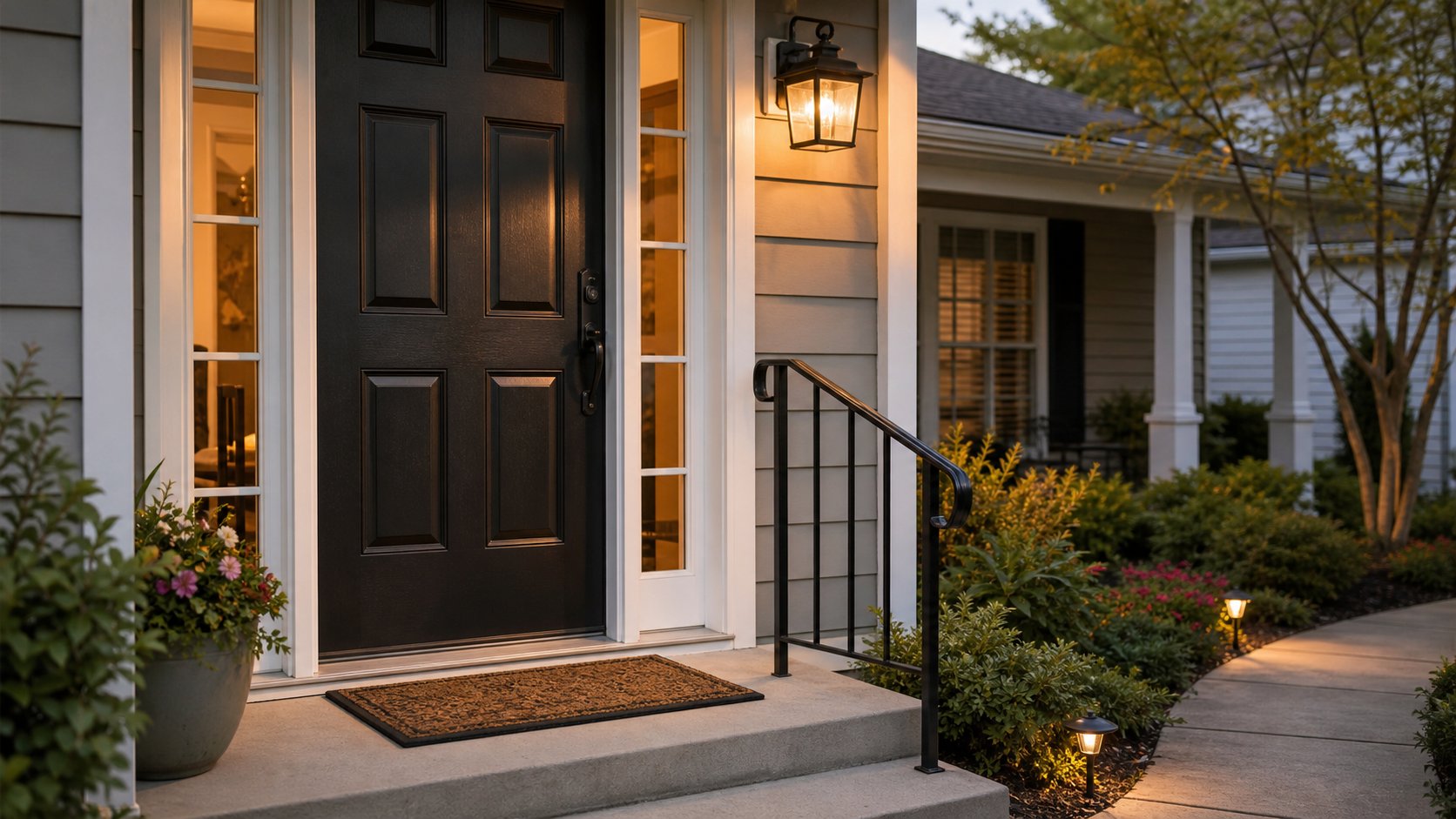
Well-lit front entrance with a secure mat and visible handrail for senior safety

Front Door Safety for Seniors Living Alone: Locks, Lighting, and Simple Alerts

Front Door Safety for Seniors Living Alone: Locks, Lighting, and Simple Alerts

If you are helping an older parent live alone, the front door deserves attention. It is where your parent enters, leaves, greets visitors, receives packages, and handles keys.

Front door safety for seniors is not only about a stronger lock or camera. Often, the biggest improvements are brighter lighting, a secure mat, an easier lock, and a backup access plan.

Quick Answer

The most important front door safety checks for a senior living alone are good lighting, a clear non-slip surface, an easy lock, visibility before opening, a trusted backup access plan, and simple alerts that support daily life without adding complexity.

Why the Front Door Deserves Its Own Safety Check

The front entrance combines several risks. A parent may be carrying groceries, stepping over a threshold, turning a stiff key, checking who is outside, or reaching for a package.

This article focuses only on the entrance area. For a broader whole-home review, use a room-by-room home safety checklist. For stairs, bathrooms, nighttime routines, and product comparisons, those topics deserve their own guides.

A good front door review answers four practical questions:

  • Can your parent get in and out without fighting the lock or door?
  • Can they see the path, step, visitor, and key area clearly?
  • Is the surface stable, dry, and free of trip hazards?
  • Is there a safe backup plan if family or help needs access?

The goal is not control. The goal is easier entry and exit.

Quick Front Door Safety Review for Families

Start with a 10-15 minute walk-through during daylight. Then repeat it after dark. Many entrance problems are invisible in the afternoon but obvious at night.

Stand where your parent normally stands. Try the lock. Open the door. Step onto the porch. Check whether the mat moves and whether the house number, step edge, and visitor area are easy to see.

Family Tip:
Ask your parent what feels annoying before changing anything. A lock that looks fine to you may feel stiff to arthritic hands. A bright light that seems useful may feel harsh if it shines into the eyes.

Front Door Risks and Simple Improvements

Risk at the front doorWhy it mattersSimple improvement
Poor lightingMakes keys, steps, visitors, and packages harder to seeAdd reliable porch or path lighting
Loose matCan slide, curl, or bunch up underfootUse a low-profile non-slip mat
Hard-to-turn lockCan delay entry, exit, or family accessRepair, lubricate, or simplify the lock
Package in the walkwayCreates a trip hazard near the doorChoose a clear delivery spot
Unclear visitor visibilityMakes it harder to decide whether to openAdd a peephole, window, or simple alert
No backup accessFamily may not be able to help quicklyAgree on a trusted key plan

Make the Lock Easy and Reliable

An entrance lock should be secure, but it also needs to be usable. A strong lock that is too stiff, confusing, or hard to reach may create daily stress.

Check whether your parent can unlock and open the door while carrying a small bag. Notice whether the key sticks, the deadbolt catches, or the door has to be lifted to close.

Avoid Locks That Are Too Stiff or Confusing

Some families respond to safety worries by adding more locks. That can backfire if the system becomes hard to use.

Avoid setups that require a complicated sequence, tiny buttons, hard twisting, or multiple steps that your parent dislikes. If a lock is difficult from inside the home, treat that as a priority before adding any smart device.

Important Safety Check:
A front door should not trap a person inside or make leaving the home difficult. If the door is hard to open from the inside, the first step is repair or professional review, not another gadget.

Choose Comfortable Door Hardware

Door hardware should match the person using it. A lever-style handle may be easier than a round knob for some older adults, especially if grip strength is limited.

If your parent rents, lives in a condo, or belongs to an HOA, check what changes are allowed before replacing hardware.

Fix a Door That Sticks

A sticking door is more than an annoyance. It can cause a person to push, pull, twist, or step awkwardly.

Common causes include humidity, misaligned hardware, worn weatherstripping, or a settling frame. If your parent has to shoulder the door, lift it, or slam it, it is time to address the problem.

Improve Lighting and Visibility

Lighting is one of the simplest front door safety improvements. It helps your parent see keys, steps, visitors, packages, wet surfaces, and level changes.

Porch Lighting

Check whether the porch light actually covers the places your parent uses: the key area, threshold, step, handrail, and walking path. A decorative light may look nice but still leave the step edge in shadow.

If an older adult comes home after dusk, lighting should be easy to activate before they reach the door. That may mean an evening light, timer, or motion-activated fixture.

Motion-Activated Lighting

Motion lights can help near the entry, especially when hands are full. They depend on power, placement, bulbs, sensors, and weather exposure, so test them from the real walking path.

If lighting problems are part of a broader evening routine, connect this review with nighttime safety for seniors rather than trying to solve every nighttime hazard at the front door.

Seeing Visitors Before Opening

A senior living alone should have a comfortable way to see who is outside before opening. This might be a peephole at the right height, a sidelight window, a chime, or a simple smart doorbell.

The right option depends on your parent’s comfort. Some people like video alerts. Others prefer a familiar peephole and a clear rule: do not open the door to unexpected visitors.

Remove Trip Hazards at the Entry

The front entrance is a small area, but it can collect hazards: mats, packages, wet leaves, uneven surfaces, shoes, pet items, garden tools, and seasonal decorations.

Doormats and Thresholds

A doormat should stay flat. If it curls, slides, bunches, or catches a shoe, replace it or remove it.

The threshold also matters. A high or dark threshold can be easy to miss, especially with poor lighting.

Water, Rain, Snow, and Ice

Weather changes the front door. Rain can make the porch slick. Snow can hide step edges. Ice may collect where gutters drip. Leaves can become slippery when wet.

There is no universal fix because climate varies. Snowy areas may need a shoveling or salting plan. Rainy areas may need better drainage, cover, or slip-resistant surfaces.

Steps, Ramps, and Railings

Front steps deserve attention, but this article is not a full stair safety guide. Focus only on the immediate entrance: the step into the home, a short porch step, or a small ramp.

Check whether the edge is visible, the surface feels stable, and a handhold is available where needed. If a ramp, railing, or structural change is being considered, get appropriate professional guidance.

For a deeper review of stairs and railings beyond the entry, use a stair safety guide for elderly parents.

Create a Safer Key and Access Plan

Key management is one of the most practical parts of front door safety. Families want security, but they also need a trusted way to help if a parent is locked out or unable to reach the door.

Spare Keys

Avoid hiding a key under the mat, in a flowerpot, or in another obvious spot near the entrance. Those places are too easy to guess.

A safer plan might involve a trusted neighbor, nearby family member, property manager, or secure key solution appropriate for the home.

Trusted Family or Caregiver Access

Decide who may enter, when they may enter, and how they should communicate first. Access should feel respectful, not intrusive.

Write down who has a key, who to call first, what to do if an elderly parent does not answer the phone, and what to do if the key does not work. Review the plan after any lock change.

Emergency Access

Emergency access should be planned carefully. Homes, buildings, leases, gates, and local practices differ.

Do not rely on a hidden key or smart lock alone. If there are serious mobility or emergency concerns, discuss safe access planning with appropriate local professionals or service providers.

Handle Visitors and Deliveries Safely

The front door is also where sales visits, unexpected knocks, and packages appear. The goal is a calm, consistent response.

Unknown Visitors

Create a simple rule your parent is comfortable with: if the visitor is unexpected, do not open immediately. Look first, ask who it is, and call family if unsure.

This removes pressure from the moment without making the home feel frightening.

Packages and Trip Hazards

Packages should not block the door swing, step, mat, or walking path. If your parent receives deliveries often, choose a visible package spot away from the walking line.

If packages pile up, your parent may need help with delivery timing, groceries, or mail handling.

Doorbells and Simple Alerts

A working doorbell, louder chime, simple door sensor, or smart doorbell may help. A smart doorbell can support visitor awareness, but it is not a complete safety plan.

If you want to compare features, setup friction, and caregiver access, see our smart doorbells for elderly parents guide. Here, the question is simpler: does the alert reduce stress?

When a Device Is Not Enough:
A doorbell alert cannot fix a loose mat, poor lighting, a sticking lock, or a blocked walkway. Start with the physical entryway before adding more technology.

A Simple Family Scenario

This example is fictional, but it reflects a common family visit.

Maria visits her father on a Sunday afternoon. His porch light works, but it does not brighten the step. The doormat curls at one corner. The deadbolt takes two tries to turn. Packages are often left directly in front of the door.

Instead of changing everything, they do a short review together. They replace the mat, choose a clear package spot, test a brighter porch bulb, and decide that Maria will keep a spare key. Her father still controls his home, but the entrance is easier to use.

Front Door Safety Checklist

Use this checklist during a short visit:

  • Check that the porch light works.
  • Look at the entrance after dark.
  • Make sure the mat is flat, low-profile, and secure.
  • Keep packages out of the walking path.
  • Check that the threshold is easy to see.
  • Confirm any step edge is visible.
  • Test the lock from outside and inside.
  • Make sure the handle is comfortable to use.
  • Check whether the door sticks.
  • Confirm a safe way to see visitors.
  • Review the spare key plan.
  • Decide who has trusted access.
  • Check that emergency access is realistic.
  • Test any doorbell, chime, or alert.
  • Repeat the review monthly or after weather changes.

Frequently Asked Questions

What is the first thing to check at the front door for an elderly parent?

Start with the physical entryway: lighting, mat, threshold, step, and lock. These are often easier to fix than technology issues.

Are smart doorbells useful for seniors living alone?

They can help if your parent is comfortable with alerts and the device is set up correctly. They do not replace lighting, a safe surface, a working lock, or a family access plan.

Should a senior hide a spare key outside?

Hiding a key under a mat, planter, or obvious outdoor spot is usually not a good plan. Use trusted access through family, a neighbor, building management, or another secure method.

How can I make the entrance safer at night?

Check the porch light, path light, step visibility, and key area. Motion lighting may help, but test it from the real walking path.

What front door hazards increase fall risk?

Loose mats, wet surfaces, poor lighting, clutter, high thresholds, unclear step edges, packages, and lack of support near a step can make the entrance harder to use safely.

What should we do if the front door is hard to open?

Treat it as a priority. Check whether the lock, latch, hinges, weatherstripping, or frame needs repair. Get help before adding more devices.

Are smart locks a good choice for older adults?

Sometimes, but only if the system feels easy and reliable. Smart locks depend on batteries, setup, codes, connectivity, and comfort. A repaired simple lock may be better.

How should families plan emergency access?

Decide who can access the home, how they should communicate first, and what backup exists if the usual key fails. Housing rules, building access, and local services vary.

The front entrance is just one part of a home safety review. If you want to continue checking the rest of the home, take a look at our 16-page printable Senior Home Safety Starter Kit ($19).

Explore the full Starter Kit →

Bottom Line

Front door safety for seniors is mostly about small, practical improvements: a clear path, a stable mat, good lighting, an easy lock, a way to see visitors, and a trusted backup access plan. Smart devices can support that plan, but they should not replace physical fixes or family communication. Walk through the entrance together, first in daylight and then after dark, and fix the easiest hazards first.

Next Step

During your next visit, spend 10-15 minutes walking through the front entrance with your parent. Try the lock, step on the mat, check the lighting, look at the package area, and agree on one small improvement to make before the week ends.
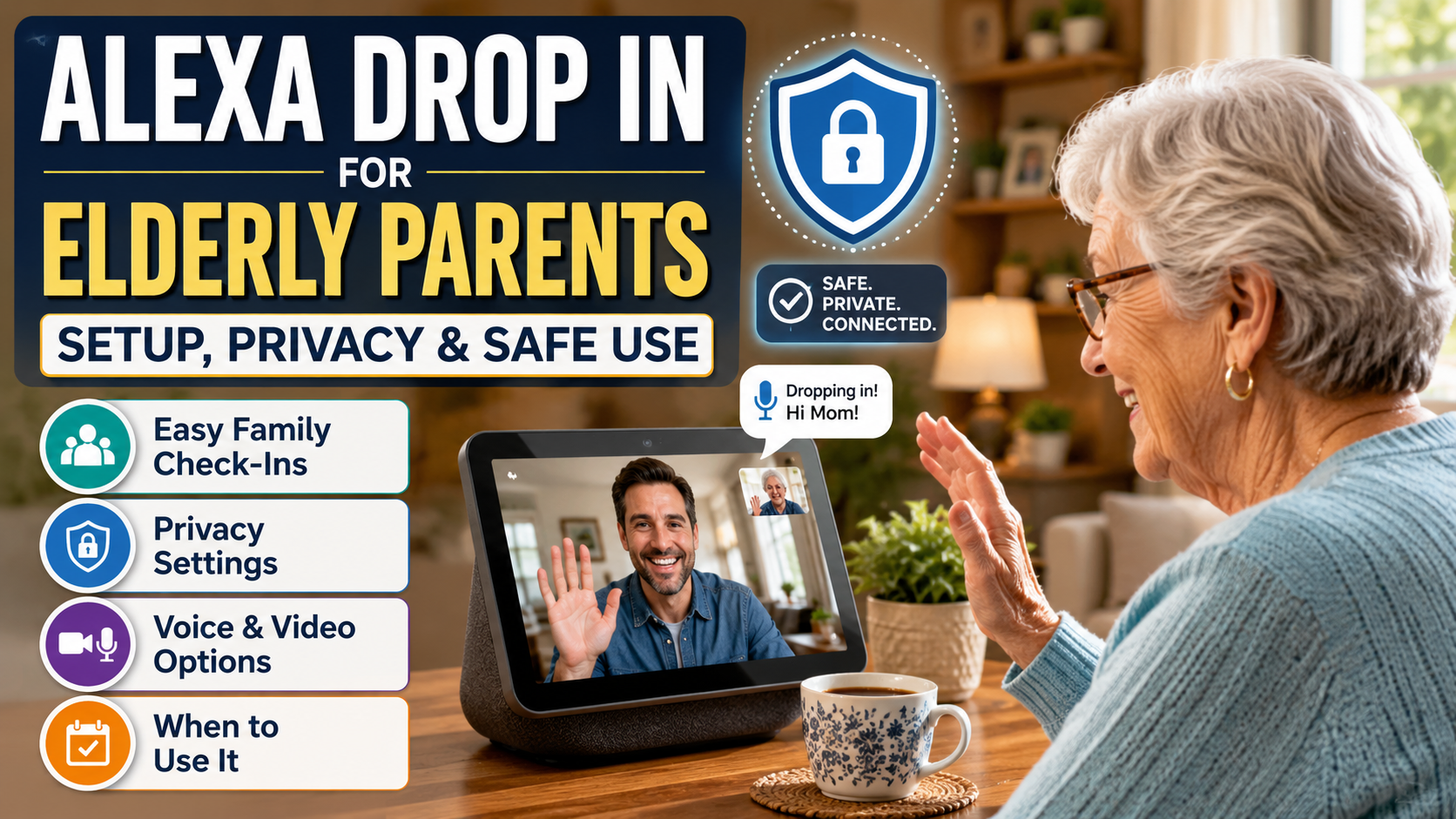

Older adult using Alexa Drop In for a family video check-in

Alexa Drop In for Elderly Parents: Setup, Privacy, and Safe Use

Alexa Drop In for Elderly Parents: Setup, Privacy, and Safe Use

Quick Answer

Alexa Drop In is an optional Alexa communication feature that lets approved contacts connect to supported Echo devices more directly than a normal call. For elderly parents, it may help with family check-ins, but it requires consent, limited permissions, Wi-Fi, power, and a backup plan for emergencies.

What Is Alexa Drop In?

Alexa Drop In is a communication feature for supported Alexa-enabled devices. Instead of a normal phone call where someone has to answer, Drop In can create a more immediate connection between approved devices or contacts.

Families often think of it as an intercom-style feature.

That can be helpful in some homes. For example, an adult daughter may want an easier way to connect with her father on an Echo Show if he often misses phone calls. A parent may also use Drop In within the home between rooms, such as from the kitchen to the bedroom.

The important word is approved. Drop In should not be open to everyone. It should be limited to trusted contacts and used only with the older adult’s knowledge and agreement.

Drop In vs Alexa Calling

Direct answer: Alexa Drop In connects more directly after permission is granted, while Alexa Calling behaves more like a normal call that the other person usually answers.

Drop In and Alexa Calling are not the same.

FeatureHow it worksBest forPrivacy consideration
Alexa CallingSimilar to a call; the other person usually answersNormal conversationsLess intrusive
Drop InConnects more directly after permissions are grantedQuick check-ins with trusted contactsRequires stronger consent
AnnouncementsBroadcasts a message to devicesHousehold messagesNot a conversation
Regular phone callUses phone network or mobile deviceMost familiar backupRequires phone access

For many families, Alexa Calling should come first. It is easier to explain and may feel more normal.

Drop In is more sensitive because it can feel immediate. That is why privacy, consent, and boundaries matter so much.

What You Need Before Setting Up Drop In

Before using Alexa Drop In for elderly parents, make sure the basics are in place.

You may need:

  • A supported Echo device or Alexa-enabled device.
  • The Alexa app.
  • An Amazon account.
  • Communication features enabled.
  • Contacts added or confirmed.
  • Drop In permissions granted.
  • Wi-Fi and power.
  • A parent who understands and agrees to the setup.

Do not skip the last item.

If your parent is new to Alexa, start with the Alexa for Seniors beginner guide before adding advanced communication features.

Which Devices Can Use Drop In?

Direct answer: Drop In availability depends on supported Alexa-enabled devices, the Alexa app, account settings, communication permissions, Wi-Fi, and current Amazon feature availability.

Drop In is generally associated with Echo devices, Alexa-enabled devices, and the Alexa app, but exact compatibility and feature behavior can change, so families should verify Amazon’s official explanation of how Drop In works with Alexa before relying on a specific device or setting.

Families should confirm current compatibility in the Alexa app or Amazon’s official help pages before relying on a specific device.

In practical family use:

  • A voice-only Echo can support audio communication.
  • An Echo Show-style device can support screen-based communication when video is enabled.
  • The Alexa app may allow a family member to connect from a phone.

For some older adults, a screen is helpful because they can see who is speaking. For others, a screen feels more complicated. If adoption is the first challenge, read the guide on how to introduce Alexa to an elderly parent without frustration.

Consent Comes Before Setup

Drop In should never be framed as “we installed this so we can check on you whenever we want.”

That message can damage trust.

A better conversation sounds like this:

“We know you sometimes miss calls because your phone is in another room. There is an Alexa feature that can make it easier for us to connect, but only if you want it. We can set it up together, limit who can use it, and turn it off if you do not like it.”

Consent should include:

  • What Drop In does.
  • Who can use it.
  • When it is appropriate.
  • How your parent can end a Drop In.
  • How to turn it off.
  • What the family will not use it for.

If your parent is uncomfortable, do not force it. A regular Alexa call, scheduled check-in, or non-technical plan may be better.

How to Set Up Alexa Drop In for an Elderly Parent

Direct answer: Set up Alexa Drop In only after the Echo device works, communication settings are reviewed, trusted contacts are selected, permissions are limited, and the family tests the connection together.

The exact Alexa app layout may change, so families should verify current steps in Amazon’s official help. The general process usually looks like this:

Step 1: Set up the Echo device first

Make sure the device is already connected to Wi-Fi, assigned to the correct room, updated, and working for basic commands.

Test simple phrases:

  • “Alexa, what time is it?”
  • “Alexa, what is the weather?”
  • “Alexa, call Sarah.”

If basic commands are still confusing, wait before enabling Drop In.

Step 2: Open communication settings

In the Alexa app, look for the communication area and confirm that calling and messaging features are enabled where required.

This may involve verifying a phone number, syncing contacts, or confirming communication permissions.

Step 3: Confirm contacts

Only use trusted contacts.

For an elderly parent, that may mean:

  • One adult child.
  • One backup family member.
  • A spouse or caregiver in the same household.

Do not enable broad access.

Step 4: Allow Drop In only for selected contacts

Drop In permissions should be granted contact by contact.

The safest family rule is simple: fewer people, clearer expectations.

If three siblings all want access, discuss when each person should use it. Without rules, even a helpful feature can feel overwhelming.

Step 5: Test it together

Sit with your parent and test Drop In while everyone knows what is happening.

Practice:

  • Starting a Drop In.
  • Ending the connection.
  • Adjusting volume.
  • Turning off video if using a screen.
  • Saying, “Alexa, hang up.”

The goal is not just technical success. The goal is emotional comfort.

Audio Drop In vs Video Drop In

Direct answer: Audio Drop In may be less intrusive, while video Drop In on an Echo Show can be helpful only when the parent understands and accepts the camera experience.

Audio Drop In can feel less intrusive than video. It may be enough for families who only need quick voice contact.

Video Drop In on an Echo Show-style device can be helpful when seeing faces matters, but it also raises more privacy concerns. Some people love video connection. Others dislike the feeling that a camera is involved.

Use the least intrusive option that solves the problem.

If the goal is simply, “Can Dad hear me?” audio may be enough. If the goal is, “Can Mom see who is talking?” video may help. If the goal is, “Can I visually confirm everything is fine?” pause. That may be moving from support into surveillance.

What the Other Person Can See and Hear

Families should understand the experience on both sides.

Depending on the device and settings, a Drop In may include audio and, on screen devices, video. Amazon has described visual and audio indicators for Drop In experiences, and families should verify how their specific device behaves.

Do not rely on assumptions.

Before using Drop In regularly, ask:

  • Does the device make a sound?
  • Does the screen show a visual indicator?
  • Can the parent clearly tell when someone has connected?
  • Can they end the session easily?
  • Do they know how to turn off the camera?

If the parent cannot clearly understand when Drop In is happening, do not use it as a routine check-in method.

Privacy Settings and Family Boundaries

Drop In works best when the family creates rules before anyone uses it.

Good rules might include:

  • Use Drop In only during agreed hours.
  • Try a normal call or text first unless there is a specific reason.
  • Do not Drop In during dressing, bathing, sleeping, or private times.
  • Only approved contacts can use it.
  • Tell the parent how to disable it.
  • Review permissions every few months.

This is not just technical privacy. It is relational privacy.

Your parent should feel that Drop In is a tool they control, not a tool being used on them.

How to Limit Access

Limit access in three ways:

  1. Limit contacts.
  2. Limit devices.
  3. Limit situations.

For contacts, keep the list short. For devices, consider enabling Drop In only where it makes sense. For situations, agree when it is appropriate.

Examples:

  • Appropriate: “Mom asked us to use Drop In if she does not answer the scheduled evening call.”
  • Not appropriate: “We use Drop In whenever we are curious what she is doing.”

That difference is the line between support and intrusion.

How to Turn Drop In Off

Families should know how to disable Drop In before enabling it.

Depending on current Alexa settings, this may involve changing communication settings in the Alexa app, removing contact permissions, turning on Do Not Disturb, muting the microphone, disabling the camera, or adjusting device-level settings.

Because app layouts change, verify the current process in Amazon’s official help.

Also teach your parent the practical controls:

  • How to end a session.
  • How to mute the microphone.
  • How to cover or turn off the camera if applicable.
  • Who to call if the device feels confusing.

If a feature cannot be easily turned off or explained, it may not be the right feature.

When Drop In Can Help

Drop In may be useful when:

  • A parent often misses calls because the phone is in another room.
  • A parent prefers speaking to using a smartphone.
  • Family members have agreed check-in times.
  • A parent wants an easier way to reach family.
  • An Echo Show helps with face-to-face reassurance.
  • A caregiver needs a quick approved connection.

Used well, Drop In can reduce friction. It can make communication easier for families who already have trust and agreement.

When Drop In Is Not Appropriate

Do not use Drop In if:

  • Your parent does not understand it.
  • Your parent does not consent.
  • Family members plan to use it secretly.
  • The parent has severe confusion around voices or screens.
  • It increases anxiety.
  • It replaces necessary care.
  • The family is using it to avoid visits, emergency planning, or medical support.

For seniors with dementia, use extra caution. Communication features may help some people, but they can confuse or upset others. the dementia-focused Alexa guide explains this issue more carefully.

Troubleshooting Common Drop In Problems

Direct answer: Most Drop In problems involve permissions, device naming, Wi-Fi, volume, account settings, or family expectations.

Common problems include:

ProblemPossible causeFamily response
Drop In does not connectPermission, contact, Wi-Fi, or device issueCheck official Alexa settings and test again
Parent cannot hearVolume too low or device too far awayMove device or adjust volume
Parent feels startledNo clear expectationUse scheduled times or normal calling first
Video feels intrusiveScreen/camera discomfortUse audio only or disable video
Wrong contact/deviceNaming confusionRename devices clearly
Feature stops workingApp, account, or service changeRecheck current Amazon help

Keep troubleshooting calm. If the setup requires constant fixing, it may not be worth it.

Emergency Limits

Drop In is not an emergency response system.

It does not detect falls. It does not confirm a person is safe. It does not replace 911, medical alert systems, professional monitoring, or caregiver support.

If your parent may need urgent help, build a separate emergency plan. The article on what Alexa cannot do for seniors explains those limits in more detail.

Drop In can help with communication. It should not be the foundation of emergency safety.

Less Intrusive Alternatives

If Drop In feels too direct, consider:

  • Scheduled Alexa calls.
  • Regular phone calls.
  • Morning text replies.
  • Shared calendar reminders.
  • Medication reminder tools.
  • Doorbell alerts.
  • A neighbor check-in plan.
  • A family call schedule.

The best tool is the one your parent accepts and understands.

Safe Setup Checklist

Before using Drop In regularly:

  • Explain the feature in plain language.
  • Ask for consent.
  • Enable only trusted contacts.
  • Test the feature together.
  • Teach “Alexa, hang up.”
  • Review audio and video behavior.
  • Decide when Drop In is appropriate.
  • Decide when it is not appropriate.
  • Keep another emergency option available.
  • Revisit the setup if your parent’s comfort changes.

Example Scenario: A Limited, Consent-Based Setup

Example: A father agrees that only his daughter can use Alexa Drop In, and only during a planned evening check-in window if he does not answer a normal call. They test the connection together, decide to use audio instead of video, and keep his phone and local neighbor contact as backups.

Frequently Asked Questions

Is Alexa Drop In good for elderly parents?

It can be useful for some families, especially when a parent struggles with phones or wants easier contact. It is not right for everyone and should only be used with consent.

Can I use Drop In to check on my parent if they do not answer the phone?

Possibly, if your parent has agreed to that use and permissions are set correctly. Families should define when this is appropriate before relying on it.

Does Drop In replace emergency services?

No. Drop In is a communication feature. It does not replace emergency services, medical alert systems, fall detection, or caregiver support.

Can my parent turn Drop In off?

Families should make sure the parent understands how to end a session and how to disable or limit the feature. The exact controls may depend on the device and current Alexa app settings.

Is video required for Drop In?

No. Drop In may be used as audio on supported devices. Video behavior depends on the device and settings.

Is Drop In private?

Drop In can be managed with permissions and settings, but privacy also depends on how the family uses it. It should never be used secretly or without clear agreement.

What should I set up before Drop In?

Start with basic Alexa commands, family calling, device placement, volume, and privacy settings. Drop In should come after the parent is comfortable with the device.

Bottom Line

Alexa Drop In can help elderly parents when it solves a real communication problem and everyone understands the boundaries. It should be set up with consent, limited contacts, clear indicators, and a simple way to end the session. Drop In is not emergency response, medical monitoring, or hidden surveillance. The best setup is the one your parent accepts.

CTA

Before enabling Drop In:

  1. Talk with your parent first.
  2. Choose only trusted contacts.
  3. Test audio, video, and hang-up controls together.
  4. Keep another way to reach help if Alexa is unavailable.
Adult daughter using a simple check-in routine with her elderly parent

How to Check on an Elderly Parent Without Calling All Day

How to Check on an Elderly Parent Without Calling All Day

Quick Answer

To check on an elderly parent without calling all day, agree on a predictable check-in routine, one backup method, and a clear escalation plan. The goal is not constant contact. The goal is a respectful system that reduces family worry while preserving privacy, independence, and trust.

Table of Contents

  • Why constant calls can create stress
  • How to build a simple check-in routine
  • What to do if your parent does not answer
  • When technology can help without becoming intrusive
  • When a check-in routine is not enough

Why Calling All Day Usually Does Not Work

Calling more often can feel like the obvious solution when you are worried.

Your mother did not answer after lunch, so you call again. Your father sounded tired yesterday, so you call before work, at noon, and again after dinner. A sibling gets nervous and starts calling too.

Before long, the phone becomes a source of stress for everyone.

Constant calls can create problems:

  • Your parent may feel monitored instead of supported.
  • Family members may burn out.
  • Missed calls may cause panic even when nothing is wrong.
  • Important calls may get ignored because there are too many of them.
  • Siblings may duplicate effort or assume someone else checked in.

A better system is calmer. It is predictable enough for the family and respectful enough for the parent.

Start With a Conversation, Not a System

Before creating a check-in plan, talk with your parent.

This conversation matters more than the technology. If a parent feels that the family is taking control, even a thoughtful plan can feel intrusive. If they help shape the plan, it is more likely to work.

Try language like:

  • “We do not want to bother you all day. We just want a simple way to know things are okay.”
  • “What kind of check-in would feel helpful rather than annoying?”
  • “If you do not answer, what would you want us to do first?”
  • “Who nearby would you trust if we could not reach you?”

The goal is agreement. A plan that your parent accepts is usually better than a more advanced plan they resent.

How to Check on an Elderly Parent: Build a Simple Routine

A good check-in routine has three parts. If you are wondering how to check on an elderly parent without creating pressure, start with a plan everyone understands:

  1. A normal check-in.
  2. A backup check-in.
  3. An escalation step.

For example:

  • Normal: Dad sends a text by 10 AM.
  • Backup: If there is no text by 11 AM, Sarah calls once.
  • Escalation: If there is still no response by noon, Mark calls the neighbor.

This avoids the emotional spiral of five family members calling repeatedly with no shared plan.

Match the Frequency to the Risk Level

Direct answer: Check-in frequency should match the parent’s health, mobility, memory, social support, and preferences. Families should agree on the rhythm with the older adult whenever possible.

Not every parent needs the same level of contact.

Parent situationSuggested check-in rhythmBackup step
Low risk, active, socially connected2-4 planned check-ins per weekText or scheduled call
Lives alone but generally stableOne daily low-pressure check-inBackup call or local contact
Recent fall, illness, or medication changesMorning and evening check-insLocal contact or caregiver visit
Cognitive decline or high safety concernInformal check-ins may not be enoughProfessional care plan or medical guidance

This table is only a starting point. Families should adjust based on real risk, not anxiety alone.

Use Messages, Short Calls, and Visits Together

The healthiest plan usually mixes different types of contact.

Texts are useful when a parent is comfortable with them. A simple “Good morning” reply may be enough to show that the day has started normally.

Short calls are better for hearing tone, confusion, or distress. A two-minute call can reveal things a text cannot.

Visits are still important. A home can look very different in person than it sounds over the phone. Mail piling up, spoiled food, clutter, missed medication, or new bruises may not appear in a quick call.

No single method tells the whole story.

Create Agreed Check-In Windows

Instead of calling randomly, choose check-in windows.

Examples:

  • Morning: “Text me after breakfast.”
  • Afternoon: “I will call after your walk on Tuesdays and Thursdays.”
  • Evening: “Send a thumbs-up before bedtime.”

Predictability helps both sides. Your parent knows when to expect contact. The family knows when silence is normal and when it is unusual.

Keep the routine easy. If the plan is complicated, it will fail quietly.

Use Indirect Signals Without Becoming Intrusive

Some families want reassurance without constant conversation. Indirect signals can help if they are discussed openly.

Examples include:

  • A parent responding to a morning text.
  • A shared calendar reminder.
  • A medication reminder system.
  • A smart doorbell showing normal front-door activity.
  • A voice assistant reminder.
  • A neighbor noticing the newspaper was picked up.

These signals should be narrow. They should answer practical questions, not create a feeling of being watched.

If your family is considering sensors, cameras, door alerts, or other tools, read the guide on how to monitor an elderly parent remotely without invading privacy. That article covers technology choices in more detail. This article is about the family routine around them.

Share Responsibility With Family Members

One person should not carry the entire emotional load if other family members can help.

A simple weekly plan might look like this:

DayPrimary check-inBackup personNotes
MondayDaughter textSon callMorning only
TuesdaySon callNeighborAfter lunch
WednesdayDaughter visitSon textGroceries
ThursdayGrandchild video callDaughterEvening
FridayDaughter textSon callMedication refill reminder
WeekendFlexible family callLocal contactLonger conversation

The exact schedule does not matter. Clarity does.

If everyone assumes someone else is checking, no one may actually do it.

Add a Local Backup Contact

Long-distance caregiving is harder when there is no one nearby. The National Institute on Aging offers practical long-distance caregiving guidance for families coordinating support from farther away.

If possible, ask your parent who they would trust locally:

  • A neighbor.
  • A close friend.
  • A relative.
  • A building manager.
  • A faith community contact.
  • A home care aide.

Do not surprise your parent by sending someone over without discussing it first unless there is a true emergency. A local backup should be part of the plan, not a secret tool.

What to Do If Your Parent Does Not Answer

Direct answer: A missed call is not automatically an emergency, but families should follow a calm response sequence that was agreed on before the stressful moment.

No answer does not always mean danger.

They may be showering, napping, outside, charging the phone, at an appointment, or simply tired of calls. But families still need a plan.

Use a calm sequence:

  1. Wait through the agreed window.
  2. Send one clear message: “Please reply when you can so we know you are okay.”
  3. Call once.
  4. Try the backup contact.
  5. Check whether there was an appointment, visit, or known reason.
  6. If there are serious warning signs, escalate appropriately.

Avoid calling ten times in a row unless there is a specific reason to believe something is wrong. Repeated calls can increase panic without improving the response.

When to Escalate

Escalation depends on context.

Escalate faster if:

  • Your parent recently fell.
  • They sounded confused or unwell earlier.
  • They missed medication repeatedly.
  • They have serious medical risk.
  • A neighbor noticed something unusual.
  • There is no response across multiple channels.
  • The silence is very unusual for them.

Escalation may mean calling a local contact, arranging a wellness check, visiting in person, contacting a care provider, or using emergency services if there is reason to believe immediate danger exists.

Families should decide this before the stressful moment.

When an Informal Routine Is Not Enough

Direct answer: An informal check-in plan may not be enough when missed responses, falls, confusion, medication problems, or unsafe routines become frequent.

A family check-in routine is not a substitute for care when risk is high. The question of how to check on an elderly parent should always stay connected to the person’s real health, mobility, memory, and local support.

It may be time to consider more support if:

  • Your parent regularly misses check-ins and cannot explain why.
  • They forget basic meals or medication.
  • They are falling or nearly falling.
  • They get lost or confused.
  • They stop answering the phone for long periods.
  • They become anxious, isolated, or unsafe at home.

At that point, the question is not “How do we call less?” It is “What level of support does this person actually need?”

The aging in place checklist can help families review the broader home and care situation.

Privacy and Consent Matter

Checking on a parent should not feel like tracking a package.

Older adults still deserve privacy, even when family members are worried. Consent is not a box to check once. It is an ongoing conversation.

Ask:

  • What information are we collecting?
  • Who sees it?
  • What happens if something looks unusual?
  • Can my parent turn it off?
  • Does this make them feel safer or watched?

Support protects dignity. Surveillance erodes it.

Optional Technology That Can Support Check-Ins

Technology can help when it solves one specific problem.

A voice assistant may make it easier to call family or receive reminders. Medication tools can support routine. A doorbell may help with front-door awareness. Motion sensors may show high-level activity patterns. These tools should be discussed clearly and used carefully.

For a deeper look at privacy-friendly technology choices, use the remote monitoring guide rather than trying to build the entire system from this article.

Alexa Drop In as an Optional Tool

Alexa Drop In can be one optional way for families to check in when everyone agrees to use it. It may help in households where a parent has trouble answering a phone but is comfortable with an Echo device. It should require clear consent, limited access, and realistic expectations. Drop In should not be used secretly, and it does not replace emergency services, caregiver visits, or a medical alert system. Families should agree when it is appropriate, test it together, and keep another contact method available. Once the dedicated guide is published, families should review Alexa Drop In for elderly parents before enabling it.

A Simple Family Response Plan

Write this down somewhere shared:

  • Normal check-in time:
  • Backup check-in method:
  • First backup person:
  • Local contact:
  • When to wait:
  • When to call again:
  • When to contact a neighbor:
  • When to escalate:
  • Medical/emergency notes:
  • Parent preferences:

A written plan prevents confusion. It also reduces guilt because everyone knows the next step.

Checklist: Build a Better Check-In Routine

  • Ask your parent what feels acceptable.
  • Choose one normal daily or weekly check-in.
  • Choose one backup method.
  • Assign one primary family member each day.
  • Identify a local contact.
  • Decide what “no response” means.
  • Decide when to escalate.
  • Keep technology optional and consent-based.
  • Review the plan after illness, falls, or major changes.
  • Do not let anxiety turn into constant interruption.

Frequently Asked Questions

How often should I check on an elderly parent?

It depends on health, mobility, memory, social support, and living situation. Some parents need a few check-ins per week. Others may need daily contact or formal support.

What should I do if my elderly parent does not answer the phone?

Follow the agreed plan. Send one clear message, call once, try a backup contact, and escalate if the silence is unusual or there are real warning signs.

Is it okay to use technology to check on a parent?

Yes, if it is discussed openly and used for specific needs. Technology should support trust, not replace it.

How do I stop worrying while learning how to check on an elderly parent?

Create predictable check-in windows, share responsibility with family, and define escalation steps before something happens. A plan is usually calmer than repeated calls.

Should I use cameras to check on my parent?

Cameras can feel invasive, especially inside the home. Many families should start with less intrusive options such as scheduled calls, texts, reminders, doorbells, or activity signals.

When is a check-in routine not enough?

If your parent is falling, missing medication, becoming confused, not eating, or repeatedly unreachable, the family may need more support than informal check-ins can provide.

Bottom Line

Learning how to check on an elderly parent does not mean calling all day. You do not need to call all day to be a caring son or daughter. A better check-in plan is predictable, agreed on, and shared by the family. Use one normal check-in, one backup contact, and one escalation path. Add technology only when it reduces friction and your parent understands and accepts it.

CTA

This week:

  • Write the normal check-in time.
  • Choose the main contact and backup contact.
  • Add one trusted local person if possible.
  • Decide what happens if there is no response.
  • Share the plan with everyone involved.
Older adult and daughter reviewing the important limits of Alexa for seniors

What Alexa Cannot Do for Seniors: Important Limits Families Should Know

What Alexa Cannot Do for Seniors: Important Limits Families Should Know

Quick Answer

Alexa can help seniors with reminders, calls, routines, and smart home control, but Amazon Alexa cannot guarantee safety, reliably detect every fall, replace 911, or supervise medical needs. Families should treat Alexa as one support layer and keep backup plans for emergencies, medication, power outages, and human check-ins.

Why Alexa’s Limits Matter for Families

Many families first buy Alexa because it feels easy. A parent can say, “Alexa, remind me to take my medicine,” or “Alexa, call my daughter,” without opening a phone or learning a complicated app.

That is genuinely helpful.

The risk begins when a helpful tool starts to feel like a complete solution.

Alexa is a voice assistant. It can respond to commands, run routines, control compatible smart devices, and support communication features when everything is configured correctly. It is not a nurse, a medical alert pendant, a fall detection system, a home care plan, or a guarantee that someone is safe.

For families, this distinction matters because the most important safety decisions are usually not about technology alone. They are about risk, backup plans, human support, and knowing when a parent needs more help than a smart speaker can provide.

What Alexa Cannot Do for Seniors: Key Safety Limits

Here is the simple version.

NeedWhat Alexa may help withWhat Alexa cannot guarantee
Emergency responseVoice-triggered help phrases, calls, routines, some paid servicesReliable 911 access in every situation
FallsCalling help if the person can speakAutomatic fall detection by itself
MedicationRemindersCorrect pill, dose, or confirmation that medication was taken
SafetyLights, routines, reminders, communicationA safe home environment
MonitoringCheck-ins, routines, some connected devicesProof that a parent is okay
PrivacySettings and mute controlsTrust if features are installed without consent

Alexa is best used as one layer. It should not become the layer that everything depends on.

Alexa Cannot Replace 911 or Emergency Services

Direct answer: Standard Amazon Alexa features should not be treated as a guaranteed way to reach 911 or emergency services. Emergency capabilities may depend on country, device, setup, subscription, and current Amazon service availability.

One of the most important limits is emergency response.

Families often ask whether Alexa can call 911. The safest answer is: do not assume standard Alexa calling can replace emergency services. Emergency calling features vary by service, location, device, account setup, and subscription availability. Amazon has offered services such as Alexa Emergency Assist, but families need to verify current availability and limitations directly through Amazon before relying on any emergency feature, including Amazon’s official guidance on Alexa features used to get help in an emergency.

If a parent has serious fall risk, heart concerns, advanced memory issues, or lives alone with limited local support, a dedicated emergency plan matters.

That plan may include:

  • A mobile phone within reach.
  • A landline or cellular backup if appropriate.
  • A medical alert system.
  • Trusted neighbors.
  • Family escalation steps.
  • Written emergency contacts.
  • A plan for what to do if the parent cannot speak.

Alexa may help start a routine or make a family call, but families should not build an emergency plan around a single voice command.

For a practical safety setup, see the guide to creating an Alexa emergency routine for elderly parents.

Alexa Cannot Reliably Detect Every Fall

Direct answer: Amazon Alexa should not be treated as reliable fall detection by itself. If falling is a serious concern, families should consider dedicated fall detection, medical alert devices, home safety changes, or human support.

Alexa does not replace fall detection.

If an older adult falls and can speak clearly, an Echo device may help them call a family member or trigger a routine, depending on setup. But that still depends on several things going right:

  • The device must be close enough to hear.
  • The parent must be conscious and able to speak.
  • The command must be understood.
  • Wi-Fi and power must be working.
  • Calling or routine features must be configured correctly.

That is very different from reliable fall detection.

If falling is a major concern, families should look beyond Alexa. A dedicated medical alert device, wearable fall detector, professional monitoring system, or home safety assessment may be more appropriate.

Alexa can support a fall-prevention plan by turning on lights, reducing the need to walk in the dark, and making communication easier. It does not remove the need to fix rugs, stairs, bathrooms, clutter, and poor lighting.

Alexa Cannot Provide Medical Supervision

Direct answer: Alexa can provide reminders, but it cannot verify health status, medical decisions, correct medication, or whether a dose was actually taken.

Alexa can remind. It cannot supervise.

That difference is especially important with medication, chronic conditions, and memory changes. A reminder can say, “It is time to take your evening medication.” It cannot verify that the right pill was taken, that the dose was correct, that the person swallowed it, or that a medication should still be used.

For low-risk reminders, Alexa may be useful. For higher-risk medication routines, families may need a dedicated medication reminder device, pharmacy packaging, caregiver visit, pill dispenser, or clinician guidance.

If medication mistakes are already happening, do not treat a voice reminder as the whole fix. Use it as a prompt, not as proof.

Alexa Cannot Guarantee Someone Is Safe at Home

Families sometimes want technology to answer one impossible question: “Is my parent okay?”

Alexa can give clues. It may support calls, reminders, routines, lights, and smart home controls. But it cannot fully know whether a parent ate, drank water, avoided a fall, made safe decisions, or felt confused during the day.

Even remote monitoring tools have limits. A motion sensor can show activity. A doorbell can show a visitor. A medication reminder can show a prompt was sent. None of those facts automatically prove wellbeing.

If your family needs a broader privacy-conscious plan, the remote monitoring guide explains how to support an elderly parent without turning the home into a surveillance system.

Alexa Cannot Work Without the Right Setup

Direct answer: Alexa depends on power, Wi-Fi, compatible devices, correct account settings, and a setup the older adult can actually use.

Alexa depends on practical conditions that are easy to overlook.

It may fail or become less useful if:

  • The internet is down.
  • Power is out.
  • The device is unplugged.
  • The volume is too low.
  • The microphone is muted.
  • The parent forgets the command.
  • Contacts are not configured.
  • A feature changed in the Alexa app.
  • The device is in the wrong room.
  • The parent’s voice is too soft, unclear, or far away.

That does not make Alexa bad. It makes it realistic.

Families should test the actual setup in the actual room where the parent will use it. A command that works while standing next to the device may not work from a chair across the room.

Alexa May Mishear Voice Commands

Direct answer: Alexa can misunderstand soft speech, background noise, similar names, accents, or long commands, especially during stressful moments.

Voice assistants are helpful because they reduce the need for screens. But voice control can still be frustrating.

Alexa may misunderstand:

  • Soft voices.
  • Accents.
  • Speech changes after illness.
  • Background noise.
  • Similar contact names.
  • Long or complicated commands.
  • Commands spoken during stress.

This matters because stressful moments are exactly when families most want technology to work.

For older adults, the best Alexa setup uses short, repeatable commands. A printed command card can help. The Alexa commands for seniors guide is a better starting point than trying to teach every feature at once.

Alexa Cannot Solve Privacy Problems by Itself

Privacy is not just a setting. It is a relationship issue.

An older parent may feel differently about Alexa than an adult child does. One person may see convenience. The other may worry about listening, cameras, family control, or being watched.

Families should discuss:

  • What device is being installed.
  • Where it will sit.
  • What it can and cannot do.
  • Who can call or communicate.
  • Whether voice history or privacy settings should be reviewed.
  • How to mute the microphone.
  • Whether a screen or camera feels acceptable.

If a parent feels pressured, the setup can damage trust. Safety should not feel like a quiet takeover of the home.

Alexa May Not Be Enough for Cognitive Decline

Direct answer: Alexa may help some people with early memory changes, but it should not be relied on as a dementia care plan or substitute for caregivers, clinicians, or structured support.

Alexa can help some people with early memory changes by supporting reminders, music, simple routines, and family calls. But dementia and cognitive decline require extra caution.

Some people may find voice assistants confusing. Others may forget what the device is, become frustrated when Alexa misunderstands, or repeat commands without getting the help they need.

Families should be especially careful with:

  • Medication reminders.
  • Door and stove safety.
  • Financial or shopping features.
  • Communication settings.
  • Any feature that could create confusion or anxiety.

For dementia-related use, Alexa should be a small support layer, not a care plan.

When Alexa Is Not Enough

Alexa is probably not enough when:

  • A parent has frequent falls.
  • Medication errors are recurring.
  • They miss meals or forget essential routines.
  • They cannot reliably use voice commands.
  • They are often confused or disoriented.
  • They do not answer calls and there is no backup contact.
  • They live alone with high medical risk.
  • They dislike or distrust the device.
  • A family needs confirmation, not just reminders.

Those are signs to consider more support. That may mean a home safety review, caregiver visits, neighbor involvement, medical advice, emergency alert tools, or a different living arrangement.

Backup Options Families Should Consider

The right backup depends on the risk.

ConcernPossible backup
FallsGrab bars, lighting, stair safety, medical alert device
MedicationPill organizer, automated dispenser, pharmacy packaging, caregiver check
Emergency responseMedical alert system, phone, emergency contacts, neighbor plan
IsolationScheduled family calls, visits, community support
ConfusionCaregiver support, medical evaluation, simplified routines
Door safetySmart doorbell, locks, visitor rules
Nighttime riskMotion lights, clear pathways, bedside phone

Alexa can fit into this plan, but it should not replace it.

Family Checklist Before Relying on Alexa

Use this checklist before depending on Alexa for an older parent:

  • Have we tested the most important commands together?
  • Can my parent remember the commands?
  • Can Alexa hear them from normal sitting and sleeping areas?
  • Are family contacts configured correctly?
  • Do we have a backup if Wi-Fi or power fails?
  • Is there a plan for falls or medical emergencies?
  • Are medication reminders enough, or is a dedicated system needed?
  • Does my parent understand privacy settings?
  • Does my parent want this device in the home?
  • Do we know when to escalate to human help?

If any answer is unclear, slow down and fix that part first.

Example Scenario: When Alexa Is Helpful but Not Enough

Example: A family sets up Alexa for lights, reminders, and easy calls for an older father who lives alone. During the review, they realize Alexa cannot detect every fall, will not work during every power or Wi-Fi problem, and cannot confirm medication was taken. They keep Alexa for convenience, but add a bedside phone, better hallway lighting, a medication plan, and a local emergency contact.

Frequently Asked Questions

Can Alexa replace a medical alert system for seniors?

No. Alexa may help with calls, routines, or reminders, but it should not be treated as a replacement for a dedicated medical alert system when emergency response is a serious concern.

Can Alexa call 911 for an elderly parent?

Do not assume standard Alexa features can call 911 reliably. Emergency capabilities depend on current services, location, device, setup, and subscription availability. Families should verify details directly with Amazon and keep another emergency option available.

Can Alexa detect falls?

Alexa alone should not be treated as reliable fall detection. If fall risk is high, consider dedicated fall detection devices, medical alert systems, and physical home safety changes.

Can Alexa remind seniors to take medication?

Yes, Alexa can provide medication reminders. But it cannot confirm that the correct medication was taken at the correct dose.

Is Alexa safe for seniors with dementia?

It depends on the person. Some seniors may benefit from simple reminders or familiar music, while others may become confused or frustrated. Families should use extra caution and involve appropriate care professionals when needed.

What is the safest way to use Alexa for an elderly parent?

Use Alexa for simple, low-risk support first: reminders, calls, lights, music, timers, and routines. For emergencies, medication, falls, and cognitive decline, build a backup plan that does not depend on Alexa alone.

Bottom Line

Alexa can make daily life easier for seniors, especially with reminders, lights, calls, and routines. But Alexa is not a safety guarantee. It cannot replace emergency services, medical judgment, fall detection, caregiver support, or a backup plan. Use Alexa for convenience and low-risk support, then protect critical needs with human help, dedicated devices, and clear family procedures.

CTA

Before adding more Alexa features:

  1. List the tasks your family expects Alexa to handle.
  2. Mark each task as convenience, safety support, or critical safety.
  3. Create a backup for anything that affects health, emergency response, medication, or human contact.
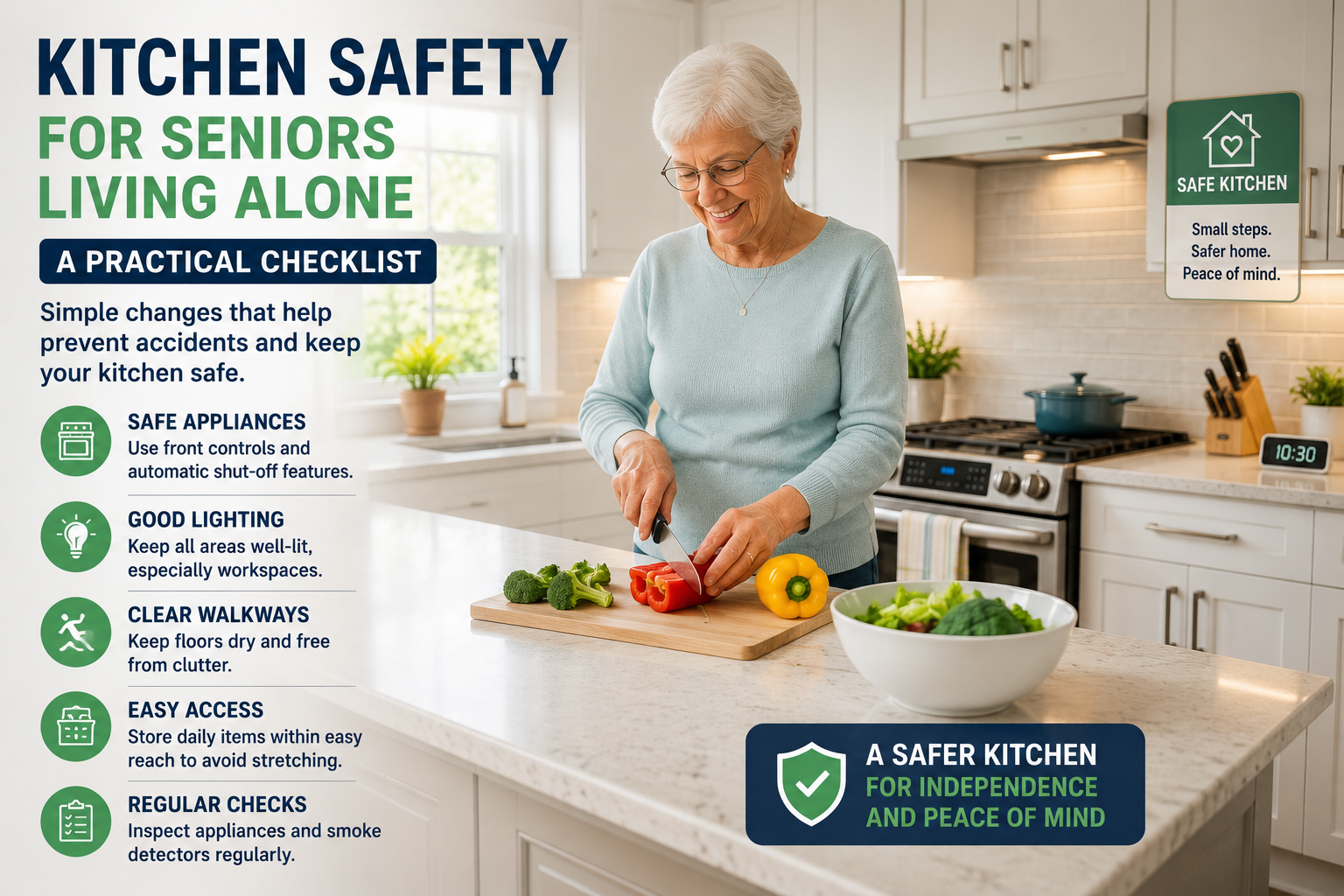
Older woman preparing food in a bright senior-friendly kitchen with clear walkways, safe appliances, accessible storage, and good lighting

Kitchen Safety for Seniors Living Alone: A Practical Family Checklist

Kitchen Safety for Seniors Living Alone: A Practical Family Checklist

Quick Answer

Kitchen safety for seniors starts with clear counters, good lighting, easy-reach storage, safer cooking routines, stable flooring, working smoke alarms, and reducing the need to bend, stretch, or rush. Families should focus first on the tasks an elderly parent actually does every day.

The kitchen is often the room where independence matters most. It is where a parent makes coffee, prepares meals, takes medication with breakfast, washes dishes, and keeps daily routines. That is why kitchen safety should feel supportive, not restrictive.

This article focuses on kitchen-only risks. For a wider safety review, see our guide to making a home safer for an elderly parent living alone, or use this room-by-room home safety checklist to review the whole house.

Table of Contents

  • Why kitchen safety matters
  • Kitchen safety checklist
  • What to look for
  • Highest-priority changes
  • Decision path
  • FAQ

Why Kitchen Safety Matters

Kitchens combine heat, water, sharp tools, heavy items, slippery floors, and time pressure. A senior may be perfectly capable of cooking but still benefit from a safer layout and simpler routines.

The goal is to reduce friction around daily meals while preserving independence.

Start With Simple, Predictable Kitchen Safety

Before adding devices, make the kitchen easier to use on an ordinary day. Keep the most-used pans, mugs, plates, and medication-related supplies within easy reach. Clear the counters enough that hot items do not need to be carried across clutter. Make sure the main light switch is easy to find, the floor is dry, and the path from stove to sink is free of rugs or cords.

A safer kitchen often starts with fewer obstacles and fewer decisions, not more technology. For many seniors living alone, simple physical changes are easier to trust than a new app, alert, or routine.

Kitchen Safety Checklist

  • Clear walkways between sink, stove, refrigerator, and table.
  • Move daily items to waist-to-shoulder height.
  • Remove step stools unless a professional recommends otherwise.
  • Check that floors are not slippery when wet.
  • Keep cords away from walking paths and water.
  • Review stove and oven habits.
  • Confirm smoke and carbon monoxide alarms work.
  • Improve task lighting at counters and stove.
  • Use lightweight cookware when possible.
  • Keep emergency contacts visible and easy to access.

What to Look For

Area Why It Matters What to Check
Storage Reaching and bending can add risk Daily items within comfortable reach
Flooring Spills can make slipping more likely Wet areas, rugs, mats, transitions
Stove Heat and distraction can create hazards Controls, routines, forgotten burners
Lighting Food prep needs clear visibility Counter shadows, stove lighting, night access
Walkway Kitchens are high-traffic rooms Pet bowls, trash cans, cords, stools

Highest-Priority Changes

Make daily items easy to reach

Move coffee, bowls, plates, medication-related supplies, and favorite foods to comfortable shelves. Avoid high cabinets and low storage for daily items.

Improve lighting

Under-cabinet or task lighting can make cutting, pouring, reading labels, and checking food easier.

Reduce floor hazards

Remove loose mats or use secure non-slip options. Clean spills quickly and review whether pet bowls create obstacles.

Review cooking routines

Look for forgotten burners, heavy pans, or tasks that require rushing. A simpler routine may be safer than a new gadget.

If your parent sometimes forgets whether an appliance is still on, start with a routine that does not depend on an app. Use a loud kitchen timer, a written “stove off?” note near the exit, and a habit of checking the stove before leaving the room. If the appliance already has a built-in auto-shutoff feature, make sure your parent understands it and that the family has tested it together.

Avoid using ordinary smart plugs with stoves, ovens, ranges, or other high-power cooking appliances unless the manufacturer clearly says that use is safe. This kind of setup needs careful technical and safety review, not guesswork.

Use reminders carefully

Voice reminders can help with timers and routines. For basic phrases, see our Alexa commands for seniors guide.

If you use reminders, lights, sensors, or voice assistants in the kitchen, keep a manual backup. A physical timer, reachable switch, written checklist, and clear family routine still matter because Wi-Fi, apps, batteries, and voice recognition can fail. The safest setup is the one your parent can still use when the smart part does not respond.

Cooking Fire Safety That Smart Devices Cannot Replace

The U.S. Fire Administration advises staying in the kitchen when frying, grilling, boiling, or broiling, checking food regularly when simmering, baking, or roasting, and using a timer as a reminder. Its fire-safety guidance for older adults also recommends keeping items that can burn away from the stove and turning pot handles toward the back.

Alexa timers and reminders can support those habits, but they do not detect every unsafe condition and should not be used as permission to leave active cooking unattended. Keep ordinary smart plugs away from stoves, ovens, ranges, and other high-power cooking appliances unless the appliance and control manufacturer explicitly approve that exact use.

Decision Path

  • If the issue is reaching: reorganize storage first.
  • If the issue is slipping: review mats, spills, footwear, and flooring.
  • If the issue is forgotten cooking: simplify routines and consider timers or supervised planning.
  • If the issue is low vision: improve task lighting and label readability.
  • If there have been fires, burns, or major confusion: seek professional guidance.

When Products May Not Be Enough

Kitchen tools can help, but repeated burns, unsafe stove use, confusion, dizziness, or major mobility changes need a larger safety conversation. This article is educational and not medical advice.

For broader planning, use our aging in place checklist.

Frequently Asked Questions

What is the biggest kitchen risk for seniors?

It depends on the person, but common issues include slipping, reaching, heavy cookware, poor lighting, and forgotten stove use.

Should seniors living alone keep using the stove?

Many can, but families should review habits honestly. If there are repeated safety concerns, seek professional guidance.

How can I make kitchen storage safer?

Keep daily items at easy height and avoid storage that requires bending deeply or climbing.

Are smart devices useful in the kitchen?

Timers, reminders, and smart plugs may help some routines, but they should not replace safe habits or supervision where needed.

What should I check first?

Start with walkways, lighting, storage, stove habits, and floor surfaces.

30-Minute Kitchen Review

  • Walk the main route from refrigerator to sink to stove.
  • Remove obstacles from the floor.
  • Move three daily items to easier storage.
  • Check task lighting.
  • Review stove and timer habits.
  • Ask your parent what feels hardest during meal prep.
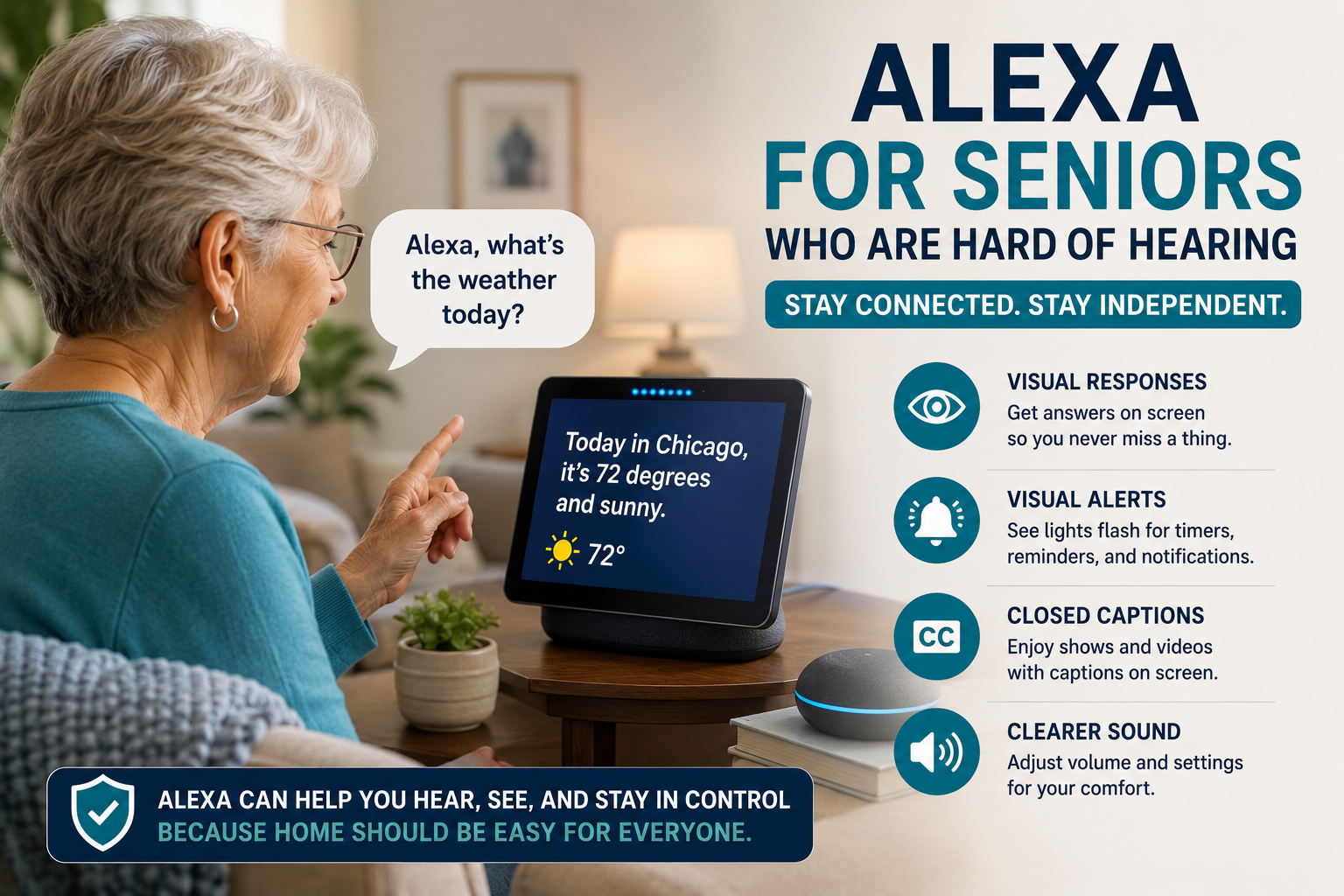
Older adult using Alexa with visual responses, captions, visual alerts, and accessibility features for hearing difficulties

Alexa for Seniors Who Are Hard of Hearing: Setup Tips That Help

Alexa for Seniors Who Are Hard of Hearing: Setup Tips That Help

Quick Answer

Alexa can help some seniors who are hard of hearing when the device is placed well, volume is adjusted, responses are simple, and visual cues are used where appropriate. Families should test placement, background noise, captions or display options, and whether voice calling is actually comfortable.

For a senior who is hard of hearing, a voice assistant can be helpful or frustrating depending on setup. If Alexa is too quiet, too far away, or competing with a television, the device may feel unreliable even when the idea is good.

This guide focuses on hearing-related setup. For broader Alexa basics, see our Alexa for seniors beginner guide.

Table of Contents

  • What Alexa can and cannot do
  • Setup checklist
  • What to test
  • Best first features
  • Decision path
  • FAQ

What Alexa Can and Cannot Do

Alexa can speak reminders, answer questions, play audio, control lights, and support calls. It cannot guarantee that a hard-of-hearing person will hear every alert, understand every response, or respond in an urgent situation.

Use Alexa as support, not as a substitute for hearing care, caregivers, emergency services, or professional advice.

Setup Checklist

  • Place the device in the room where it is needed most.
  • Keep it away from loud appliances and television speakers.
  • Test volume during real daily conditions.
  • Use short routines and predictable phrases.
  • Consider a display if visual cues help.
  • Keep calls simple and contacts easy to say.
  • Test reminders from another room before relying on them.
  • Review whether alarms need additional visual support.

What to Test

Setting Why It Matters What Families Should Try
Volume Responses must be audible Test in morning, evening, and with TV on
Placement Distance affects hearing and microphone pickup Move device closer to common seating
Visual display Some seniors benefit from seeing information Try large clock, reminders, captions where available
Routine wording Complex phrasing can confuse Use short, familiar phrases
Calling Audio clarity matters Test with real family calls

Best First Features

Family calls

Voice calls can reduce phone friction, but only if your parent can hear and understand the call clearly.

Visual reminders

If using a display, reminders can be both spoken and visible. That may help when audio alone is not enough.

Smart lights

Lights can provide visible feedback when a routine starts or when a room needs to be easier to navigate.

Simple commands

Use our Alexa commands for seniors guide, but begin with only a few phrases.

Use Visual Responses, Not Just More Volume

Turning the speaker up is not always the best answer. On supported Echo devices with a screen, Amazon documents several hearing-accessibility options, including Alexa Captions for Alexa responses, Closed Captioning for supported video, Call Captioning for supported calls, and Real Time Text for some calls or Drop In sessions. Feature availability can vary by device, language, country, and software version, so confirm the current options on the exact Echo Show. See Amazon’s Echo hearing accessibility guide.

Start by enabling one visual feature, then ask the senior to complete a real task: read an Alexa response, answer a family call, or notice a reminder. Test from the normal chair and in ordinary background noise. If the person cannot reliably see or understand the response, do not treat that feature as part of an urgent safety plan.

Know When Alexa Is Not the Right Tool

Alexa does not evaluate or treat hearing loss and does not replace hearing aids, a hearing assessment, or dedicated alerting equipment. The National Institute on Deafness and Other Communication Disorders explains that hearing difficulty can affect understanding instructions, warnings, phones, doorbells, and alarms. If those sounds are being missed, families should seek appropriate hearing-health advice and use alerting methods the person can perceive consistently.

Decision Path

  • If volume is the issue: adjust volume and move the device closer.
  • If understanding is the issue: simplify routines and use visual cues.
  • If background noise is the issue: change placement away from TV or appliances.
  • If reminders are missed: add visual support or use another reminder method too.
  • If hearing changes are significant: consult a hearing professional.

Privacy and Respect

Accessibility setup should be collaborative. Ask your parent what is easier to hear, what feels annoying, and what they want Alexa to do. Do not turn on features they do not understand or want.

Frequently Asked Questions

Is Alexa good for seniors who are hard of hearing?

It can help if volume, placement, and visual support are configured well. It may not be enough for important alerts.

Is Echo Show better than an Echo speaker?

Sometimes, because the screen can show clocks, reminders, and visual cues. But it can also feel more complicated. Our buying guide can help you choose an Echo around hearing and visual needs.

Can Alexa make phone calls louder?

Volume can be adjusted, but call clarity depends on hearing needs, room noise, and device placement.

Can Alexa replace hearing aids?

No. Alexa is not a hearing device or medical solution.

What should families set up first?

Start with volume, placement, one family contact, and one simple reminder.

30-Minute Setup Review

  • Test volume from normal seating.
  • Move the device away from noise.
  • Try one call.
  • Try one reminder.
  • Ask what was hard to hear.
  • Adjust before adding more features.
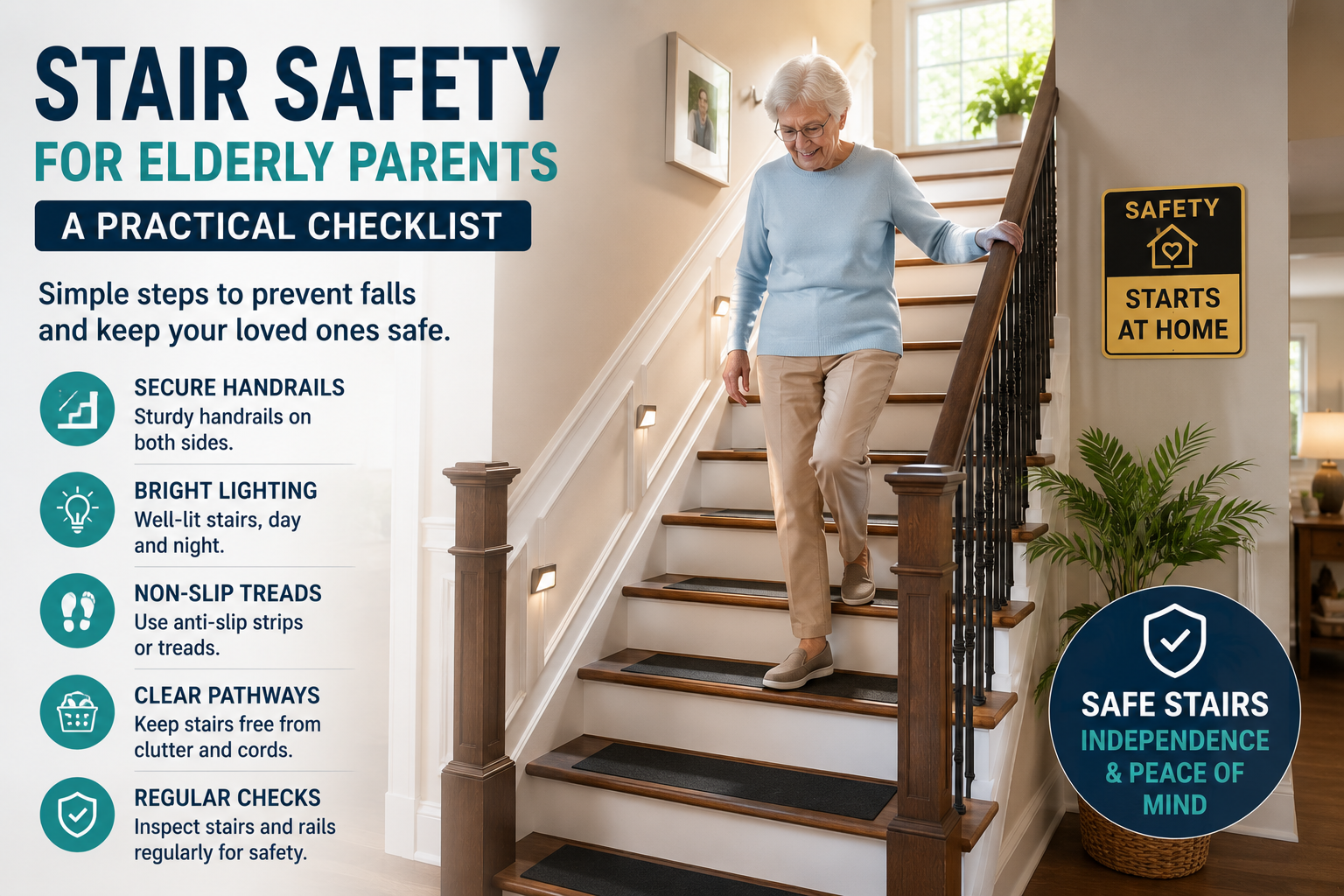
Senior woman using a well-lit staircase with secure handrails, non-slip treads, and clear pathways for safer movement at home

Stair Safety for Elderly Parents: A Practical Checklist for Families

Stair Safety for Elderly Parents: A Practical Checklist for Families

Quick Answer

Stair safety for elderly parents starts with secure handrails, bright lighting, visible step edges, clear stairs, non-slip surfaces, and careful attention to how your parent actually uses the stairs. If there have already been falls or major balance changes, seek professional assessment.

Stairs can become stressful before a family realizes there is a serious issue. A parent may pause longer, grip the wall, avoid carrying laundry, or choose not to go upstairs as often. Those small changes are worth noticing.

This article is stair-specific. For a whole-home review, use our room-by-room home safety checklist for seniors.

Table of Contents

  • Why stairs deserve attention
  • Stair safety checklist
  • What to look for
  • High-priority changes
  • Decision path
  • FAQ

Why Stairs Deserve Special Attention

Stairs require balance, strength, vision, timing, and confidence. Lighting, rail height, footwear, distractions, pets, and carrying objects can all affect safety.

Families should avoid assuming a staircase is fine just because it has always been there. Needs change over time.

Stair Safety Checklist

  • Check that handrails are secure and easy to grip.
  • Make sure lighting covers the full staircase.
  • Remove clutter from every step.
  • Check for loose carpet, slippery treads, or uneven edges.
  • Make step edges easy to see.
  • Review footwear used on stairs.
  • Watch whether your parent carries heavy items.
  • Check top and bottom landings.
  • Confirm light switches are reachable at both ends.
  • Ask whether stairs feel harder at certain times of day.

What to Look For

Feature Why It Matters What to Check
Handrails Support during ascent and descent Secure mounting, grip comfort, both sides if possible
Lighting Step depth and edges must be visible No shadows, reachable switches, nighttime visibility
Step surface Slippery or loose surfaces increase risk Carpet, tread, nosing, worn areas
Clutter Objects on stairs create trip hazards Laundry, shoes, packages, pet toys
Landing Transitions require turning and balance Clear space, lighting, rug edges

Highest-Priority Changes

Secure handrails

A handrail that moves, feels too thin, or stops too early is not reliable. Consider professional installation where needed.

Improve lighting

Good stair lighting should show every step. Shadows can make depth harder to judge.

Make step edges visible

Contrast can help seniors see where one step ends and the next begins, especially in low light.

Remove stair clutter

Stairs should not be used as temporary storage. Even one object can change footing.

Review daily routines

If laundry, medication, or meals require frequent stair trips, look for ways to reduce unnecessary carrying.

Use an Evidence-Based Stair Check

The CDC recommends railings on both sides of stairs and enough lighting throughout the home. Its Check for Safety checklist also asks families to remove objects from stairs, repair loose or uneven steps, secure or remove loose carpet, and provide light switches at both the top and bottom.

Walk the stairs with the older adult during the day and after dark. Check whether each handrail is secure for the full flight, whether the first and last step are easy to distinguish, and whether the person carries items because needed objects are stored on another floor. A motion light can support visibility, but it does not correct loose steps, poor balance, unsafe footwear, or a missing rail.

If the person has fallen, feels unsteady, cannot use the rail, or avoids the stairs, ask a qualified health professional or home-safety professional for an individual assessment. Building and handrail requirements vary by location, so structural work should follow local requirements rather than generic online measurements.

Decision Path

  • If grip is the issue: start with handrail security and shape.
  • If visibility is the issue: improve lighting and step contrast.
  • If slipping is the issue: review tread surface and footwear.
  • If carrying items is the issue: change routines or add storage on each level.
  • If falls have occurred: seek professional guidance.

When Stairs May No Longer Be Practical

Sometimes stair improvements are not enough. Repeated falls, dizziness, severe fatigue, or fear of stairs may require a bigger plan, such as moving daily activities to one level or consulting a professional.

For broader fall-risk planning, see our fall prevention checklist for seniors.

Frequently Asked Questions

Are handrails enough to make stairs safe?

Not always. Handrails help, but lighting, surface, clutter, footwear, and mobility also matter.

Should stairs have handrails on both sides?

Two handrails can help some seniors, but layout and installation matter. A qualified installer can advise.

How can I make stairs easier to see?

Improve lighting, reduce shadows, and consider contrast at step edges.

What should be removed from stairs?

Remove shoes, laundry, packages, decorations, cords, and pet items.

When should we stop using stairs?

If stairs are causing repeated falls, fear, or major fatigue, consult a professional and consider one-level living options.

30-Minute Stair Review

  • Walk the stairs slowly with lights as normally used.
  • Check each rail for movement.
  • Remove every object from the stairs.
  • Look for shadows and worn spots.
  • Ask your parent where they feel least confident.
  • Prioritize one repair, one lighting fix, and one routine change.
Older parent using simple smart home technology for safety, independence, reminders, and family connection

How to Know If an Elderly Parent Needs Smart Home Help

How to Know If an Elderly Parent Needs Smart Home Help

Quick Answer

An elderly parent may need smart home help when everyday tasks are becoming harder, reminders are being missed, lighting or safety issues are increasing, or family communication is becoming stressful. The best first step is not buying devices. It is identifying the specific problem technology should support.

Many families feel the same tension: they want to help, but they do not want to make a parent feel watched, pressured, or less independent. Smart home technology can help in the right situation, but only when it solves a real daily problem.

This is a decision-support guide, not a shopping list. For device examples, see our guide to smart home devices that help seniors stay independent.

Table of Contents

  • Signs to watch for
  • Decision table
  • What to start with
  • What not to solve with tech
  • Decision path
  • FAQ

Signs Smart Home Help May Be Useful

  • Missed reminders are becoming common.
  • Your parent avoids certain rooms or tasks.
  • Lighting, stairs, or bathroom routines feel less safe.
  • Family members worry when calls are not answered.
  • Medication, appointments, or meals need more structure.
  • Your parent wants help but dislikes complicated apps.
  • Small tasks require more physical effort than before.

Decision Table

Observation Possible Support First Question
Forgets appointments Voice reminders or calendar alerts Would a spoken reminder help?
Moves in the dark Smart lights or motion lights Which route is hardest at night?
Hard to reach by phone Voice calling or smart display Would calling by voice reduce friction?
Worries about home safety Doorbell, sensors, safety checklist What specific risk is most urgent?
Feels overwhelmed by devices One-device setup What is the simplest first win?

Start With the Problem, Not the Product

The best smart home setup begins with one sentence: “We are trying to make this specific routine easier.” That routine might be remembering medication, turning on lights, calling family, or feeling safer at the front door.

If safety is the main concern, review our guide to making a home safer for an elderly parent living alone.

What Smart Home Help Can Support

  • Reminders for daily routines.
  • Hands-free calls.
  • Lighting and nighttime movement.
  • Front-door awareness.
  • Simple routines that reduce steps.
  • Family peace of mind without constant check-ins.

What Technology Should Not Replace

Smart devices should not replace medical care, emergency services, caregivers, or honest family conversations. If your parent has repeated falls, sudden confusion, unsafe driving, medication errors, or major health changes, seek professional guidance.

A Three-Question Fit Test

  1. What specific task is becoming difficult? Describe the repeated problem without naming a product: a dark hallway, missed family calls, difficulty reaching a switch, or uncertainty about a daily routine.
  2. Does the older adult want the proposed help? A useful device still needs consent, understandable controls, and a clear way to stop using it.
  3. Who will maintain the setup? Decide who handles passwords, updates, batteries, subscriptions, false alerts, and troubleshooting before buying.

Choose the Least Complex Fix That Solves the Problem

The answer may be a brighter bulb, a relocated object, a written routine, a local service, or family support rather than a connected device. The National Institute on Aging’s aging-in-place guidance recommends starting with the help needed now, planning for future needs, correcting immediate home hazards, and revisiting the plan as circumstances change.

If technology is appropriate, start with one narrow task and keep a manual fallback. Move to multiple connected devices only after the first setup has proved understandable and useful. If the concern involves falls, medication errors, wandering, major cognitive change, or inability to complete daily activities, technology selection should follow an appropriate professional or care assessment rather than lead it.

Decision Path

  • If the issue is memory: consider simple reminders before sensors.
  • If the issue is movement at night: review lighting and fall risks first.
  • If the issue is communication: try voice calling or a simple display.
  • If the issue is front-door safety: consider whether a doorbell or lock review is appropriate.
  • If the issue is broad decline: involve professionals before relying on devices.

Conversation Tips

Lead with independence. Instead of saying, “You need monitoring,” try, “Would it make mornings easier if the lights and reminders were simpler?” Respect matters. Technology works best when the older adult understands and agrees with the purpose.

For broader planning, use our aging in place checklist.

Frequently Asked Questions

What is the first smart home device for an elderly parent?

Usually the best first device is the one that solves the clearest problem, such as a voice assistant for reminders or a smart light for nighttime safety.

How do I avoid making my parent feel monitored?

Ask permission, explain the purpose, and start with supportive tools rather than surveillance-style devices.

Can smart home technology help aging in place?

It can support aging in place when paired with home safety, family communication, and realistic planning.

Should I buy several devices at once?

No. Start with one or two practical tools and review whether they are actually being used.

When is technology not enough?

If safety risks are frequent, medical issues are changing, or daily care needs are increasing, professional support may be needed.

30-Minute Family Review

  • List the top three worries.
  • Match each worry to a daily routine.
  • Ask your parent what feels hardest.
  • Choose one low-friction improvement.
  • Review after two weeks.
Older adult using Alexa accessibility features and a smart speaker in a bright American living room

Alexa Accessibility for Seniors With Low Vision: Simple Setup Tips for Families

Alexa Accessibility for Seniors With Low Vision: Simple Setup Tips for Families

Quick Answer

Alexa can be helpful for seniors with low vision because many tasks can be done by voice instead of by reading small text or tapping through apps. Families should start with simple commands, clear volume, predictable routines, easy calling, and display settings if using an Echo Show.

Low vision can make everyday technology frustrating. A parent may struggle to read phone screens, find the right app, see small buttons, or check tiny reminder text. Alexa does not solve every accessibility challenge, but it can reduce the need to look at a screen for common tasks.

This article focuses on accessibility and setup. For general beginner setup, start with our Alexa for seniors beginner guide.

Table of Contents

  • Why voice control can help
  • Low-vision setup checklist
  • What to configure first
  • Echo speaker vs display
  • Decision path
  • FAQ

Why Voice Control Can Help Seniors With Low Vision

Voice control is useful because it removes several visual steps. A senior can ask for the time, weather, reminders, music, calls, or lights without reading a menu.

The goal is not to make Alexa complicated. The goal is to choose a few voice actions that solve real friction.

Low-Vision Alexa Setup Checklist

  • Choose one main room for the first device.
  • Set the volume high enough for normal conversation.
  • Practice five useful phrases only.
  • Use contact names that are easy to say.
  • Create reminders with plain language.
  • Use routines for repeated daily tasks.
  • If using Echo Show, increase display readability.
  • Keep the device away from loud appliances.
  • Place it where the microphone can hear clearly.
  • Write or print commands in large type if helpful.

What to Configure First

Feature Why It Helps Family Setup Tip
Time and weather Useful daily practice Teach the same phrase each morning
Reminders Reduces need to read notes Use simple wording and repeat schedules
Calls Makes contact easier Use clear contact names
Music or radio Makes the device feel friendly Set up favorite stations
Smart lights Reduces searching for switches Use names like bedroom light or kitchen light

Echo Speaker vs Echo Show for Low Vision

A voice-only Echo can be enough if your parent mainly wants reminders, calls, music, and simple answers. An Echo Show may help if large visual cues, photos, clocks, or video calls are useful. For model choices, compare voice-only and screen-based Echo options.

The screen is not automatically better. If it adds confusion, keep the first setup voice-only.

Voice Commands That Are Easiest to Learn

Start with phrases that are short and useful. Our Alexa commands for seniors guide has a broader list, but low-vision setup should begin with just a few.

  • “Alexa, what time is it?”
  • “Alexa, what’s the weather?”
  • “Alexa, call my daughter.”
  • “Alexa, remind me at 8 PM.”
  • “Alexa, turn on the kitchen light.”

Use VoiceView and Show and Tell for Specific Tasks

Echo Show devices include the VoiceView screen reader, which can speak on-screen items as a user explores the display. Amazon documents VoiceView for supported screen devices and recommends accessibility labels for visual controls. Amazon also offers Show and Tell on Echo devices with a screen to identify some common pantry items and objects held in front of the camera.

These features solve narrow problems; they are not a general vision system. Test each task with the person who will use it, keep the number of gestures and commands small, and make sure the person can return to a familiar starting point if the screen changes.

Pair Voice Control With Better Lighting and Contrast

The National Eye Institute’s low-vision guidance recommends practical measures such as brighter lighting, reduced glare, larger text, stronger contrast, and vision rehabilitation when daily activities are affected. Voice control can reduce some screen use, but it should complement those changes rather than replace them.

Do not depend on Alexa as the only way to control an essential light, unlock a door, read medication information, or call for help. Keep physical controls and another communication method easy to reach.

Decision Path

  • If reading screens is the main issue: prioritize voice reminders, calls, and information.
  • If finding switches is hard: add one smart light in a key room.
  • If video calls matter: consider whether a display is helpful or distracting.
  • If commands are forgotten: reduce the list and practice one routine at a time.

Trust and Limits

Alexa should not replace emergency services, caregivers, medical advice, or accessibility support from professionals. It can support daily routines, but it cannot judge whether a parent is safe.

Frequently Asked Questions

Is Alexa useful for seniors with low vision?

It can be useful when tasks are voice-first and simple, such as reminders, calls, weather, music, and lights.

Is an Echo Show better for low vision?

Sometimes. A larger display can help some seniors, but a screen can also add complexity. Test what feels easier.

Can Alexa read information out loud?

Alexa can answer many questions by voice and speak reminders, timers, weather, and other simple information.

Can Alexa help with lights?

Yes, with compatible smart lights or plugs. Start with one important light before adding more.

What should families avoid?

Avoid setting up too many commands at once. Keep names, routines, and expectations simple.

Final Action Plan

  • Pick one room.
  • Set volume and wake word.
  • Teach five commands.
  • Create one reminder.
  • Set up one contact.
  • Test one light only if useful.
  • Review after one week.
Senior-friendly bedroom with warm nighttime lighting, illuminated walkway, and Alexa routine support for safer movement at night

Nighttime Safety for Seniors at Home: A Practical Evening Checklist

Nighttime Safety for Seniors at Home: A Practical Evening Checklist

Quick Answer

Nighttime safety for seniors starts with clear walking paths, soft lighting, easy bathroom access, stable support, and simple evening routines. Families should focus first on the bedroom-to-bathroom route, loose rugs, poor lighting, clutter, footwear, and anything an older parent may reach for when tired or half-awake.

Many families first notice nighttime safety issues in small ways. A parent leaves the bedroom lights off to avoid waking fully. They walk to the bathroom slowly, hold furniture for balance, or step around shoes, rugs, laundry, or cords. The home may feel safe during the day but much harder to navigate after dark.

This guide focuses only on nighttime routines and movement at home. For a broader safety review, use our room-by-room home safety checklist for seniors.

Table of Contents

  • Why nighttime can be harder
  • Nighttime safety checklist
  • What to look for
  • Highest-priority changes
  • Decision path
  • FAQ
  • 30-minute evening review

Why Nighttime Can Be Harder for Older Adults

At night, ordinary obstacles can become more difficult to see and avoid. A rug edge, a pet toy, a laundry basket, or a dark hallway may increase risk because the person is tired, moving more slowly, or trying not to turn on bright lights.

Nighttime safety is not about making the home look clinical. It is about making the most common evening and overnight movements easier: getting out of bed, finding glasses or a walker, reaching the bathroom, turning on lights, and returning to bed without rushing.

Nighttime Safety Checklist for Seniors

  • Clear the path from bed to bathroom.
  • Remove loose rugs, shoes, cords, baskets, and low furniture from the route.
  • Add soft motion lights near the bed, hallway, bathroom entry, and toilet area.
  • Keep glasses, phone, water, and mobility aids in the same place every night.
  • Make sure slippers or shoes have secure backs and non-slip soles.
  • Check that the bathroom floor is dry before bedtime.
  • Use night lights that turn on quickly enough.
  • If you are choosing a motion night light, compare plug-in, battery and hardwired options in our guide before you buy.
  • Keep the toilet route simple and predictable.
  • Review whether furniture is being used as support.
  • Consider voice-controlled lights if switches are hard to reach.

What to Look For

Area Why It Matters What to Check
Bedroom Most nighttime trips start here Bed height, lighting, footwear, glasses, phone, mobility aid location
Hallway Dark paths can hide obstacles Rugs, cords, furniture corners, light switches, motion lighting
Bathroom entry Transitions can be awkward when tired Door swing, threshold, mat placement, floor dryness
Toilet area Standing and turning require balance Lighting, support, toilet height, nearby clutter
Return path People may be groggy after waking Consistent route, no new objects, soft lighting back to bed

Highest-Priority Changes

Start with simple, predictable lighting

The safest nighttime setup does not have to start with a complicated automation. Begin with lighting your parent can understand and use when they are tired: a clear walking path, an easy bedside lamp, a reachable wall switch, and low-level lights that stay consistent from bedroom to bathroom.

For many families, a basic plug-in night light or battery-powered light is the first useful fix. Motion lighting can help when it turns on quickly and gently, but it should not surprise your parent, create glare, or require them to remember an app or voice command in the middle of the night.

Improve the bed-to-bathroom route

Walk the route at night with the same lighting your parent normally uses. If you cannot see the floor clearly, the lighting needs improvement.

Add soft motion lighting

Motion lights can help if they turn on quickly and do not glare. Test them from the bed, hallway, and bathroom doorway.

Check visibility, reach, and family setup

Nighttime safety is harder when vision, balance, or reaction time changes. Walk the route with the same lights your parent normally uses after dark and look for shadows, dark thresholds, shiny glare, curled rug edges, and switches that are hard to find by touch.

Family members can help by setting up lights, testing sensors, and keeping controls simple, but the system should not depend on a caregiver being awake or watching. Your parent should still have a simple physical way to turn on light without bending, stretching, or searching for a phone.

Remove small obstacles

Nighttime safety often improves when families remove things rather than add products. Shoes, baskets, cords, stools, and loose rugs should not sit in the walking path.

Make bathroom access easier

Bathroom trips are one of the most common overnight movements. Keep the route simple, dry, well lit, and free of loose mats or clutter. A dedicated bathroom checklist can be linked here after that article is live.

Use simple voice support carefully

Voice assistants may help with lights or reminders, but they should not replace safe flooring, support, or family planning. For basic voice phrases, see our Alexa commands for seniors guide.

Decision Path

  • If the main issue is darkness: start with motion lighting and visible switches.
  • If the main issue is tripping: remove rugs, cords, clutter, and unstable furniture.
  • If the main issue is bathroom urgency: review the shortest safe route and whether bathroom support is adequate.
  • If the main issue is standing from bed: review bed height, footwear, and mobility support.
  • If there have already been falls: seek a professional home safety or healthcare assessment.

What If the Smart Lights Do Not Work?

Smart lighting can support safer nighttime movement, but it should not be the only layer. Wi-Fi may fail, a voice assistant may not hear clearly, a sensor may miss movement, an app may be hard to open, or power may be unavailable in part of the home.

Keep at least one manual fallback in the route: a reachable switch, a bedside lamp, or a battery-powered light that does not depend on Wi-Fi. The goal is not to build a complex system. It is to make sure your parent can still see the floor and reach the bathroom even when the smart part does not respond.

When Products May Not Be Enough

Lighting, mats, and smart devices can add support, but repeated falls, dizziness, confusion, sudden weakness, or major balance changes require professional guidance. This article is educational and is not medical advice.

Nighttime safety also belongs inside a broader aging plan. Our aging in place checklist can help families review daily routines, support, communication, and home layout together.

Frequently Asked Questions

What is the most important nighttime safety change for seniors?

For many homes, the most important first change is a clear, well-lit route from bed to bathroom.

Are night lights enough?

Sometimes, but they should be bright enough to show the floor without creating glare. Motion lights may work better in hallways or bathrooms.

Can Alexa help with nighttime safety?

Alexa can help turn on lights or start simple routines, but it should not replace safe flooring, support, or emergency planning.

Should rugs be removed at night?

Loose rugs or curled edges should be removed or replaced with secure, flat, non-slip options.

What if my parent has already fallen at night?

Do not rely only on products. Ask a healthcare professional, occupational therapist, or qualified home safety specialist for guidance.

30-Minute Evening Review

  • Walk from bed to bathroom with nighttime lighting only.
  • Remove anything from the route that touches your foot.
  • Check whether lights turn on before the first step.
  • Place glasses, phone, and mobility aids consistently.
  • Ask your parent what feels hardest after dark.
  • Write down the top three fixes and start with the simplest one tonight.